Computers / Tablets
User Manual for UMAX Visionbook 10Wr Tab
Quick guide for the UMAX Visionbook 10Wr Tab. Learn how to power on, charge, use Windows 10 shortcuts, touchpad gestures, and safety instructions.
Table of contents
Manual images
Click an image to enlargeQuick Start Guide
Before using your UMAX Visionbook 10Wr Tab for the first time, ensure you charge the device fully. To turn on the computer, press and hold the power button for a couple of seconds.
Device Overview
The device consists of a tablet and a detachable keyboard. Key components include:
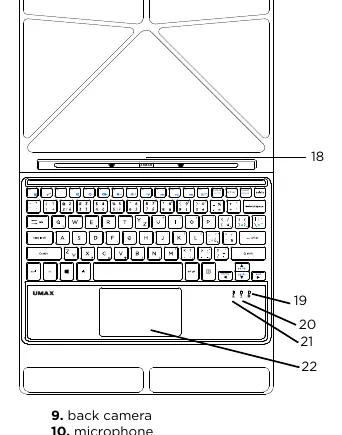
- Tablet: Power button, volume buttons, front camera, touch screen, Windows button, and keyboard connection pins.
- Keyboard: Touchpad, keyboard keys, and status indicators (touchpad disabled, num lock, caps lock).
- Ports: Microphone, 3.5mm audio jack, USB Type-C, mini HDMI, USB 3.0, charging port, and microSD card slot.
Operation and Charging
To charge your computer, connect the provided charger to the charging port. Do not use any other charger. The charging indicator shows the status:
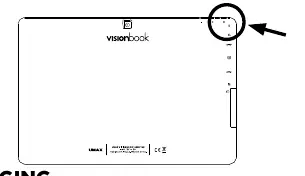
- Lights up: Charging in progress.
- No light: Charging finished or not charging.
Other indicators include the Caps Lock, Num Lock, and Touchpad indicators, which light up when the respective function is active.
Windows 10 Shortcuts
The device supports standard Windows 10 keyboard shortcuts to improve productivity:
- Windows + Start menu: Launches Start menu.
- Windows + A: Launches Action Center.
- Windows + D: Minimizes all applications.
- Windows + E: Launches File Explorer.
- Windows + I: Launches Settings.
- Windows + K: Launches Connect panel.
- Windows + L: Locks your computer.
- Windows + S: Launches Search.
Use the Fn key in combination with F1-F12 keys to control volume, brightness, media playback, and wireless modes.
Touchpad Gestures
The touchpad supports multi-finger gestures for Windows 10 navigation:
- Tap/Double Tap: Select or launch an app.
- Two Finger Scroll: Slide two fingers to scroll horizontally or vertically.
- Zoom: Pinch or spread two fingers to zoom out or in.
- Three Finger Swipe: Swipe left/right to switch apps, up for Task View, down for desktop.
- Four Finger Tap: Invoke Action Center.
MicroSD Card Installation
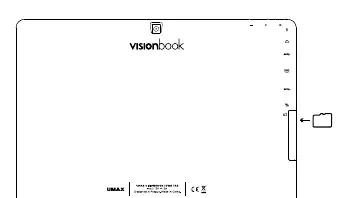
You can expand storage by inserting a MicroSD card. Insert the card into the slot on the side of the tablet in the direction indicated in the diagram.
Safety Information
- Operating Temperature: 10° to 35° C.
- Storage Temperature: -25° to 45° C.
- Humidity: 0% to 90% (noncondensing).
- Battery: Do not attempt to replace or remove the battery yourself.
- Handling: Place on a stable surface with adequate air circulation. Avoid contact with liquids, oils, and lotions.
- Medical Interference: The device contains magnets and radios that may interfere with medical devices like pacemakers.
Technical Support
For service and support, contact Umax Czech a.s. at +420 800 118 629 or via email at [email protected]. The manufacturer address is Kolbenova 962/27e, 198 00 Prague 9, Czech Republic.
Practical help
Common problems
Device not charging
Ensure you are using the provided charger. Check that the connection is secure and the power outlet is working.
Touchpad not responding
Check the touchpad indicator. If it is lit, the touchpad is disabled. Use the Fn + Esc shortcut to enable it.
Before use
- Charge the device fully before the first use.
- Ensure the device is placed on a stable, flat surface.
- Verify that the environment is within the operating temperature range (10-35°C).
Specs in practice
- Operating Temperature
- 10° to 35° C; keep the device within this range for optimal performance.
- Relative Humidity
- 0% to 90% (noncondensing); avoid high moisture environments.
Images and diagrams
- The overview diagrams on pages 4 and 5 identify all physical buttons, ports, and indicators.
- The touchpad gesture diagrams on pages 10-12 illustrate how to perform multi-finger navigation.
Model compatibility
- Designed for use with Windows 10.
- Contains magnets that may interfere with medical devices.

Manual page author
Michael Turner
Technical manual editor
Reviews PDF manuals for structure, safety notes, and practical product details so readers can find the right information quickly.