Computers / Tablets
User Manual for Hyundai 10WWA464B 10.1-inch Tablet
Quick guide for the Hyundai 10WWA464B tablet. Includes safety precautions, port layout, keyboard usage, Windows 10 interface navigation, and basic operations.
Table of contents
Manual images
Click an image to enlargeQuick guide from the manual
The Hyundai 10WWA464B is a 10.1-inch tablet running Windows 10. This guide covers essential setup, safety, and navigation. Always back up important data regularly to avoid loss. If the device is damaged or defective, a 1-year warranty service is available under specific conditions.
Device layout
The tablet features various ports and buttons for connectivity and control:
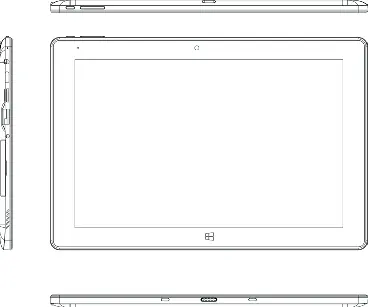
- Power: Power button.
- Volume +/-: Volume control.
- DC: Power input.
- Type-C: Data and charging port.
- Mini HDMI: Video output.
- USB 3.0: Peripheral connection.
- SD Card: Expandable storage.
- Pogo Pin: Magnetic connection for the keyboard.
Keyboard usage
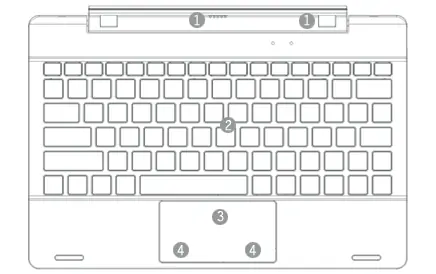
The keyboard is an optional accessory. It features a magnetic interface for alignment and linking to the tablet. The keyboard group provides a full-size QWERTY layout. The touch tablet (trackpad) functions similarly to a mouse for cursor control.
Windows 10 interface
The device uses the Windows 10 operating system:
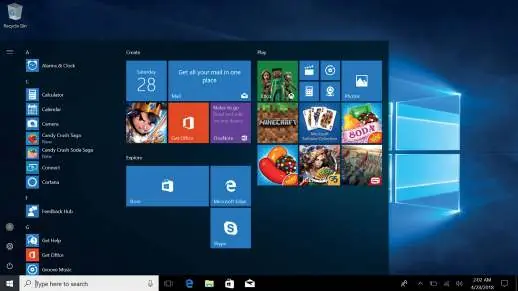
- Start Menu: Access Start, Device, Setup, Share, and Search programs.
- Action Center: Notification center for quick settings like Wi-Fi, Bluetooth, and Tablet/PC mode.
- App Interface: You can pin applications to the Start screen or taskbar by right-clicking an app and selecting the appropriate option.
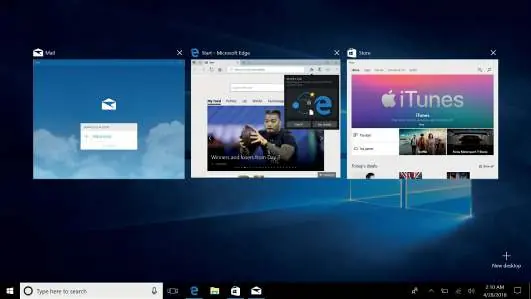
- Multitasking: Use Task View to see and manage running applications.
Basic operations
To manage power, use the Start menu to access Sleep, Shut Down, or Restart options. Ensure you log into your Microsoft account for full application functionality.
Safety and maintenance
Follow these precautions to ensure device longevity:
- Use in non-tropic areas below 2,000 meters.
- Avoid extreme temperatures (too hot/cold) and high humidity.
- Keep away from strong magnetic or static environments.
- If liquid spills on the device, close it immediately and let it dry completely before use.
- Clean only with a dry, soft cloth; do not use detergents.
- Do not disassemble the device, as this voids the warranty.
- Use only original batteries to prevent explosion risks.
Manufacturer information
Hyundai
Practical help
Common problems
Liquid spill on device
Close the device immediately and do not use it until it is completely dry.
Device is dirty
Clean only with a dry, soft cloth. Do not use detergents or chemical cleaners.
Data loss
Back up important files regularly. The company is not responsible for data loss due to software/hardware issues.
Battery safety
Use only original batteries. Replacement with an incorrect type may cause an explosion.
Before use
- Ensure the environment is non-tropic and below 2,000 meters altitude.
- Check that the ambient temperature is not extreme (avoid <35°C or excessive heat).
- Verify the device is away from strong magnetic or static fields.
- Ensure the battery is the original type.
- Back up important data before performing any system adjustments.
Images and diagrams
- Buttons 1 and 2 control Power and Volume.
- Ports 4 through 7 include DC, Type-C, Mini HDMI, and USB 3.0.
- Port 9 is the SD Card slot.
- Connector 11 is the Pogo Pin interface for the keyboard.
Model compatibility
- The keyboard is optional; ensure it is configured for your specific tablet model.

Manual page author
Michael Turner
Technical manual editor
Reviews PDF manuals for structure, safety notes, and practical product details so readers can find the right information quickly.