Computers / Tablets
User Manual for Hyundai HyTab Pro 10WAB1 Tablet
Quick guide for the Hyundai HyTab Pro 10WAB1 tablet. Learn about key layout, Windows 10 interface navigation, app management, multitasking, and basic power operations.
Table of contents
Manual images
Click an image to enlargeQuick Guide from the Manual
This document provides essential instructions for operating the Hyundai HyTab Pro 10WAB1 tablet. It covers hardware layout, basic Windows 10 navigation, and system operations. Please note that the keyboard is an optional accessory and configuration may vary based on the specific package purchased.
Key Layout and Definitions
The tablet features several physical buttons and ports to facilitate operation:
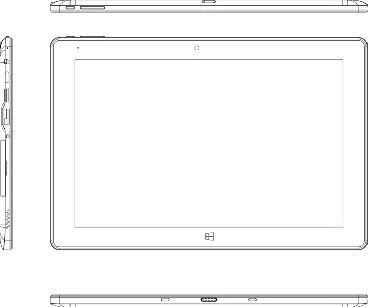
- Power: Used to turn the device on or off.
- Volume +/-: Adjusts the audio output level.
- Cameras: Front and rear cameras for video and photography.
- Ports: Includes DC power input, Type-C port, Mini HDMI, USB 3.0, and an earphone jack.
- SD Card Slot: For expandable storage.
- Pogo Pin: Magnetic interface for connecting the optional keyboard.
Keyboard and Base
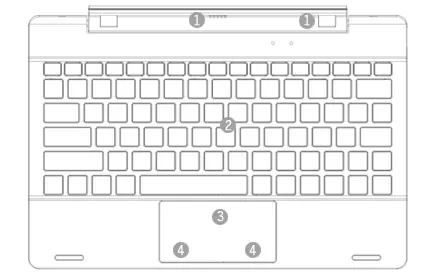
If you are using the optional keyboard, it connects via a magnetic interface. The keyboard group provides a full-size QWERTY layout and a touchpad that functions like a mouse. The base acts as a folding stand for the tablet.
Windows 10 Desktop Navigation
The device runs on Windows 10. Key navigation features include:
- Start Menu: Access programs, settings, and power options.
- App Interface: You can pin applications to the Start screen or taskbar by right-clicking an app and selecting Pin to Start or Pin to taskbar.
- Cortana: Use for fast smart searching.
- Multitasking: Click the Task View icon to see all running applications, switch between them, or close them.
- Action Center: A notification center that allows quick access to settings like Wi-Fi, Bluetooth, and Tablet/PC mode.
Basic Operations
To manage power, use the Start menu to access the Power icon. From there, you can select:
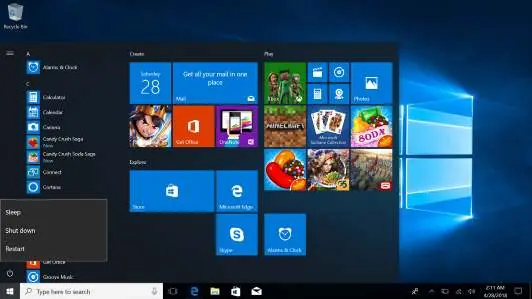
- Sleep: Puts the device in a low-power state.
- Shut Down: Completely turns off the device.
- Restart: Reboots the operating system.
Support and Contact
For technical support or sales inquiries, you can contact Hyundai Technology:
U.S. and Worldwide: (800) 560-0626 (Monday-Friday 8:00am-5:00pm PST) or email [email protected]
Mexico (Spanish): 81 5030-7375 (Lunes-Viernes 8:00am-5:00pm CST) or email [email protected]
Visit the official website at http://www.hyundaitechnology.com/
Official resources from the manual
Manufacturer information
Hyundai
Practical help
Common problems
Keyboard not connecting or working
Ensure the magnetic interface (Pogo Pin) is firmly linked to the tablet.
Application will not run
Ensure you are logged into your Microsoft account before running the application.
Before use
- Verify the tablet is charged.
- Ensure the keyboard (if used) is magnetically attached.
- Log in to your Microsoft account for full app functionality.
- Check that all necessary peripherals are connected to the correct ports (USB, HDMI, etc.).
Images and diagrams
- The tablet features a front and rear camera, volume controls, and various ports including USB 3.0, Type-C, and Mini HDMI.
- The keyboard interface uses a magnetic connection for alignment.
Model compatibility
- Keyboard is optional and configuration depends on the specific tablet model purchased.

Manual page author
Michael Turner
Technical manual editor
Reviews PDF manuals for structure, safety notes, and practical product details so readers can find the right information quickly.