Electronics / Cables & Adapters
User Manual for UNI USB-C to Ethernet Adapter with 100W Charging
Quick guide for the UNI USB-C to Ethernet Adapter with 100W charging. Learn about compatibility, troubleshooting connection issues, using the PD port, and understanding LED status indicators.
Table of contents
Quick guide from the manual
This guide provides essential information for using your UNI USB-C to Ethernet Adapter. The device is designed to provide a stable wired internet connection via USB-C and includes a Power Delivery (PD) port for charging your laptop.
Important: The PD port is an input for power supply only. It cannot be used as an output power source to charge mobile phones or tablets.
Using the PD charging port
To use the fast charging feature:
- Connect the PD port to your power supply device.
- Connect the USB-C port to your laptop.
- Use a charger and cable rated above 65W with the PD fast charging protocol for optimal performance.
- Note that actual power delivery depends on the charger, cable, and device interface protocol.
Understanding LED indicators
The adapter features LED lights to indicate status:
- Yellow light: Signal connection is normal.
- Steady green light: Power is normal.
Troubleshooting
Connection issues
If the product is not working:
- Verify your device is on the compatibility list.
- Ensure your phone or tablet supports Ethernet and is compatible with USB 3.0 or above.
- Try connecting other devices to the adapter to rule out device-specific issues.
Speed issues (not reaching 1Gbps)
- Ensure the USB-C port on your device supports USB 3.0 or above.
- Use a network cable rated CAT6 or higher.
- Check your network bandwidth allocation.
Compatibility and limitations
The adapter is designed for USB-C to Ethernet devices. It is not compatible with:
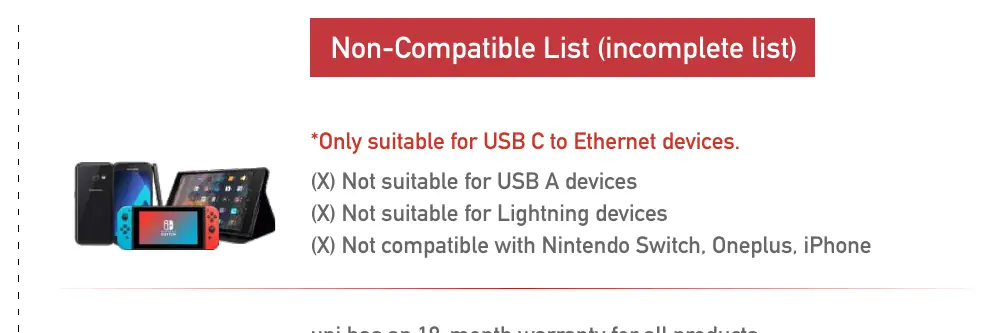
- USB-A devices
- Lightning devices
- Nintendo Switch
- OnePlus devices
- iPhone
It is normal for the adapter to heat up during continuous signal transmission and conversion. The aluminum alloy casing is designed for heat dissipation and will not cause harm.
Practical help
Common problems
Adapter not working
Check device compatibility, ensure USB 3.0+ support, and test with another device.
Slow internet speed (not 1Gbps)
Ensure the USB-C port supports USB 3.0+, use a CAT6+ cable, and check bandwidth allocation.
Adapter gets hot
This is normal operation due to the aluminum alloy casing dissipating heat during signal conversion.
Before use
- Ensure your device has a USB-C port.
- Use a CAT6 or higher network cable for 1Gbps speeds.
- Use a charger and cable rated above 65W for the PD port.
- Verify your device is compatible with USB 3.0 or above.
Specs in practice
- Yellow Light
- Indicates normal signal connection.
Model compatibility
- Compatible with USB-C to Ethernet devices (Laptops, PCs, Tablets, Phones).
- Not compatible with USB-A, Lightning, Nintendo Switch, OnePlus, or iPhone.

Manual page author
Emily Carter
User documentation editor
Prepares concise manual descriptions and highlights the most useful setup, operation, and maintenance information for readers.