Power / USB Chargers
User Manual for Unitek 120W 10-Port USB Charging Station
Quick guide and user manual for the Unitek 120W 10-Port USB Charging Station (Model Y-2190F). Includes setup instructions, port layout, safety tips, and troubleshooting.
Table of contents
Quick Guide
This manual provides instructions for the Unitek 120W 10-Port USB Charging Station (Model Y-2190F). It is designed to charge multiple devices simultaneously using smart USB and Power Delivery (PD) ports.
Product Diagram
The charging station features the following components:
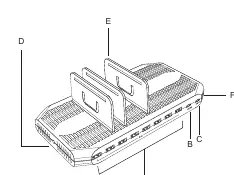
- A: Smart USB Output (Each 5V 2.4A Max)
- B: USB C 18W PD port
- C: USB C 60W PD port
- D: DC Power Port
- E: Adjustable Dividers (11 pieces included)
- F: Power Indicator LED
Installation and Usage
- Connect the AC power cord to the power adapter, then connect the adapter to the DC power port on the charging station.
- Install the adjustable dividers into the slots on the charging station. Adjust the distance between dividers based on the width of your devices.
- Ensure there is no space between the charging station and the divider when inserting.
- Connect the power cord to a wall outlet. Ensure the LED indicator turns on.
- Place your devices into the slots and connect them to the appropriate USB ports.
Safety and Cautions
- Keep the device away from liquids and high-temperature sources.
- Do not drop, knock, or disassemble the product.
- Do not place charging equipment weighing more than 2kg on the product.
- Keep out of reach of children.
- Use original USB charging cables for optimal performance.
Troubleshooting
- Green light blinking: The station has exceeded the maximum output load and is in self-protection mode. Detach some devices or reduce power output.
- Station stops working: The total power output has exceeded the limit. Remove some devices and restart the station.
- Device not recognized for Quick Charge: Ensure you are using a genuine, high-quality data cable.
- Device not supporting PD/FCP: The Type-C port will automatically detect the device and output 5V to prevent damage.
Specifications
- Model Number: Y-2190F
- Input: AC 100-240V 50/60Hz 3A Max
- Output: DC 20V/6A Total
- Dimensions: 9.4 x 4.7 x 1.0 inches (23.8 x 11.8 x 2.6 cm)
- Weight: 36.3 oz
Warranty
The product is covered by a 24-month warranty for manufacturer defects. For support, contact: [email protected]
Practical help
Common problems
Green light is continuously blinking
The station is overloaded. Detach some devices or reduce the power output to resolve the overheating protection.
Station stops working suddenly
The total power output exceeded the limit. Remove some devices and turn the station back on.
Device does not recognize Quick Charge
Ensure you are using a genuine, high-quality data cable. Poor quality cables can affect current transmission.
Before use
- Verify package contents: Charging Station, Power Cord, AC Adapter, 11 Dividers.
- Ensure the power source is AC 100-240V.
- Install dividers according to the width of your devices.
- Ensure no gap exists between the station and the divider.
- Use original USB charging cables.
Specs in practice
- Smart USB Output
- Each standard USB port provides up to 5V 2.4A.
Images and diagrams
- A: Smart USB Output ports for standard devices
- B: USB-C 18W Power Delivery port
- C: USB-C 60W Power Delivery port
- D: DC Power input port
- E: Adjustable dividers for organizing devices
Model compatibility
- Type-C port automatically detects device requirements.
- If a device does not support PD/FCP, the output defaults to 5V.
- Not intended for life-critical equipment (medical, nuclear, aerospace).

Manual page author
Emily Carter
User documentation editor
Prepares concise manual descriptions and highlights the most useful setup, operation, and maintenance information for readers.