Electronics / Cameras
Uniview Bullet Network Camera Quick Guide
A comprehensive guide for installing and configuring Uniview Bullet Network Cameras, including essential waterproofing procedures, mounting instructions, and network setup.
Table of contents
Quick guide from the manual
This document provides essential instructions for the installation and initial setup of Uniview Bullet Network Cameras. Key procedures include mandatory cable waterproofing, physical mounting, and network configuration. Always ensure the device is installed by a trained professional and that all safety warnings are followed to prevent damage or injury.
Packing List
Before starting, ensure the package contains the following items. Contact your local dealer if any items are missing or damaged:
- Camera
- Waterproof components
- Product documents
Waterproof Requirements
Proper waterproofing is critical to prevent device damage. Follow these steps carefully:
- Connect all necessary cables and cut off unused copper wires.
- Use insulation tape to insulate the connection part of each cable.
- Fully stretch self-adhesive waterproof tape and wrap the connection part and cable ends tightly.
- Tighten the tape at both ends to prevent leakage.
- Mount the supplied rubber ring onto the network cable interface.
- If a DC cable is present but unused, insert the plug into the interface.
- Optionally, place the cables into a waterproof junction box.
Mounting the Camera
Ensure the wall can withstand the weight of the device. Required tools include an ESD wrist strap or gloves, a Phillips screwdriver, and an electric drill.
- Locate and drill holes in the mounting surface.
- Remove the junction box cover.
- Mount the bracket onto the wall and lead external cables out from the junction box (approx. 90mm).
- Install the IoT card and Micro SD card if required (ensure power is disconnected first).
- Use screws to mount the device onto the bracket.
- Connect all tail cables and complete the waterproof measures.
Cable Connection
The camera typically features the following interfaces:
- Network interface
- Power interface
- Audio input/output
- Alarm input/output
Device Management
You can manage the camera using two methods:
Manage on UNV-Link App
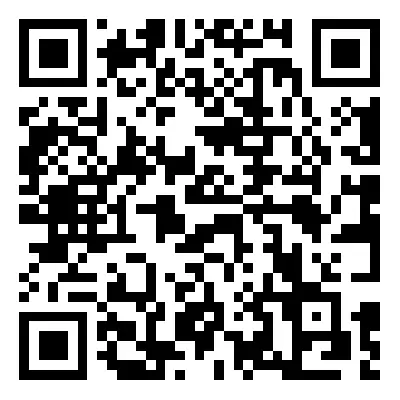
Download the UNV-Link app, register or log in, and tap Add Device. Scan the register code on the camera or the quick guide to add the device.
Manage on Web
Access the camera via a web browser using the default IP address 192.168.1.13. The default username/password is admin/123456. It is strongly recommended to change the password immediately after the first login to a strong password containing digits, letters, and special characters.
Safety and Compliance
The device must be installed and maintained by a trained professional. Ensure good ventilation, protect the device from liquids, and use a stable power supply. The device complies with FCC and EU directives. Dispose of batteries and electronic waste according to local regulations.
Manufacturer information
Uniview
Practical help
Common problems
Water ingress causing device damage
Ensure all cable connections are wrapped with insulation tape and self-adhesive waterproof tape, and the rubber ring is installed on the network interface.
Unauthorized access
Change the default password (admin/123456) immediately upon first login to a strong password with at least nine characters.
Micro SD card damage
Always disconnect the power supply before inserting or removing the Micro SD card.
Before use
- ESD wrist strap or gloves
- Phillips screwdriver
- Electric drill
- Insulation tape (not included)
- Self-adhesive waterproof tape (supplied with some products)
- Waterproof junction box (purchased separately)
Specs in practice
- Default IP Address
- 192.168.1.13 (used for web browser access)
- Default Login
- Username: admin, Password: 123456
- Minimum Password Length
- At least 9 characters, including digits, letters, and special characters
Images and diagrams
- Waterproofing sequence: Insulation tape -> Waterproof tape -> Rubber ring on network interface.
- Cable management: Unused cables should be bundled together.
- Mounting: Cables should be led out from the junction box for about 90mm.
Model compatibility
- Wall mount bracket must be purchased separately.
- IoT card and Micro SD card are not included in the package.
- Requires a UL certified power supply that meets LPS requirements if an adapter is used.

Manual page author
Emily Carter
User documentation editor
Prepares concise manual descriptions and highlights the most useful setup, operation, and maintenance information for readers.