Electronics / Cameras
Uniview Wi-Fi Kit NVR and Camera System
Quick setup and operation guide for the Uniview Wi-Fi Kit, including disk installation, Wi-Fi configuration, device pairing, and mobile app setup.
Table of contents
Manual images
Jump to the sectionQuick Start Guide
This guide covers the setup and operation of the Uniview Wi-Fi Kit. Before beginning, note the default credentials: the NVR IP address is 192.168.1.30, the IPC IP address is 192.168.1.13, the username is admin, and the default password is 123456. It is strongly recommended to change the password to a strong one containing digits, letters, and special characters upon first login.
Disk Installation
To install a hard disk for recording:
- Loosen the screws and remove the NVR cover.
- Secure the disk by fixing the screws into the designated screw holes.
- Connect the data and power cables to the disk.
- Replace the cover and tighten the screws.
Camera Installation
For wall mounting:
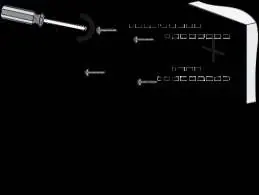
- Paste positioning stickers on the wall and drill 30mm-depth guide holes using a 6-6.5mm drill bit.
- Insert plastic rivets into the holes.
- Attach the camera to the wall using the universal joint.
- Rotate the antenna clockwise to the interface.
- Adjust the monitoring direction and connect the camera to power.
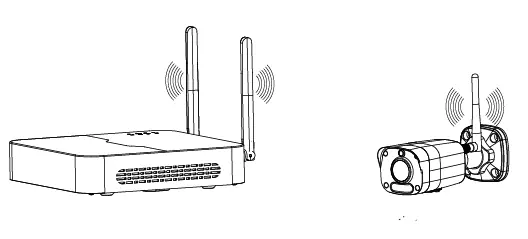
Note on Wi-Fi Signal: Connectivity is best when antennas are parallel to each other and weakest when the top of one antenna points directly at the other.
Wi-Fi Configuration and Pairing
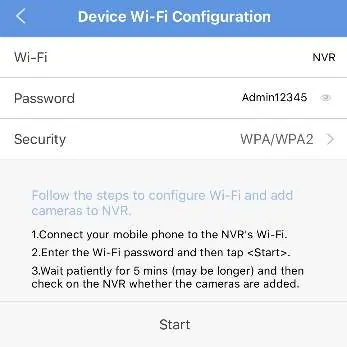
Cameras will automatically connect to the NVR once powered. If you need to change Wi-Fi settings or pair a camera:
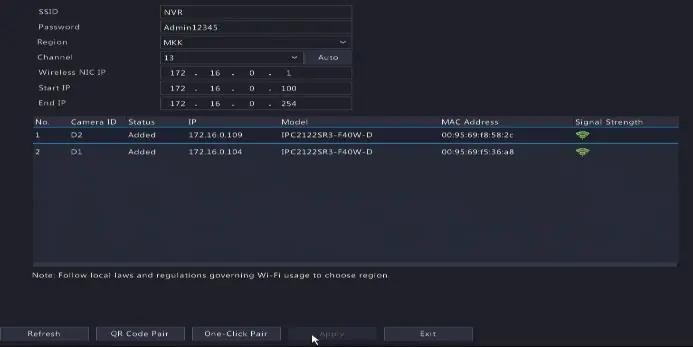
- Wi-Fi Settings: Right-click on the NVR and select Menu > Network > Wi-Fi AP.
- One-Click Pair: Connect the camera and NVR to the same switch or via network cable. Press the RESET button on the camera (within 1-10 minutes of power-on), then click One-Click Pair on the NVR.
- QR Code Pair: Press the RESET button on the camera, then select QR Code Pair on the NVR and follow on-screen instructions.
EZView Mobile App
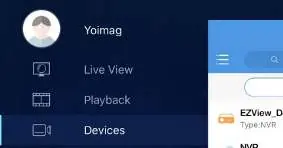
Download the EZView app from the App Store or Google Play. Sign up for an account, then use the app to add devices by scanning the QR code on the device body. You can use the app for live view, playback, and sharing devices.
Safety and Maintenance
The device must be installed and maintained by a trained professional. Ensure the device is placed in a proper environment with adequate ventilation. Do not cover vents. Always disconnect power before moving the device. If using a battery, avoid extreme temperatures and do not dispose of it in fire.
Manufacturer information
Uniview
Practical help
Common problems
Camera is offline after changing Wi-Fi settings
Pair the camera with the NVR again using the One-Click Pair or QR Code Pair method.
Weak Wi-Fi signal
Ensure antennas are parallel to each other; avoid pointing the top of one antenna directly at another.
Reset button not working
The reset button only functions 1-10 minutes after the camera is powered on. Power cycle the camera if needed.
Before use
- Ensure the wall is strong enough to support the camera weight.
- Prepare a 6-6.5mm drill bit for wall mounting.
- Connect the NVR to a monitor via HDMI or VGA cable.
- Plug a mouse into the NVR USB interface.
- Ensure the power supply meets the device requirements.
- Verify the device is properly installed before connecting to power.
Specs in practice
- NVR Default IP
- 192.168.1.30
- IPC Default IP
- 192.168.1.13
- Default Username
- admin
- Default Password
- 123456
Images and diagrams
- Antenna positioning: Antennas should be parallel for best signal; avoid pointing them directly at each other.
- NVR Interfaces: Shows locations for power, network, USB, HDMI, VGA, and audio output.
Model compatibility
- Some camera models support Micro SD cards.
- Compatible with EZView app on iOS and Android.

Manual page author
Michael Turner
Technical manual editor
Reviews PDF manuals for structure, safety notes, and practical product details so readers can find the right information quickly.