Electronics / Monitors
User Manual for Verbatim Portable Monitor 14" PM-14
Quick start guide and user manual for the Verbatim 14-inch portable monitor (PM-14). Learn how to connect via USB-C or HDMI, adjust settings, and understand the on-screen menu.
Table of contents
Manual images
Click an image to enlargeQuick Start Guide
This guide provides instructions for setting up and operating the Verbatim 14-inch portable monitor. Ensure your source device supports DisplayPort Alt Mode and power delivery when using USB-C connections.
Device Overview
The monitor features the following ports and controls:
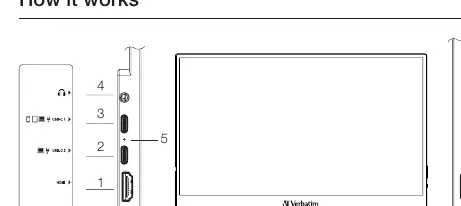
- 1. HDMI port: For video input.
- 2. USB-C2 port: Recommended for computers and power supply.
- 3. USB-C1 port: Intended for mobile devices (phones/tablets) or low-power devices.
- 4. Headphone socket: 3.5mm jack.
- 5. LED indicator light.
- 6. USB-A 2.0 port.
- 7. Power / Menu button: Used to turn the monitor on/off and access the menu.
- 8. - Button: Volume/Brightness adjustment and menu navigation.
- 9. + Button: Volume/Brightness adjustment and menu navigation.
How to Connect
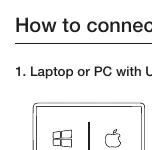
Laptop or PC with USB-C: Connect the USB-C cable to the USB-C2 port on the monitor and the USB-C port of your computer. If power is insufficient, switch to USB-C1 or attach the included power supply.
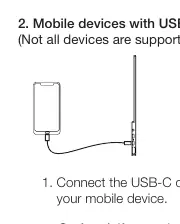
Mobile devices with USB-C: Connect the USB-C cable to the USB-C1 port on the monitor and your mobile device. If power is insufficient, attach the included power supply. Ensure your device supports DisplayPort Alt Mode.
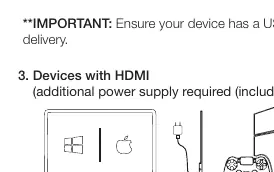
Devices with HDMI: Connect the HDMI cable to the monitor and your device. Connect the included power supply to the monitor. Note: iPhones with a Lightning connector require an additional adapter (not included).
Key Operation
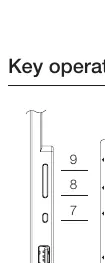
- Power ON/OFF: Hold the power/menu button (7). The monitor turns on automatically when connected.
- Volume: Press + (9) or - (8).
- Brightness: Hold + (9) or - (8).
- On-Screen Menu: Press the power/menu button (7) to open. Use + or - to switch between options, and press the power/menu button to select. Hold - (8) to return to the previous menu.
On-Screen Menu
The menu allows adjustment of the following settings:
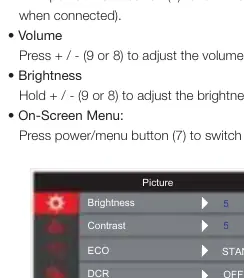
- Picture: Brightness, Contrast, Eco (Standard, Game, Movie, Photo, Vivid, User), DCR, Sharpness.
- Colour: Colour temp (9300K, 6500K, SRGB, User), HUE, Saturation, Low blue light, Free sync, PCM.
- Audio: Volume, Mute.
- Other: Language, HDR, Reset.
- Input: Auto select, USB-C1, USB-C2, HDMI.
Specifications
- Size: 14 inch
- Resolution: 1920 x 1080 (Full HD)
- Contrast: 1000:1
- Brightness: 220-250 cd/m²
- Weight: 540g
- Inputs: 2x USB-C (Full-featured), 1x HDMI (1.4)
- Output: 3.5mm audio jack, integrated speakers (1W x 2)
Safety and Warranty
Keep the monitor dry and away from water. Use only the original power adapter to prevent electrical damage. Do not use solvents for cleaning; use a dry cloth only. The product includes a 2-year warranty covering defects in material and workmanship, excluding batteries.
Practical help
Common problems
Monitor not bright enough when using USB-C1
Connect the included power supply to ensure full brightness.
Device not supported via USB-C
Ensure your device has a USB-C port that supports DisplayPort Alt Mode and power delivery.
No signal via HDMI
Ensure the included power supply is connected to the monitor, as HDMI does not provide power.
Before use
- Verify your device supports DisplayPort Alt Mode (for USB-C).
- Ensure you have the correct cable (USB-C or HDMI).
- Check if your device provides sufficient power via USB-C.
- Have the included power adapter ready if needed.
Images and diagrams
- Ports 1-3: HDMI, USB-C2, and USB-C1 inputs.
- Ports 6-9: USB-A port, Power/Menu button, and Volume/Brightness buttons.
Model compatibility
- USB-C1 is intended for mobile devices/low power; USB-C2 is recommended for notebooks.
- iPhones with Lightning connector require an additional adapter (not included).

Manual page author
David Miller
Documentation analyst
Organizes user manual content into clear summaries, with attention to model details, product context, and everyday usability.