Electronics / Monitors
User Manual for Verbatim PMT 15-4K and 17-4K Portable Touch Monitor
Quick start guide and user manual for Verbatim PMT 15-4K and 17-4K portable touch monitors. Includes connection instructions for USB-C and HDMI, OSD menu operation, and technical specifications.
Table of contents
Manual images
Click an image to enlargeQuick guide from the manual
This guide provides instructions for setting up and using the Verbatim PMT 15-4K and 17-4K portable touch monitors. Ensure your device supports DisplayPort Alt Mode and power delivery via USB-C for optimal performance. Always connect data cables before power cables to ensure touch functionality.
How it works
The monitor features several ports and buttons for operation:
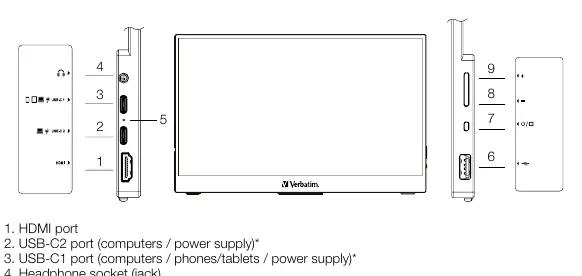
- 1. HDMI port: For video input.
- 2. USB-C2 port: Primary port for computers and power supply.
- 3. USB-C1 port: For mobile devices (phones/tablets) or low-power devices.
- 4. Headphone socket: 3.5mm audio jack.
- 5. LED indicator light: Shows power status.
- 6. USB-A 2.0 port: For peripheral connection.
- 7. Power / Menu button: Turns the monitor on/off and opens the OSD menu.
- 8. - Button: Adjusts volume/brightness or navigates the menu.
- 9. + Button: Adjusts volume/brightness or navigates the menu.
How to connect
Follow these steps based on your device type:
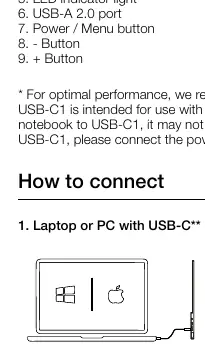
- Laptop/PC with USB-C: Connect the USB-C cable to the USB-C2 port on the monitor and the USB-C port on your computer. If power is insufficient, use the USB-C1 port or connect the included power supply.
- Mobile devices with USB-C: Connect the USB-C cable to the USB-C1 port on the monitor and your mobile device. Use the included power supply if needed.
- Devices with HDMI (No touch): Connect the HDMI cable to the monitor and your device. Connect the included power supply to the monitor.
- Devices with HDMI (With touch): Connect the HDMI cable to the monitor and your device. Connect a USB-A to USB-C cable (not included) to your computer and monitor for touch data. Connect the included power supply to the monitor.
Key operation
Use the buttons on the side of the monitor to control settings:
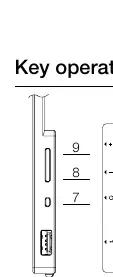
- Power ON/OFF: Hold the Power/Menu button (7).
- Volume: Press + (9) or - (8).
- Brightness: Hold + (9) or - (8).
- On-Screen Menu: Press the Power/Menu button (7) to open. Use + or - to navigate and the Power/Menu button to select. Hold - (8) to return to the previous menu.
Specifications
The monitors are available in 15.6-inch (32238) and 17.3-inch (32239) sizes. Both feature 3840 x 2160 resolution, 16:9 aspect ratio, and capacitive touch panels with 10-point multi-touch support. They include HDR and FreeSync support, with an aluminium frame.
Safety and Warranty
Keep the monitor dry and away from damp environments. Use only the original power adapter. Do not remove the covers, as this may invalidate the warranty. The product includes a 2-year limited warranty from the date of purchase.
Practical help
Common problems
Touch function not working
Ensure the data cable is connected before the power cable.
Low brightness when using USB-C1
USB-C1 is designed for low-power devices. Connect the power supply to ensure full brightness.
Touchscreen not working on iOS/iPadOS
Touchscreen function is not supported by iOS/iPadOS.
iPhone with Lightning connector not connecting
You need an additional adapter (not included) to connect.
Before use
- Check if your device supports DisplayPort Alt Mode and power delivery via USB-C.
- Ensure you have the correct cables (USB-C to USB-C, HDMI, or USB-A to USB-C).
- Verify if an additional power supply is required for your specific connection setup.
- Ensure the monitor is placed on a stable surface to avoid light reflection.
Specs in practice
- Contrast (Typical)
- Ratio between the brightest and darkest colors the monitor can produce (1000:1 for 15.6", 1200:1 for 17.3").
- Brightness (Typical)
- Measured in cd/m², indicates the maximum light output of the screen (350 cd/m² or 400 cd/m²).
Images and diagrams
- Ports 1-4: HDMI, USB-C2, USB-C1, Headphone jack.
- Buttons 7-9: Power/Menu, Minus (-), Plus (+).
Model compatibility
- iPhones with Lightning connector require an additional adapter (not included).
- Touchscreen function is not supported by iOS/iPadOS.

Manual page author
Michael Turner
Technical manual editor
Reviews PDF manuals for structure, safety notes, and practical product details so readers can find the right information quickly.