Automotive / Dash Cams
User Manual for Walmart 1080P Smart Projector
Quick guide for the Walmart 1080P Smart Projector. Learn about device components, remote control functions, software settings, wireless connectivity (Miracast/Airplay), and essential safety precautions.
Table of contents
Manual images
Click an image to enlargeQuick Guide from the Manual
This document provides essential instructions for operating the Walmart 1080P Smart Projector. Users should prioritize safety by keeping the device away from flammable materials, ensuring proper ventilation, and avoiding direct eye contact with the lens. The projector is not waterproof; keep it away from rain and fog.
Device Overview
The projector features several key components for operation:
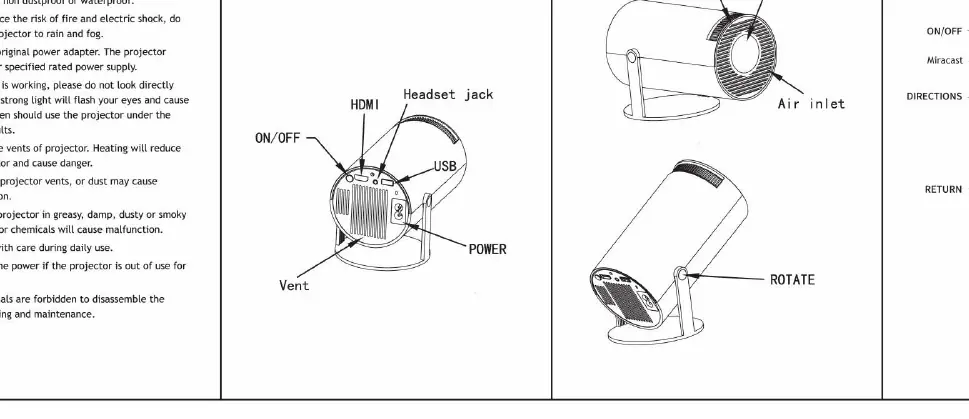
- Focus Wheel: Used to adjust image sharpness.
- Lens: The projection output.
- Air Inlet & Vent: Crucial for cooling; ensure these are never blocked.
- Ports: Includes HDMI, Headset jack, USB, and Power input.
Remote Control Functions
The remote control allows for full navigation of the projector's interface:
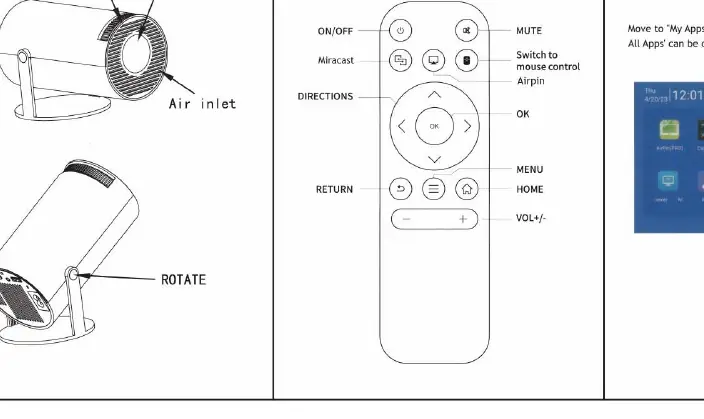
- Navigation: Directional arrows and OK button for menu selection.
- Playback: Volume control, Mute, and Menu/Home buttons.
- Connectivity: Dedicated buttons for Miracast and Airplay modes.
Software and Settings
The projector runs an Android-based interface. Access the Settings menu to configure the following:
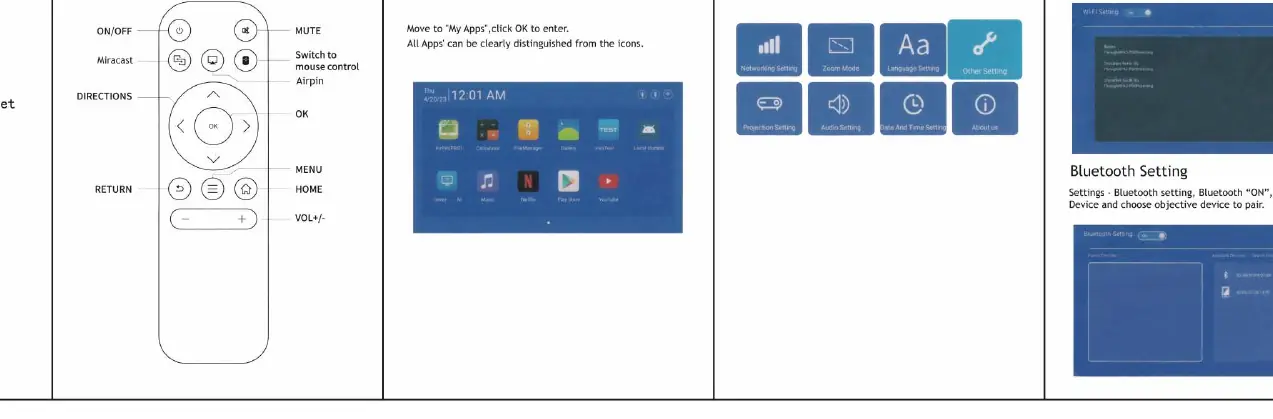
- Networking: Connect to Wi-Fi by selecting the network and entering the password.
- Bluetooth: Enable Bluetooth in settings to pair external devices.
- Projection: Adjust keystone correction and brightness.
- Date and Time: Set timezone, date, and time formats.
- Audio: Adjust volume levels.
- Language: Change the system language.
Wireless Connectivity
The projector supports screen mirroring for mobile devices:
- Miracast (Android): Ensure the device and projector are on the same local network. Open the Miracast service on the projector and start wireless projection on the Android device.
- Airplay (iOS): Ensure the device and projector are on the same local network. Open the Airplay service on the projector and select the projector from the phone's screen mirroring menu.
Safety Instructions
To ensure the longevity of the device and user safety, follow these guidelines:
- Do not look directly into the lens.
- Do not cover the projector vents to prevent overheating.
- Use only the original power adapter.
- Do not place heavy objects on the power cord.
- Keep the device away from greasy, damp, or dusty environments.
Practical help
Common problems
Projector overheating
Ensure the air inlet and vents are not covered or blocked.
No signal
Check that the HDMI or Audio/Video cables are securely connected to the source device.
Eye discomfort
Do not look directly into the lens while the projector is on.
Before use
- Ensure the projector is not exposed to rain or fog.
- Use the original power adapter provided.
- Place the projector in a well-ventilated area.
- Check that the lens is clean and unobstructed.
Specs in practice
- Air Inlet/Vent
- Critical cooling points; must remain clear to prevent damage.
Images and diagrams
- The structure diagram identifies the location of the focus wheel, lens, air inlet, and connection ports.
- The remote control diagram illustrates the layout of navigation, volume, and mode-switching buttons.
Model compatibility
- Supports Miracast for Android devices.
- Supports Airplay for Apple devices.

Manual page author
Emily Carter
User documentation editor
Prepares concise manual descriptions and highlights the most useful setup, operation, and maintenance information for readers.