Electronics / Headphones Earbuds
User Manual for HAVIT 1080P HD Projector PJ202
Quick guide for the HAVIT 1080P HD Projector PJ202. Includes setup, connection instructions, screen mirroring steps for iOS/Android/Windows, and troubleshooting.
Table of contents
Manual images
Click an image to enlargeQuick Start Guide
Follow these steps to set up your projector:
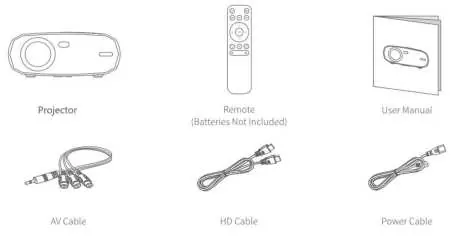
- Plug the power cord into an outlet.
- Remove the lens cover.
- Connect your device to the projector using the appropriate cable (AV, HDMI, or USB).
- Press the Power Button to turn on the projector.
- Select the correct input source by pressing the Input Source button.
- Adjust the kickstand as needed.
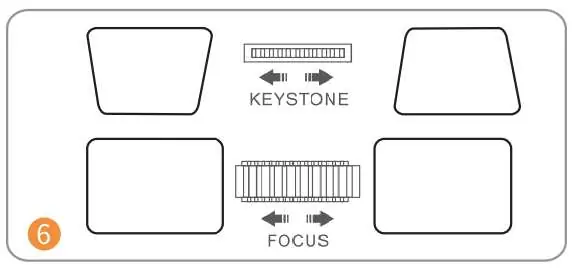
- Adjust the keystone and focus rings to achieve the best image performance.
- To turn off the projector, press the Power Button twice.
Function Overview
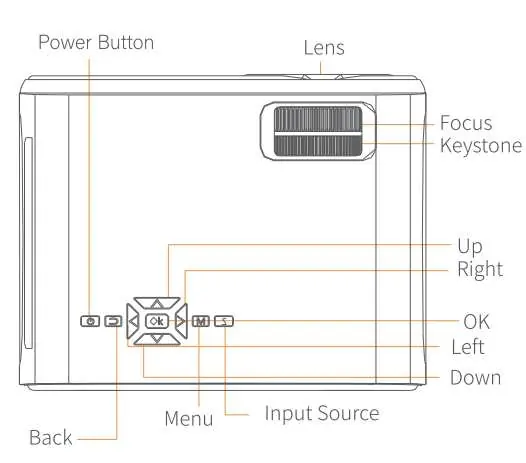
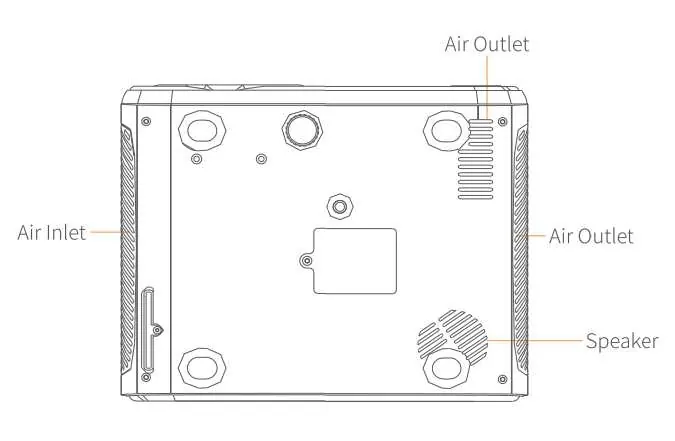
The projector features a control panel on the top with buttons for Power, Menu, Input Source, Back, and navigation (Up, Down, Left, Right, OK). The lens is located on the front, with focus and keystone adjustment rings nearby. The rear and side panels contain ports for SD card, AV IN, HDMI (HD1, HD2), USB, VGA, and Audio Output.
Input Connections
The projector supports multiple input sources:
- Multimedia Connection: Connect via USB or SD card.
- HD Connection: Connect via HDMI cable.
- VGA Connection: Connect via VGA cable.
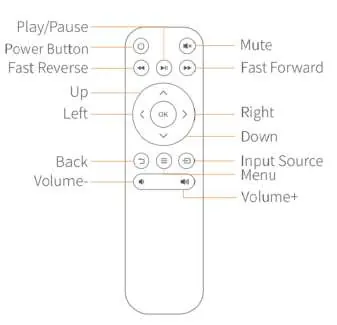
Press the Input Source button on the projector or remote to select the desired interface.
Screen Mirroring
The projector supports wireless and wired screen mirroring for various devices:
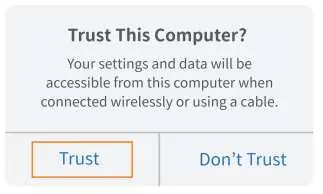
- iOS (Wired): Connect your device to the projector's USB port using an original Lightning cable. Select "Trust" on your iPhone when prompted.
- iOS (Wireless): Connect the projector to your router's Wi-Fi. Connect your iOS device to the same Wi-Fi network. Use AirPlay/Screen Mirroring to select "HAVIT PJ202".
- Android (Wireless): Ensure your device supports Multi-Screen/Wireless display. Connect to the projector's Wi-Fi "HAVIT PJ202" (Password: 12345678) and activate the Cast/Smart View function.
- Windows 10 (Wireless): Ensure your device supports Miracast. Press "Windows Logo + P" and select "Connect to a wireless display" to find the projector.
Specifications
- Display Technology: LCD
- Resolution: Native 1920*1080
- Installation Type: Front/Rear/Ceiling
- Power Supply: AC 100-240V, 50/60Hz
- Ports: AV, VGA, USB, HDMI (x2), SD
- Weight: 1.41kg
Troubleshooting
- Blurry Image: Adjust the focus ring and keystone. Ensure the projector is at an effective distance from the wall/screen.
- Remote Unresponsive: Ensure the remote points directly at the IR receiver. Replace batteries with new AAA batteries.
- Upside Down Image: Go to Menu > Picture > Reduce Display Size to adjust.
- Auto Off: Go to Menu > Time > Sleep Timer to adjust the automatic shutdown time.
Manufacturer information
Havit
Practical help
Common problems
Blurry image
Adjust the focus ring and keystone. Ensure the projector is at an effective distance from the wall/screen.
Remote unresponsive
Ensure the remote points directly at the IR receiver and is not blocked. Try replacing the AAA batteries.
Upside down image
Navigate to Menu > Picture > Reduce Display Size to adjust the image orientation.
Projector turns off automatically
Check the Sleep Timer settings in Menu > Time and adjust the duration.
Before use
- Remove the lens cover
- Connect the power cable to an outlet
- Ensure the projector is placed at an effective distance from the wall/screen
- Use original cables for wired screen mirroring
- Ensure Wi-Fi is enabled for wireless screen mirroring
Specs in practice
- Native Resolution
- 1920*1080 pixels for high-definition projection.
- Power Supply
- AC 100-240V, 50/60Hz, suitable for standard household outlets.
Images and diagrams
- Top panel buttons for navigation and menu control
- Rear/side ports for various input devices
- Remote control layout for playback and settings
- Keystone and focus ring adjustment
Model compatibility
- iOS wired mirroring requires an original Lightning cable.
- Android wired mirroring requires USB debugging enabled.
- Copyrighted content from services like Hulu or Netflix cannot be mirrored due to restrictions.

Manual page author
Michael Turner
Technical manual editor
Reviews PDF manuals for structure, safety notes, and practical product details so readers can find the right information quickly.