Electronics / Security Cameras
User Manual for Xiaomi Mijia IMILAB Home Security Camera 1080P 360°
Quick setup and configuration guide for the Xiaomi Mijia IMILAB Home Security Camera 1080P 360°. Learn how to connect to the Mi Home app, reset the device, configure automation, and troubleshoot common connection issues.
Table of contents
Manual images
Click an image to enlargeQuick guide from the manual
This guide provides instructions for setting up and configuring the Xiaomi Mijia IMILAB Home Security Camera 1080P 360°. Ensure your smartphone is connected to a 2.4 GHz Wi-Fi network before beginning the setup process.
Device setup and connection
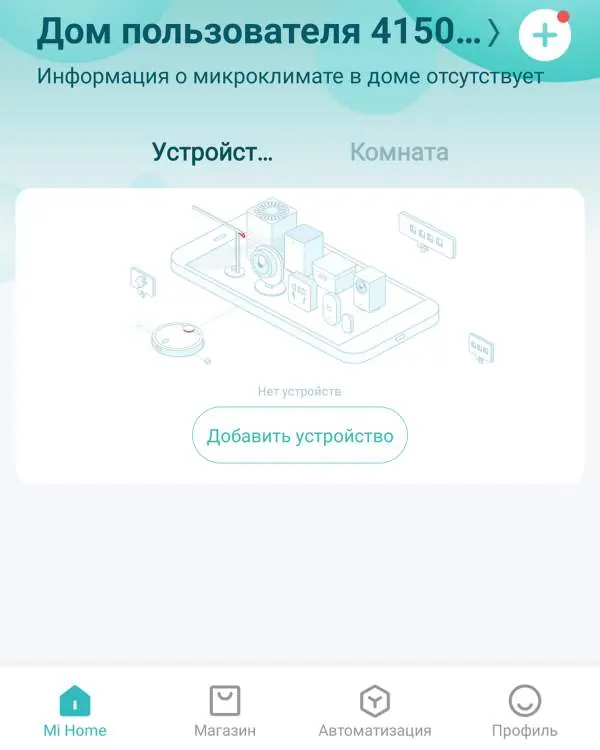
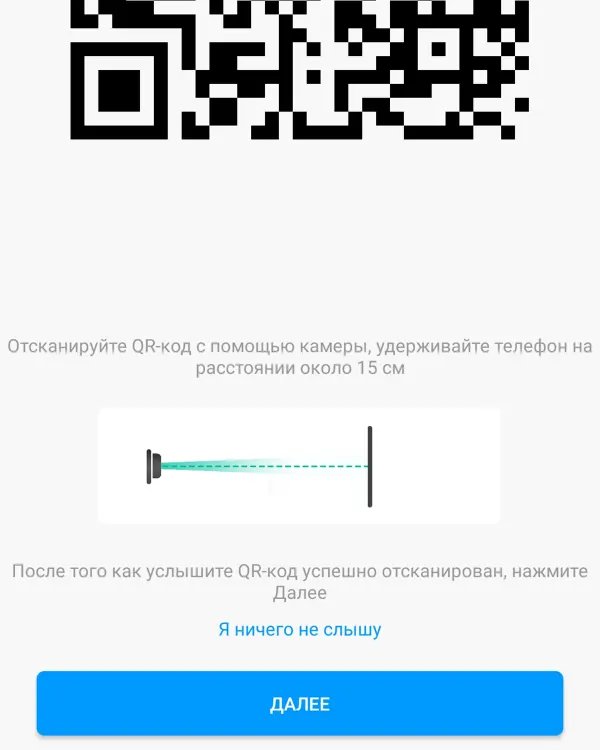
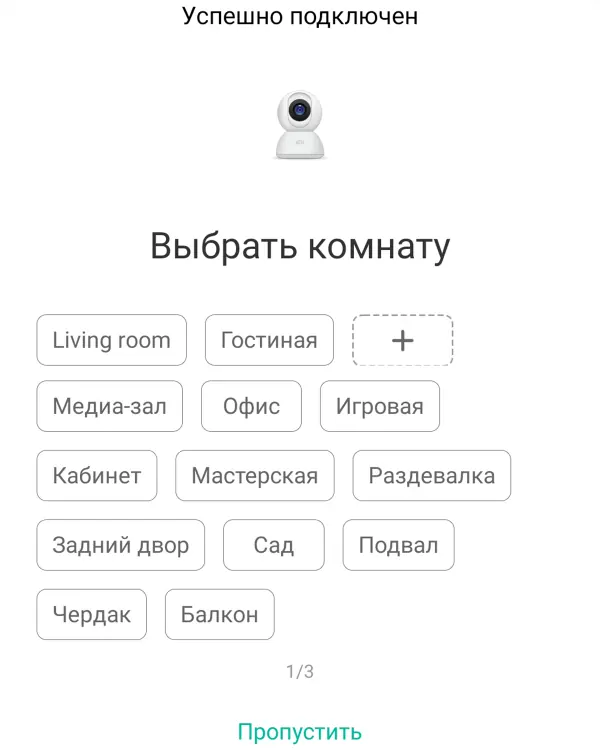
- Download and install the Mi Home app from the Play Market or App Store.
- Ensure your phone is connected to a 2.4 GHz Wi-Fi network.
- Open the Mi Home app and tap the '+' icon in the top right corner to add a device.
- Enable Bluetooth on your phone if prompted to allow automatic device discovery.
- If the camera is not discovered automatically, select 'Add manually' and choose 'Mi Basic 1080P Camera' from the Camera tab.
- Follow the on-screen instructions to pair the device.
- When prompted, hold your smartphone screen with the displayed QR code approximately 15 cm away from the camera lens until you hear a confirmation sound.
Resetting the camera
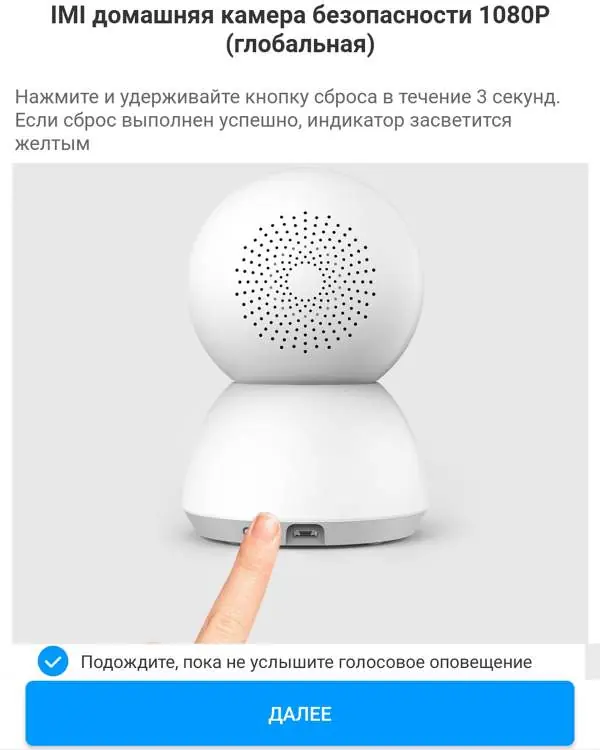
If you need to reset the camera, use a SIM card tool or a similar pin to press and hold the reset button on the device. Hold until the indicator light begins flashing yellow. Confirm the reset in the app by pressing the 'Operation confirmed' button.
App functionality
Once connected, you can manage the camera via the Mi Home app:
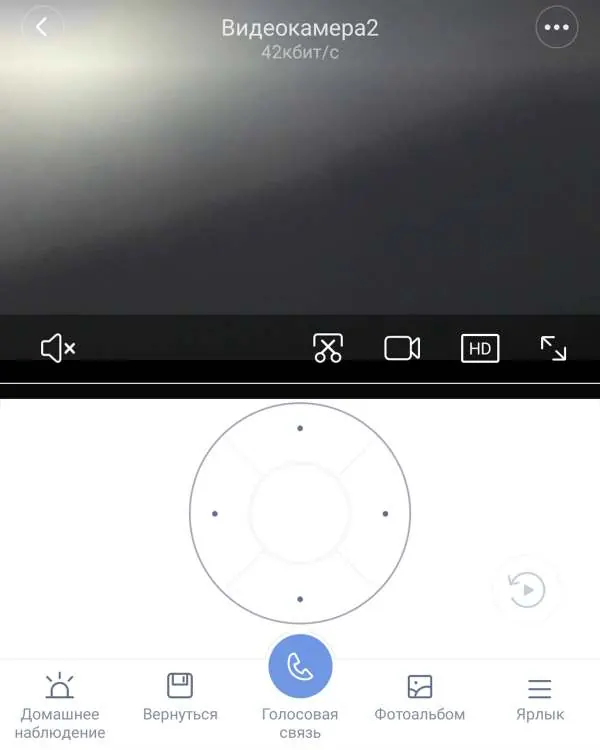
- Zoom: Use two fingers to pinch in or out on the screen.
- Controls: Use the on-screen buttons to toggle audio, take screenshots, record video, change video quality, and expand to full screen.
- Navigation: Use the directional pad to control the camera's pan and tilt.
- Menu: Access 'Home Monitoring' to toggle motion detection, view recordings, use two-way voice communication, and manage your photo album.
Automation
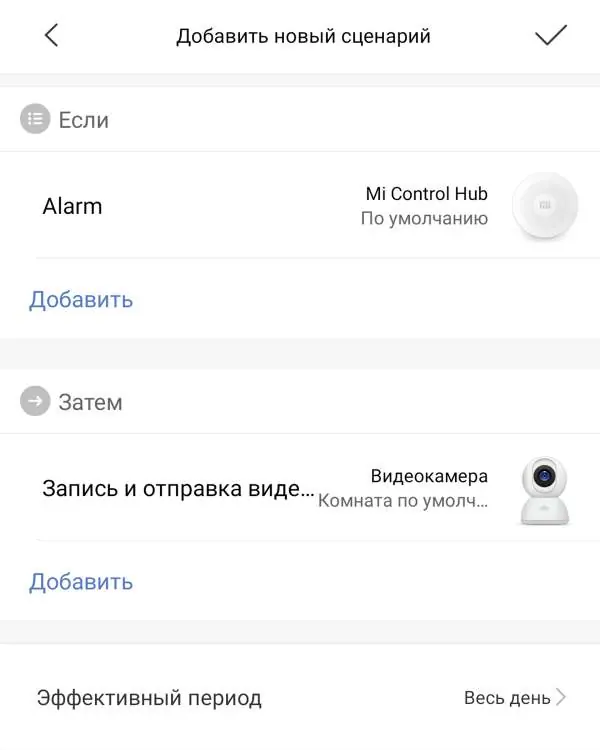
You can create automation scenarios in the app settings. The camera can be used as an 'If' condition (e.g., motion detected) or a 'Then' action (e.g., turn on/off sleep mode). For example, you can set the camera to wake up and record when a hub alarm is triggered, or enter sleep mode when you return home.
Troubleshooting
If the device fails to connect, try the following:
- Set the region in Mi Home settings to 'China'.
- Change your Wi-Fi password to an alphanumeric string without special characters.
- Set a static IP address for the gateway in your router's DHCP settings.
- Try using a different phone or app version.
- Ensure the Mi Home app has location permissions enabled.
Manufacturer information
Xiaomi Corporation
Practical help
Common problems
Device not connecting to Wi-Fi
Ensure you are using a 2.4 GHz network, set the app region to 'China', and ensure your Wi-Fi password contains only alphanumeric characters.
Device not recognized automatically
Use the 'Add manually' option in the Mi Home app and select 'Mi Basic 1080P Camera' from the Camera tab.
QR code not scanning
Ensure the distance between the phone screen and the camera lens is approximately 15 cm.
Before use
- Smartphone connected to 2.4 GHz Wi-Fi
- Mi Home app installed
- SIM card tool or pin for reset
- Camera powered on
- Location permissions enabled for Mi Home app
Specs in practice
- 2.4 GHz Wi-Fi
- Required frequency for initial setup and stable operation.
Images and diagrams
- Reset button: Requires a pin tool to press and hold for 3 seconds.
- QR code pairing: Hold the phone screen 15 cm from the camera lens.
Model compatibility
- Requires Mi Home app.
- Region settings in the app may need to be set to 'China' for successful pairing.

Manual page author
David Miller
Documentation analyst
Organizes user manual content into clear summaries, with attention to model details, product context, and everyday usability.