Computers / Mobile Computers
Zebra DS3678 Digital Scanner Quick Start Guide
Quick start guide for the Zebra DS3678 cordless digital scanner. Includes setup, battery installation, host interface configuration, troubleshooting, and safety guidelines.
Table of contents
Manual images
Click an image to enlargeQuick guide from the manual
The Zebra DS3678 is a cordless digital scanner designed for high-performance scanning. This guide provides essential setup and operational information. Always ensure you are using Zebra-approved accessories, batteries, and chargers to maintain safety and performance.
Battery Installation and Removal
To install or remove the battery:
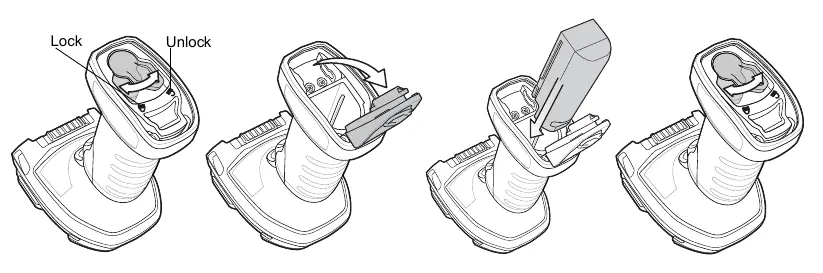

- Locate the battery latch on the bottom of the scanner handle.
- Move the latch to the 'Unlock' position to release the battery.
- Insert the battery pack into the handle until it clicks into place, or remove it by pulling it out after unlocking.
- Ensure the battery is securely locked before operation.
Cradle Setup
To connect the cradle:
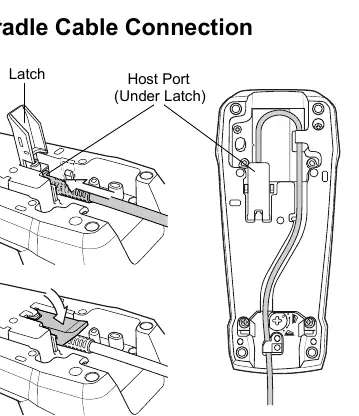
- Open the latch on the cradle to access the host port.
- Connect the appropriate host interface cable to the port.
- Route the cable through the designated channel and close the latch.
- Place the scanner into the cradle to begin charging and communication.
Host Interface Configuration
The scanner automatically detects the host interface type. If the default settings do not meet your requirements, scan the specific configuration bar codes provided in the manual for your interface type:
- USB: Options include USB Keyboard (HID), USB CDC Host, IBM Table Top/Hand-held, SNAPI, and Simple COM Port Emulation.
- RS-232: Options include Standard RS-232, ICL, and Nixdorf modes.
- Keyboard Wedge: Supports IBM AT Notebook and IBM PC/AT compatible connections.
- IBM 46XX: Supports various port emulations (5B, 9B, 17).
Scanning and Aiming
For optimal scanning results, align the aiming pattern with the bar code:

- HP/HD/XR Aiming: Cover the entire bar code with the aiming pattern.
- SR/DP Aiming: Aim the aiming dot at the center of the bar code.
- Ergonomics: Maintain a neutral wrist position, avoid excessive bending, and avoid reaching to prevent ergonomic injury.
LED and Beeper Indicators
The scanner provides feedback via LEDs and beeps:
- Green LED: Bar code successfully decoded.
- Red LED: Transmission error.
- Beeper: Provides sequences for power-up (low/medium/high), successful decode (medium), and programming confirmation.
Troubleshooting
If the scanner is not working:
- Check system power and ensure the host interface cable is secure.
- If the scanner is not decoding, ensure it is programmed for the correct bar code type and that the bar code is not defaced.
- If data is not transmitting, ensure the scanner is paired to the cradle and the host interface is configured correctly.
Safety and Maintenance
Follow these safety guidelines:
- Do not charge damp or wet batteries.
- Store batteries in a cool, dry place at half charge if storing for over six months.
- Use only Zebra-approved batteries (Model 82-166537-01).
- Avoid staring directly into the laser beam.
- For further support, visit zebra.com/support.
Official resources from the manual
Manufacturer information
Zebra Technologies
Practical help
Common problems
Scanner not working
Check system power and ensure the correct host interface cable is used.
Scanner decoding but data not transmitting
Ensure the host interface is configured properly, the cable is secure, and the scanner is paired to the cradle.
Scanner not decoding bar code
Ensure the scanner is programmed for the bar code type, the bar code is not defaced, and the distance is correct.
Before use
- Ensure the battery is installed and charged.
- Verify the host interface cable is connected to the cradle.
- Check that the scanner is paired with the cradle.
- Ensure the host device is powered on.
- Verify the correct configuration bar code has been scanned for your interface.
Specs in practice
- Class 2 Laser
- Low power, visible light diode; avoid staring directly into the beam.
- Operating Temperature
- Maximum 50°C for the scanner; varies when used with specific cradles (e.g., STB3678 is 40°C).
Images and diagrams
- Battery Insertion/Removal: Shows the latch mechanism to unlock and remove the battery pack.
- Cradle Cable Connection: Illustrates opening the latch to access the host port for cable connection.
- Optimum Body Posture: Demonstrates correct handling to avoid wrist strain, bending, and reaching.
Model compatibility
- Compatible with USB, RS-232, Keyboard Wedge, and IBM 46XX host interfaces.
- Use only Zebra-approved batteries and chargers.
- For devices using USB charging, connect only to USB-IF compliant products.

Manual page author
Michael Turner
Technical manual editor
Reviews PDF manuals for structure, safety notes, and practical product details so readers can find the right information quickly.