Electronics / USB Hubs & Docking
Acer 12-Port USB-C Mini Dock User Manual
Quick guide for the Acer 12-Port USB-C Mini Dock. Learn about port functions, troubleshooting common connection issues, and technical specifications.
Table of contents
Quick Guide
The Acer 12-Port USB-C Mini Dock is a plug-and-play device designed to expand the connectivity of your laptop. To ensure optimal performance, verify that your computer's USB-C port supports DisplayPort Alt Mode for video output. If you intend to charge your laptop through the dock, ensure the power adapter connected to the USB-C PD port provides sufficient wattage for your specific laptop model.
Device Overview
The dock features a variety of ports to connect peripherals and displays:
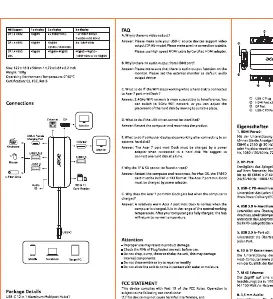
- HDMI & DisplayPort: For connecting external monitors.
- USB-C PD: Power Delivery port for charging your laptop.
- USB 3.0: High-speed data transfer ports.
- SD/TF Card Reader: For memory card access.
- RJ45: Ethernet port for wired network connectivity.
- 3.5mm Audio: For headphones or speakers.
Troubleshooting
If you encounter issues, refer to these common solutions:
- No display output: Ensure your computer's USB-C port supports DisplayPort Alt Mode. Check that the HDMI or DisplayPort cable is securely connected to both the dock and the monitor.
- Laptop not charging: Verify that the power adapter connected to the dock's USB-C PD port is powerful enough to charge your laptop.
- USB device not recognized: Ensure the device is properly connected and the dock is receiving power.
Specifications
- Dimensions: 122 x 56 x 15mm
- Weight: 100g
- Operating Temperature: 0°C to 40°C
Manufacturer information
Acer Inc.
Practical help
Common problems
No display output on external monitor
Ensure your laptop's USB-C port supports DisplayPort Alt Mode. Check that the video cable is securely connected.
Laptop is not charging via the dock
Ensure the power adapter connected to the dock's USB-C PD port provides sufficient wattage for your laptop.
USB device not recognized
Check that the device is firmly connected to the USB 3.0 port and the dock is powered.
Before use
- Verify laptop USB-C port supports DisplayPort Alt Mode.
- Ensure the power adapter connected to the dock provides sufficient wattage.
- Check that all cables are firmly seated in their respective ports.
Images and diagrams
- The diagram illustrates the port layout, identifying the HDMI, DisplayPort, USB-C PD, USB 3.0, SD/TF card slots, RJ45 Ethernet, and 3.5mm audio jack.
Model compatibility
- Requires a USB-C port that supports DisplayPort Alt Mode for video output.

Manual page author
David Miller
Documentation analyst
Organizes user manual content into clear summaries, with attention to model details, product context, and everyday usability.