Electronics / USB Hubs & Docking
User Manual for Digitus USB-C Docking Station 12-Port DA-70888
Quick guide for the Digitus 12-Port USB-C Docking Station (DA-70888). Learn about port connectivity, video output, power delivery, and troubleshooting tips for optimal performance.
Table of contents
Quick guide from the manual
The Digitus 12-Port USB-C Docking Station (DA-70888) is a multifunctional hub designed to expand your laptop, tablet, or smartphone connectivity. It supports video output, power delivery, data transfer, and peripheral connection via a single USB-C port. Ensure your host device supports video output (DP Alt Mode) for display functionality.
Overview
The docking station features 12 ports to create a fully equipped workplace:
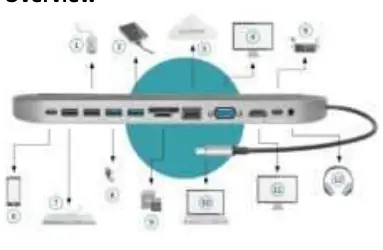
- Video: HDMI and VGA ports for extending or cloning your desktop.
- Power: USB-C port with Power Delivery (PD) to charge your connected notebook or tablet.
- Data: Two USB 3.0 ports (up to 5 Gbps) and two USB 2.0 ports.
- Connectivity: Gigabit Ethernet port, SD/TF card readers, and a 3.5mm stereo audio jack.
Package Contents
- 1x Multifunctional USB-C Hub
- 1x User Manual
- 1x Warranty card
Features and Specifications
The device is built with a zinc alloy body and silicone surface. Key technical specifications include:
- Video Resolution: HDMI supports up to 4K; VGA supports up to 1080p. When used simultaneously, both output at 1080p.
- Ethernet: Up to 1000 Mb/s.
- Compatibility: Works with Windows, macOS, and Android systems.
- Operating Temperature: Performs well between -40 and 80 degrees.
Usage Tips and Troubleshooting
To ensure optimal performance, follow these guidelines:
- Wireless Interference: 2.4 GHz wireless devices (like mouse or keyboard adapters) may experience interference when placed near USB 3.0 ports. Connect these adapters to the USB 2.0 ports instead.
- Power Management: The docking station requires current from the host. If it fails to start, plug and unplug devices one by one.
- High Power Devices: Limit the connection of high-power devices (e.g., mobile hard disks) to a maximum of two at the same time.
- Liability: Digitus is not liable for hard disk damage or data loss caused by improper use or disassembly.
Practical help
Common problems
Wireless mouse or keyboard lag
Connect the 2.4 GHz wireless adapter to a USB 2.0 port instead of a USB 3.0 port to avoid interference.
Docking station does not start
The host device may not provide enough instantaneous current for all interfaces at once. Plug and unplug devices one by one.
High power consumption devices not working
Only connect up to 2 high-power devices (like mobile hard disks or printers) at the same time.
Before use
- Ensure your laptop, tablet, or smartphone has a USB-C port.
- Verify that your host device supports video output function (DP Alt Mode).
- Check that your operating system is compatible (Windows, macOS, or Android).
- Ensure you are not exceeding the power limits of your host device.
Images and diagrams
- The overview diagram illustrates the connection points for peripherals including mouse, keyboard, hard drives, and displays.
Model compatibility
- Requires a USB-C port with video output function (DP Alt Mode).
- Compatible with Windows 10/8/7/Vista/XP/2000, macOS 9.X & 10.X, and Android.

Manual page author
Emily Carter
User documentation editor
Prepares concise manual descriptions and highlights the most useful setup, operation, and maintenance information for readers.