Computers / Laptops
User Manual for GS156GM5/GS156GM6 Portable Monitor
Comprehensive user guide for the GS156GM5/GS156GM6 portable monitor. Includes setup instructions, connection guides for laptops, consoles, and mobile devices, OSD menu settings, and troubleshooting tips.
Table of contents
Manual images
Click an image to enlargeQuick Guide from the Manual
This portable monitor is designed for versatility with multiple connection options. Important: Always use the included wall adapter to power the monitor, especially when connecting to devices that may not provide sufficient power (like some laptops, phones, or consoles). Failure to use external power may result in a black screen or flickering.
Product Overview
The monitor features the following ports and controls:

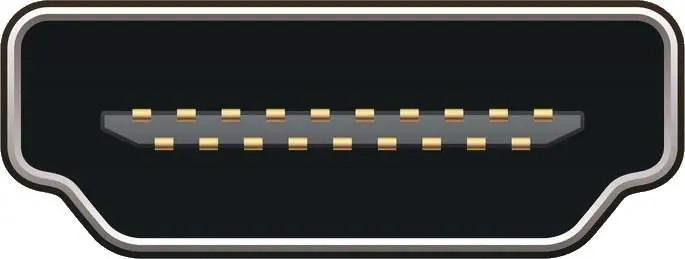
- Mini HDMI: For video signal transmission.
- Full-function Type-C: Supports power, video, and audio transmission.
- 3.5mm Headphone Jack: For audio output.
- Multi-function Key: Press center to open the menu; scroll up/down to navigate.
- Power Button: Press for 5 seconds to power off; press briefly in the menu to go back.
Setup and Connections
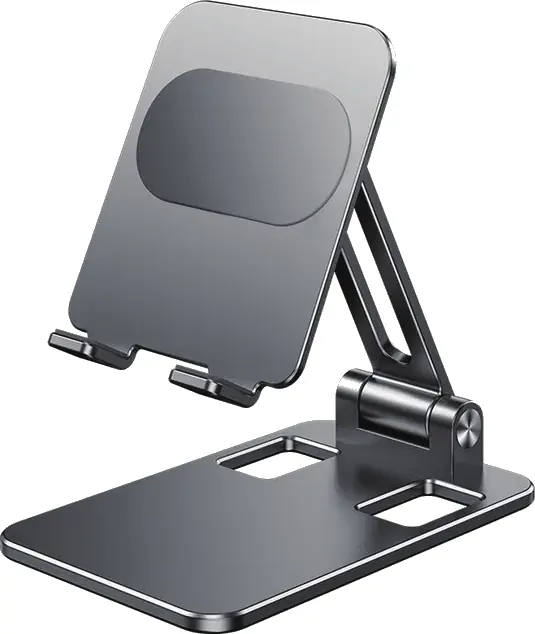
The monitor includes a magnetic cover that doubles as a stand. To use it, fold the cover to support the base of the screen.
Connecting to Laptop/PC
- USB-C: Connect via a single USB-C cable if your device supports video output. Use the wall adapter if the screen flickers.
- HDMI: Connect the HDMI cable for video and a USB-A to USB-C cable for power.
Connecting to Consoles (PS5/PS4/Xbox/Switch)
- Connect the HDMI cable for video.
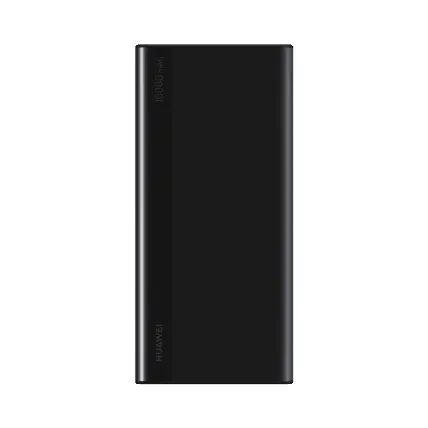
- Connect the USB-A to USB-C cable to the wall adapter for power.
- Note for Nintendo Switch: Use the original Switch power adapter connected to the monitor's Type-C port for best results.
Connecting to Phones
- Connect via USB-C. If the phone does not provide enough power, connect the wall adapter to the monitor's power port.
- Note: Some phones (e.g., Google Pixel) do not support video output.
OSD Menu Settings
Use the multi-function key to access the On-Screen Display (OSD) menu:
- Brightness/Volume: Scroll up/down directly to adjust.
- Main Menu: Press the button to open. Navigate options like Brightness, Contrast, Color Temperature, and OSD settings.
- Reset: Use the reset function to restore factory settings if needed.
Troubleshooting
- Black Screen/No Signal: Ensure the wall adapter is connected. Verify the cable is plugged into the correct port. Check if your device supports video output via USB-C.
- Brightness/Contrast Cannot Be Adjusted: This occurs if HDR, ECO mode, or DCR is enabled. Disable these features to regain control.
- Resolution Issues: If limited to 1080p, check your graphics card settings in Windows/macOS to ensure the monitor is set to its native 2560x1440 resolution.
Manufacturer information
Acer Inc.
Practical help
Common problems
Black screen or 'No Signal' message
Ensure the wall adapter is connected to the monitor. If using USB-C, verify your device supports video output. Try using the HDMI cable instead.
Brightness and contrast settings are greyed out
Disable ECO mode, DCR, or HDR in the OSD menu to unlock these settings.
Monitor flickers or restarts
The monitor is not receiving enough power. Connect the included wall adapter to the power port.
Resolution is stuck at 1080p
Check your computer's display settings and manually set the resolution to 2560x1440.
Before use
- Connect the monitor to the wall adapter for stable power.
- Identify if your source device supports video output via USB-C.
- Use the magnetic cover as a stand for proper viewing angles.
- Ensure you have the correct cables (HDMI or USB-C) for your specific device.
Specs in practice
- Power Consumption
- 18W; requires stable power supply.
- Refresh Rate
- 60Hz standard refresh rate.
Images and diagrams
- The multi-function key acts as both a menu selector and a volume/brightness controller.
- The power button requires a 5-second hold to turn the device off.
Model compatibility
- Some phones, such as Google Pixel, do not support video output.
- Nintendo Switch requires its original power adapter for stable operation.
- Some laptops (e.g., HP Elitebook, Acer Aspire) may require HDMI for video and USB-C for power.

Manual page author
Michael Turner
Technical manual editor
Reviews PDF manuals for structure, safety notes, and practical product details so readers can find the right information quickly.