Computers / Laptops
User Manual for Acer Chromebook 317
Quick guide for the Acer Chromebook 317. Learn how to set up your device, use the touchpad, understand port functions, and manage your Google account.
Table of contents
Manual images
Click an image to enlargeQuick guide from the manual
This guide provides essential information for setting up and using your Acer Chromebook 317. It covers initial configuration, device navigation, and port functionality.
Getting started
To begin using your Chromebook:
- Power on: Press the power button to boot up.
- Language: Select your default language from the drop-down list.
- Network: Connect to a Wi-Fi network.
- Terms of Service: Accept the terms to allow the system to download updates.
- Sign-in: Sign in with your primary Google Account. This account will be set as the owner and is the only one that can change certain Chrome settings. You can also browse as a guest if preferred.
Your Acer Chromebook tour
The device features include:
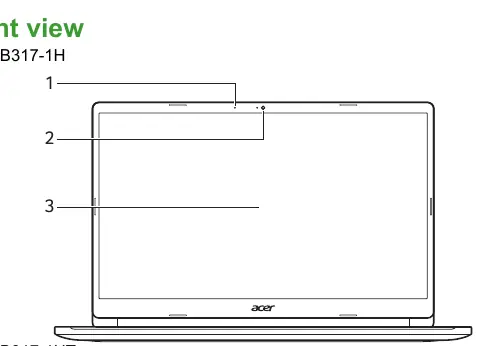
- Front view: Includes the microphone, webcam, and screen (touch or non-touch).
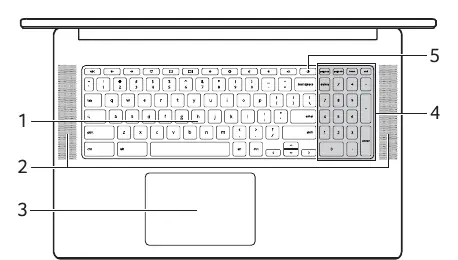
- Keyboard view: Features a full keyboard, speakers, touchpad, numeric keypad, and the power button.
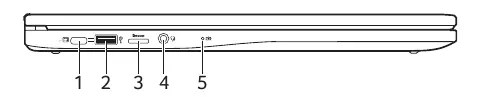
- Left view: Contains a USB Type-C port with DC-in, a USB port, a MicroSD card slot, and a headset/speaker jack.
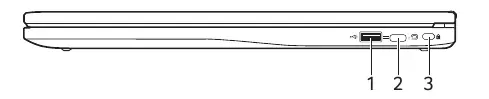
- Right view: Includes a USB port, a USB Type-C port with DC-in, and a Kensington lock slot.
Controls and navigation
The Chromebook utilizes specific function keys and shortcuts:
- Function keys: Dedicated keys for navigation (previous, next, reload), screen controls (brightness, full-screen), and audio (mute, volume).
- Keyboard shortcuts: Use combinations like Ctrl + Alt + / to view a complete list of shortcuts.
- Touchpad: Supports gestures such as clicking, two-finger tapping (right-click), two-finger swiping (scrolling), and drag-and-drop.
Connectivity and ports
The USB Type-C ports support DisplayPort audio/video output and charging. The system requires a power adapter providing 45W at 5-20V for optimal performance. USB 3.2 Gen 1 ports are color-coded blue and support speeds up to 5 Gbps.
Frequently asked questions
Common queries include:
- Software: Chromebooks use apps from the Google Play Store and web apps.
- Microsoft Office: You can use Word, Excel, and PowerPoint via the web or by downloading the apps from the Play Store.
- Files: Access your files using the Files app.
- Parental controls: Sign in using your child's personal Google Account to set up parental controls.
Manufacturer information
Acer Inc.
Practical help
Common problems
Cannot sign in or change settings
Ensure you are signed in with your primary Google Account, as this is the owner account.
Cannot find files
Open the Files app from the Launcher.
Need more apps
Download apps from the Google Play Store.
Before use
- Charge the battery fully before first use.
- Connect to a Wi-Fi network.
- Sign in with your primary Google Account.
- Accept the Terms of Service to receive updates.
Specs in practice
- USB 3.2 Gen 1
- Supports transfer speeds up to 5 Gbps; compatible ports are blue.
Images and diagrams
- Front view: Identifies microphone, webcam, and screen.
- Keyboard view: Identifies keyboard, speakers, touchpad, numeric keypad, and power button.
- Left/Right view: Identifies USB ports, MicroSD slot, audio jack, and Kensington lock.
Model compatibility
- Works with Microsoft Word, Excel, and PowerPoint via web or Play Store.
- Supports most external storage devices (USB thumb drives, hard drives).

Manual page author
Emily Carter
User documentation editor
Prepares concise manual descriptions and highlights the most useful setup, operation, and maintenance information for readers.