Computers / Laptops
User Manual for Acer Aspire 3 Laptop
Quick guide for the Acer Aspire 3 laptop. Learn about port layouts, keyboard shortcuts, Windows recovery, battery maintenance, and troubleshooting steps.
Table of contents
Manual images
Click an image to enlargeQuick guide from the manual
This document provides essential information for operating your Acer Aspire 3 laptop. It covers basic setup, maintenance, connectivity, and troubleshooting. For detailed technical specifications or advanced configurations, please refer to the full manual.
Notebook tour
Familiarize yourself with the physical layout of your device:
- Screen view: Includes the camera, microphones, and display screen.
- Keyboard view: Features full-sized keys, a numeric keypad, and a power button.
- Left view: Contains the DC-in jack, Ethernet (RJ-45) port, HDMI port, USB ports, and a USB Type-C port with DC-in/DisplayPort support.
- Right view: Features power and battery indicators, a headset/speaker jack, a USB port, and a Kensington lock slot.
- Base view: Houses the ventilation and cooling fan, speakers, and a battery reset pinhole.
Using the keyboard
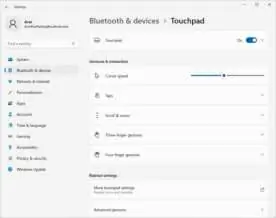
The keyboard includes special function keys and hotkeys. Use the Fn key in combination with F1-F12 to activate specific functions. You can toggle the touchpad on/off, adjust volume, screen brightness, and switch display output using the designated icons on the keys.
Windows OS and recovery
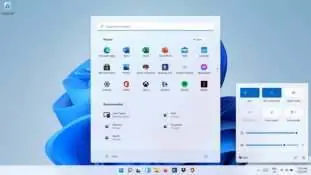
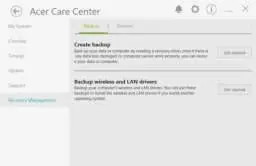
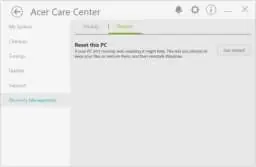
The laptop uses Windows 11. You can manage your system, apps, and notifications through the Windows Start menu. If you encounter system issues, use the Acer Care Center to perform backups or restore your computer. You can choose to reset your PC while keeping your personal files or removing everything to return to factory defaults.
Connectivity
- Bluetooth: Enable Bluetooth via Settings > Bluetooth & devices to pair peripherals.
- Internet: Connect via Wi-Fi by selecting the Network icon in the taskbar or use a wired connection by plugging a network cable into the Ethernet port.
- External displays: Connect monitors via the HDMI port or USB Type-C port.
Battery care
To maintain battery health, avoid exposing the device to extreme temperatures (below 0°C or above 50°C). Do not leave the battery completely discharged for long periods. If the battery-low warning appears, connect the AC adapter immediately to prevent data loss.
Troubleshooting
If the computer fails to start, check the power supply and battery level. If the screen is blank, try adjusting brightness or toggling the display output. For persistent issues, consult the error messages section in the manual or contact an authorized Acer service center.
Manufacturer information
Acer Inc.
Practical help
Common problems
Computer does not start or boot up
Check if the AC adapter is properly connected. If using battery power, it may be low; connect the charger and wait a few minutes.
Nothing appears on the screen
Press any key to wake the computer. Use the brightness up hotkey or the display toggle hotkey to switch output back to the laptop screen.
No audio is heard
Check the volume icon in the taskbar to ensure it is not muted or set too low. Ensure headphones are not connected if you intend to use internal speakers.
Keyboard does not respond
Try attaching an external USB keyboard. If it works, the internal keyboard cable may be loose; contact an authorized service center.
Before use
- Ensure the computer is placed on a stable, flat surface.
- Verify that the AC adapter is connected to a grounded power outlet.
- Check that the ventilation openings are not obstructed.
- Ensure the battery is charged before first use.
- Keep the touchpad and your fingers dry and clean.
Specs in practice
- USB 3.2 Gen 1
- High-speed USB ports (blue tongue) for faster data transfer.
Images and diagrams
- The left side features the DC-in, Ethernet, HDMI, and USB ports.
- The right side includes audio jacks, USB ports, and a security lock slot.
- The base contains the cooling fan intake and a battery reset pinhole.
Model compatibility
- Use only Acer-approved power adapters.
- Built-in batteries must be replaced by an authorized service center.
- Some features may vary depending on the Operating System version.

Manual page author
David Miller
Documentation analyst
Organizes user manual content into clear summaries, with attention to model details, product context, and everyday usability.