Computers / Laptops
User Manual for Acer Chromebook 511
Quick guide for the Acer Chromebook 511. Learn how to set up your device, use keyboard shortcuts, understand port functions, and manage your Google account settings.
Quick answers from the manual
Quick answer
- To start using your Acer Chromebook 511, press the power button, select your language, connect to a Wi-Fi network, and sign in with your Google Account. p. 4
Key actions
- Register your product p. 2
- Sign in to Google Account p. 5
First start
- Press power button, select language, connect to network, accept Terms of Service, sign in. p. 4
Technical specifications
| Parameter | Value | Meaning | Pages |
|---|---|---|---|
| USB Type-C Power | 45 W at 5~20 V | Required power adapter specification | p. 10 |
Where to find it in the PDF
- Getting Started p. 4, 5
- Device Tour p. 6, 7, 10, 11
Table of contents
Manual images
Click an image to enlargeQuick guide from the manual
This manual provides essential information for setting up and using your Acer Chromebook 511. Key steps include powering on the device, connecting to a network, and signing in with your Google Account. The document also details the physical layout of the laptop, including ports, keyboard shortcuts, and touchpad gestures.
Getting started
To begin using your Chromebook:
- Turn on: Press the power button.
- Language: Select your default language and keyboard input method.
- Network: Choose a network from the list and enter the password if required.
- Terms of Service: Accept the terms to allow the system to download updates.
- Sign-in: Create a new Google Account or sign in with an existing one. You can also browse as a guest.
Device tour
The manual provides detailed diagrams of the device:
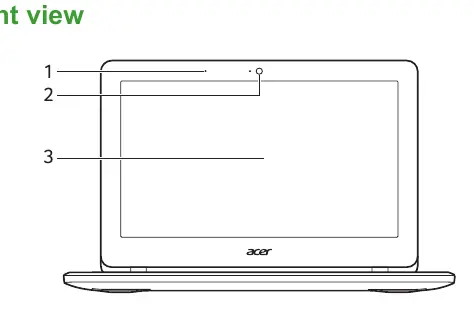
- Front view: Includes the microphone, webcam, and screen.
- Keyboard view: Details the keyboard, touchpad, and power button.
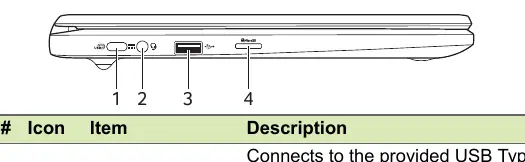
- Left view: Shows the USB Type-C port (with DC-in), headset/speaker jack, USB port, and MicroSD card slot.
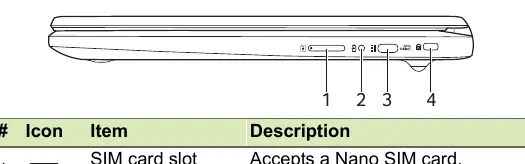
- Right view: Features the SIM card slot (optional), battery indicator, USB Type-C port, and Kensington lock slot.
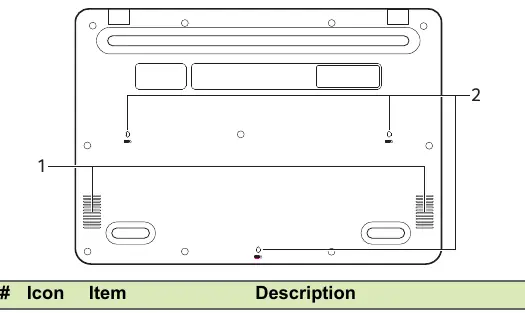
- Bottom view: Shows the speakers and drain holes for liquid spills.
Keyboard and touchpad
The Chromebook features dedicated function keys for tasks like screen brightness, volume control, and navigation. Common shortcuts include:
- Ctrl + [ ]||: Take a screenshot.
- Alt + Search: Toggle caps lock.
- Alt + [ ]: Project your screen.
The touchpad supports gestures such as clicking, two-finger tapping (right-click), two-finger swiping for scrolling, and drag-and-drop.
Ports and connectivity
The USB Type-C ports support DisplayPort audio/video output and charging. The device requires a power adapter providing 45 W at 5~20 V for optimal performance. USB 3.2 Gen 1 ports are blue and support transfer speeds up to 5 Gbps.
Frequently asked questions
The manual addresses common queries, such as using Microsoft Office (available via Google Play Store or web), finding files using the Files app, and setting up parental controls using a child's personal Google Account.
Manufacturer information
Acer Inc.
Practical help
Common problems
Cannot connect to network
Select a network from the 'Connect to network' list and enter the password if protected.
Cannot find files
Click the Launcher icon and search for 'Files'.
Need to use Microsoft Office
Download Microsoft Word, Excel, and PowerPoint from the Google Play Store or use them on the web.
Before use
- Charge the device
- Connect to a Wi-Fi network
- Sign in with a Google Account
- Accept Terms of Service
Specs in practice
- USB 3.2 Gen 1
- Supports transfer speeds up to 5 Gbps.
Images and diagrams
- Front view shows microphone, webcam, and screen.
- Left view shows USB-C, headset jack, USB port, and MicroSD slot.
- Right view shows SIM slot, battery indicator, USB-C, and Kensington lock.
Model compatibility
- Supports touch or non-touch screen options.
- Compatible with USB 3.2 Gen 1 and earlier devices.

Manual page author
Michael Turner
Technical manual editor
Reviews PDF manuals for structure, safety notes, and practical product details so readers can find the right information quickly.