Electronics / Video Transmission
User Manual for Alfatron ALF-CMW 101 Conferencing Webcam
Quick guide for the Alfatron ALF-CMW 101 Full HD 1080P conferencing webcam. Learn how to connect, operate, check device status, and troubleshoot video settings.
Table of contents
Quick guide from the manual
The Alfatron ALF-CMW 101 is a Full HD 1080P conferencing webcam featuring a 120° wide-angle lens and a 2.4 GHz wireless speaker microphone. It is designed for small to medium conference rooms, personal business, or home use.
Components
HD Network Camera: Includes lens, lens clamp, horizontal shaft, and an optional adjustable base. Connects via a 2m USB 2.0 cable.
2.4 GHz Wireless Speakerphone: Features a loudspeaker, microphone, mini USB interface, 3.5mm audio interface, and various control buttons (loudspeaker mute, microphone mute, volume controls, power).
Operation
To use the device, connect the camera to your PC via the USB cable and ensure the speaker microphone is switched on. To switch off the speaker, long-press the off button.
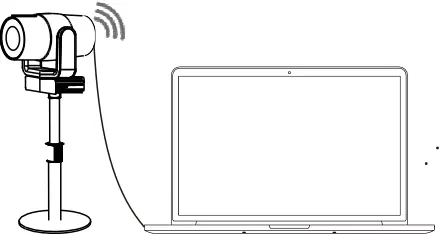
When connected for the first time, your computer will detect the device. You can verify the installation by opening the Device Manager and checking for the camera under "Imaging devices" and the audio device under "Sound, video and game controllers".
LED Indicators
- Blue triangular indicator: Normal working status.
- Blue bottom right indicator: Loudspeaker muted.
- Blue bottom left indicator: Microphone muted.
- Blinking blue bottom left indicator: Volume adjustment in progress.
- Blinking orange bottom left indicator: Low power.
Troubleshooting and Settings
If you experience abnormal video color or resolution, you can adjust settings using the "Amcap" software. Ensure the output size is set to 1920x1080 and check the white balance option (default value is 4600).
If issues persist, try restoring default effects within your instant messaging software or contact after-sales service.
Manufacturer information
Alfatron Electronics
Practical help
Common problems
Abnormal video color or resolution
Use Amcap software to check output size (1920x1080) and white balance (default 4600).
Device not recognized by computer
Check Device Manager for 'USB Camera' and 'USB Audio Device' entries.
Low battery/power
Check if the bottom left LED indicator is blinking orange.
Before use
- Connect the USB cable to your computer.
- Ensure the speaker microphone is switched on.
- Verify the device appears in the computer's Device Manager.
- Adjust video settings in your messaging software if necessary.
Specs in practice
- Connectivity
- USB 2.0 (2m cable)
Images and diagrams
- Camera components: Lens, clamp, horizontal shaft, adjustable base.
- Speakerphone components: Loudspeaker, microphone, mute buttons, volume controls, LED indicators.
Model compatibility
- Compatible with standard instant messaging and video software.

Manual page author
Michael Turner
Technical manual editor
Reviews PDF manuals for structure, safety notes, and practical product details so readers can find the right information quickly.