Electronics / Cameras
User Guide for BirdDog Present for Zoom
Learn how to install and use BirdDog Present for Zoom to transform your meetings into professional multi-camera productions. This guide covers setup, NDI source configuration, PTZ control, and audio management.
Table of contents
Manual images
Click an image to enlargeQuick Start Guide
BirdDog Present for Zoom allows you to integrate NDI video sources into your Zoom meetings for professional production. Before starting, ensure you have a BirdDog Connect account, the BirdDog Connect Endpoint software running on a computer with network access to your NDI sources, and Zoom Desktop Client version 5.7.3 or later.
Installing BirdDog Present for Zoom
To install the application:
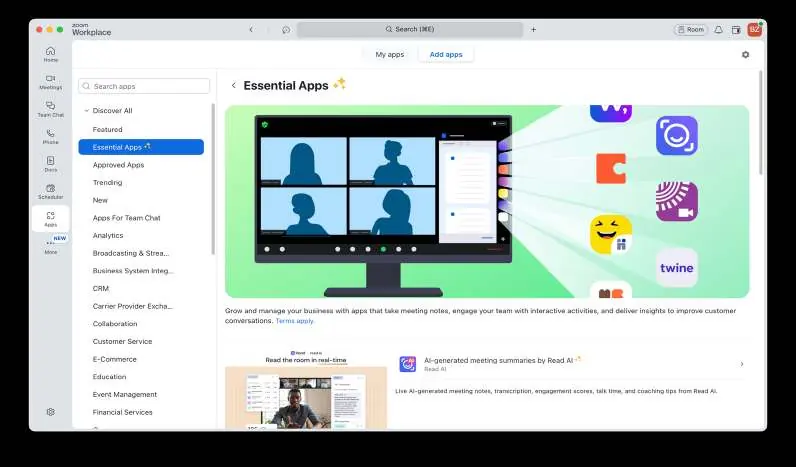
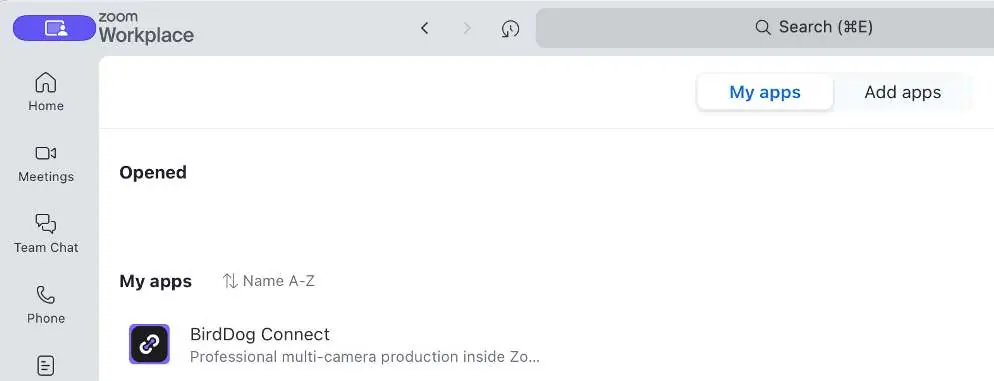
- Open the Zoom Marketplace in your web browser or via the Zoom desktop client.
- Search for "BirdDog Present for Zoom".
- Click the app in the search results.
- Click the "Add for others" dropdown and select "Add for myself" to install it to your account.
Launching in a Zoom Meeting
Once installed, you can access the app during a meeting:
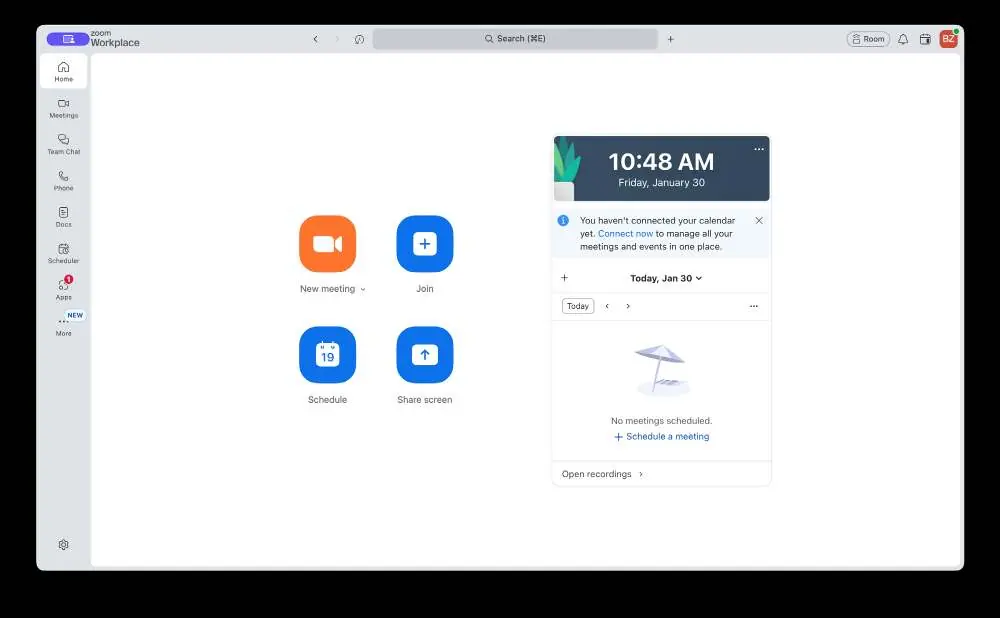
- Start or join a Zoom meeting as the host.
- Click the "More" (three-dot icon) in the meeting toolbar.
- Select "Apps" and then choose "BirdDog Present for Zoom" from the list.
Logging In
For security, you must authenticate to use the app:
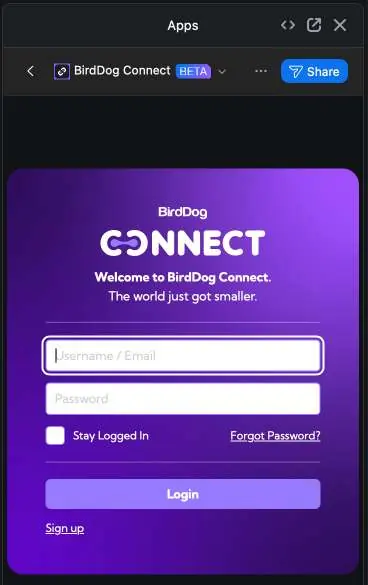
- When the app panel opens, enter your BirdDog Connect username/email and password.
- Click "Login".
- Select the appropriate BirdDog Connect Endpoint from the list that has access to your NDI sources and click "Select Endpoint".
Configuring Multiview Layout
After selecting an endpoint, use the Multiview Configuration screen to set up your video:
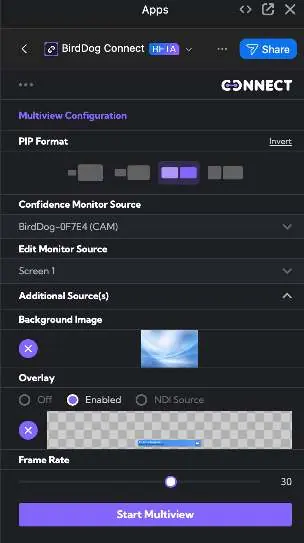
- PIP Format: Choose your picture-in-picture layout. Use "Invert" to swap main and secondary sources.
- Confidence Monitor Source: Select your primary video feed (e.g., camera).
- Edit Monitor Source: Select your secondary content (e.g., screen capture).
- Additional Sources: Select extra cameras to switch between during the call.
- Background Image: Set a custom wallpaper for your PIP layout.
- Overlay: Enable static images or NDI sources for titles or logos.
- Frame Rate: Adjust the output frame rate (default is 30 fps).
Click "Start Multiview" to begin streaming your layout.
Output Selection and Transitions
Click the gear icon to access output controls:
- Transitions: Choose between Cut, Fade, or Stretch styles.
- Enable Overlay: Toggle your configured overlay on or off.
- Video Source Fullscreen: Instantly switch a source to fullscreen.
- Mix Sources: Create a split-screen view.
Audio and PTZ Camera Control
Access these settings via the speaker and target/crosshair icons in the app panel:
- Audio Control: Select NDI sources with embedded audio or local audio capture devices (e.g., Decklink).
- PTZ Control: Select an NDI PTZ camera. Use the on-screen joystick to pan/tilt, and zoom controls to zoom in/out.
- Presets: Use buttons 1-9 to recall saved camera positions. Use numpad 0 to store a new preset.
Outputting Zoom Participants as NDI
You can output remote participants as NDI sources:
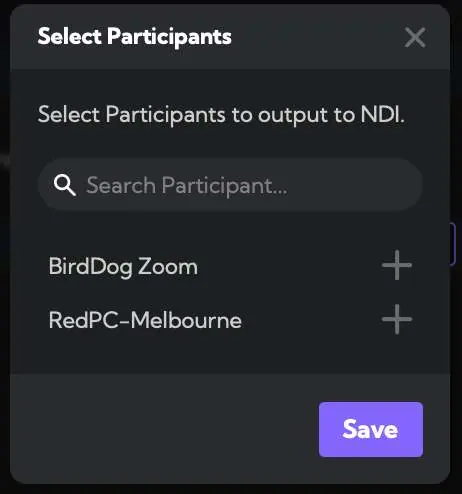
- Click the three-dot menu in the app header.
- Select "Participants".
- Click the "+" button next to the desired participant.
- Click "Save" to confirm.
Ending Your Session
Simply end your Zoom call as you normally would. Pressing "End Meeting for All" will automatically stop the BirdDog Present for Zoom session.
Manufacturer information
BirdDog
Practical help
Common problems
App does not appear in Zoom
Ensure you are using Zoom Desktop Client version 5.7.3 or later.
No NDI sources available
Verify that your NDI sources are on the same network as the computer running the BirdDog Connect Endpoint software.
Cannot log in to the app
Ensure you have a registered BirdDog Connect account. You can sign up for free at birddogconnect.io.
Before use
- Create a BirdDog Connect account at birddogconnect.io.
- Install and run the BirdDog Connect Endpoint software on a computer with network access to your NDI sources.
- Update Zoom Desktop Client to version 5.7.3 or later.
- Ensure NDI cameras and sources are active on the network.
Specs in practice
- Confidence Monitor Source
- The primary video feed, typically a camera, used as the main view.
- Edit Monitor Source
- The secondary content source, such as a screen capture or presentation.
Images and diagrams
- The Multiview Configuration screen allows for selecting PIP layouts, background images, and overlays.
- The PTZ Control panel features an on-screen joystick for camera movement and a preset management system.
Model compatibility
- Requires Zoom Desktop Client version 5.7.3 or later.
- Requires an active BirdDog Connect Endpoint software connection.

Manual page author
Michael Turner
Technical manual editor
Reviews PDF manuals for structure, safety notes, and practical product details so readers can find the right information quickly.