Computers / Tablets
User Guide for Amazon Kindle Fire 1st Generation
Learn how to read, navigate, and manage your library on the Amazon Kindle Fire 1st Generation. This guide covers text customization, annotations, dictionary usage, and social sharing features.
Quick answers from the manual
Quick answer
- The Kindle Fire 1st Generation allows users to read books, customize text appearance, use a built-in dictionary, and manage annotations like highlights, bookmarks, and notes. p. 3, 4, 5
Key actions
- Customize text appearance p. 3
- Add a note p. 5
- Share a passage p. 6
Problems and fixes
Annotations not syncing
Ensure the device is connected wirelessly.
p. 4Where to find it in the PDF
- Reading and Text Customization p. 3
- Annotations and Navigation p. 4, 5
- Social Network Options p. 6
Table of contents
Manual images
Click an image to enlargeQuick guide from the manual
This document provides instructions for reading and managing content on the Kindle Fire 1st Generation. Key features include customizing text appearance, using the built-in dictionary, managing annotations (highlights, bookmarks, and notes), and navigating within books. Note that the device uses location numbers rather than page numbers to track progress.
Reading basics
To start reading, tap Books from the Home screen. You can sort your library by author, recently read, or title, and toggle between grid and list views using the additional options settings. The Cloud tab shows all books stored in the Amazon Cloud; books with an arrow on the cover are not yet downloaded. Tapping the cover while connected to Wi-Fi will download the book to the Device tab.

Customizing text appearance
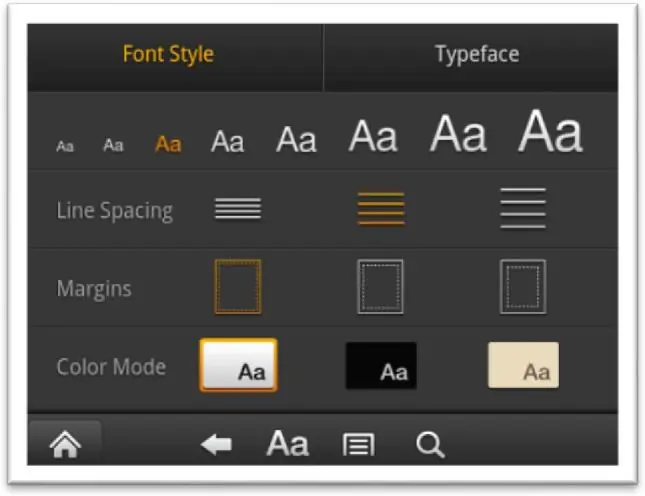
While reading, tap the center of the screen to bring up the reading menu. Tap the text icon (Aa) to access appearance options. You can adjust the font size, line spacing, margins, and background color. Tap Typeface to view additional font options. Note that menu and screen text sizes are fixed and cannot be modified.
Using the dictionary
To define a word while reading, tap on the word. A definition extract will appear on the screen. For a longer definition, tap Full Definition. You can swipe to turn pages within the dictionary. Tap the Back icon to return to your reading. The Kindle Fire 1st Generation does not support additional dictionaries.
Navigation and progress
To view your reading progress, tap the center of the screen while reading. Progress is displayed at the bottom as a percentage and a location number. Kindle books use locations specific to each line of text, so your progress remains accurate even if you change the text size. To navigate within a book, tap the center of the screen and then the Menu icon at the bottom to access the cover, table of contents, or specific locations.
Annotations and notes
You can add bookmarks, highlights, and notes to your books. These are stored in your Kindle Library on Amazon.com and require a wireless connection to sync. To place a bookmark, tap the upper right corner of the screen. To highlight text, press and drag to select the passage, then tap Highlight. To add a note, press and hold to select text, tap Note, type your note using the onscreen keyboard, and tap Save.
Social sharing
You can share passages and thoughts from your books. Press and hold on a word or phrase, then tap Share. Enter your thoughts in the text field and tap Share. You can also check boxes to share your entry through Twitter or Facebook accounts.
Official resources from the manual
Practical help
Common problems
Book not appearing in library
Check your Wi-Fi connection. Books in the Cloud tab must be downloaded to the device before they appear in the Device tab.
Cannot change font size of menus
Menu and screen text size is fixed and cannot be modified; only book text appearance can be changed.
Annotations not saving to Amazon.com
Ensure your Kindle is connected wirelessly to the internet to sync your annotations.
Before use
- Ensure the device is connected to a Wi-Fi network.
- Tap Books on the Home screen to access your library.
- Check the Cloud tab for books that need to be downloaded.
- Tap the center of the screen while reading to access the reading menu.
Images and diagrams
- The Text Appearance menu allows adjustment of font style, typeface, line spacing, margins, and color mode.
- The progress bar at the bottom of the screen shows your current location and percentage of the book read.
Model compatibility
- Kindle Fire 1st Generation does not support page numbers.
- Kindle Fire 1st Generation does not support additional dictionaries.

Manual page author
Michael Turner
Technical manual editor
Reviews PDF manuals for structure, safety notes, and practical product details so readers can find the right information quickly.