Computers / Laptops
User Manual for Android Tablet PC
Comprehensive user guide for your Android Tablet PC. Learn how to set up your device, connect to Wi-Fi and Bluetooth, manage applications, perform a factory reset, and troubleshoot common issues.
Quick answers from the manual
Quick answer
- This manual provides instructions for operating your Android Tablet PC, including setup, connectivity, app management, and troubleshooting. p. 1, 3, 4, 6
Key actions
- To turn on the tablet, press and hold the Power button. p. 3
- To connect to Wi-Fi, go to Settings > Network & internet > Wi-Fi. p. 6
- To perform a hard reset, hold the power button for 20 seconds. p. 9
First start
- Charge the device, then press and hold the power button to turn it on. p. 3, 9
Problems and fixes
Device doesn't power on
Charge for 30 minutes, check power button, or perform a hard reset.
p. 9Maintenance and reset
- You can reset the tablet via settings or by using the reset button with a pin. p. 8, 9
Technical specifications
| Parameter | Value | Meaning | Pages |
|---|---|---|---|
| Processor | SC9832E | Octa-core Cortex A53 1.4GHz | p. 8 |
| RAM | 2GB | System memory | p. 8 |
| Storage | 16GB | Internal flash storage | p. 8 |
Where to find it in the PDF
- Getting Started p. 3
- Connectivity p. 6, 7
- Specifications p. 8
- Troubleshooting p. 9
Table of contents
Manual images
Click an image to enlargeQuick guide from the manual
This manual covers the basic operation of your Android Tablet PC. Key tasks include powering the device on and off, connecting to wireless networks, managing applications, and performing a device reset. Ensure you charge the device fully before first use and follow the setup wizard to configure your language and security settings.
Features
- Web Browsing: Access your favorite websites.
- Communication: Check E-mail and stay in touch with friends and family.
- Entertainment: Watch videos via YouTube, read e-books, and listen to music.
- Google Play: Download thousands of apps and games.
- Connectivity: Wi-Fi 802.11 b/g/n/ac support.
- Storage: MicroSD card slot supports up to 128GB.
- Camera: Front 2MP and Rear 5MP cameras.
Getting Started
Turning on/off: Press and hold the Power button until the screen turns on. To turn off or restart, press and hold the Power button until the Device Options menu appears.

Sleep Mode: Press the Power button once to turn the screen off and save battery. Press it again to wake the device.
Home Screen: Use the navigation icons (Back, Home, Background, Application Panel) to manage your workspace. You can add widgets and change wallpapers by tapping and holding on any blank space on the home screen.
Screen Lock: Secure your tablet by going to Settings → Security → Screen security. You can choose from None, Swipe, Pattern, PIN, or Password.
Connectivity
Wi-Fi: Go to Settings → Network & internet → Wi-Fi. Turn on Wi-Fi to scan for available networks. Select your network and enter the password if required.
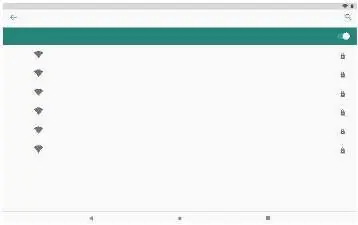
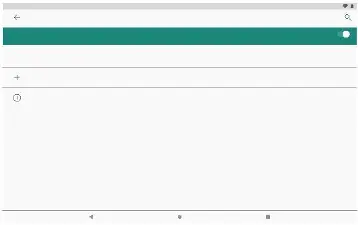
Bluetooth: Go to Settings → Connected devices → Connection preferences → Bluetooth. Turn it on to pair with other devices.
Optional Connections
Computer: Connect the tablet to a computer using the included USB cable. Slide down the USB icon on the tablet, touch 'USB connected', and select 'Transfer files (MTP)' to mount the storage.

Device Reset
Warning: A hard reset will delete all data, including account configurations, apps, and files. Back up important data before proceeding. You can reset the device via the settings menu or by using the reset button (if available on your specific device) with a pin.
Specifications
- Processor: SC9832E (Octa-core Cortex A53) 1.4GHz
- RAM: 2GB
- Storage: 16GB flash built-in; MicroSD card slot (max 128GB)
- Display: 10.1 inch 800x1280 IPS Capacitive Touchscreen
- Operating System: Android 10 Go
- Power: Rechargeable Li-poly battery (5V/2A)
Practical help
Common problems
Device does not power on
Charge the device for 30 minutes, check if the power button lights up, or perform a hard reset by holding the power button for 20 seconds.
Device does not charge
Ensure the charger is properly inserted into the charging port and try a different outlet or compatible charger.
Wi-Fi connection issues
Ensure Wi-Fi is set to 'ON', restart your router, verify the password, and ensure there are no connection limits on your router.
Device not detected by PC
Ensure the device is powered on, try a different USB cable, or connect to a different USB port on your PC.
Before use
- Charge the battery fully
- Configure language settings
- Set up a screen lock (PIN, Pattern, or Password)
- Connect to a Wi-Fi network
- Sign in to your Google account
Images and diagrams
- The manual includes diagrams for the Home Screen navigation, Wi-Fi settings menu, and USB connection options.
Model compatibility
- Supports MicroSD cards up to 128GB.
- Requires Android-compatible apps from Google Play.
- Supports Wi-Fi 802.11 b/g/n/ac (2.4GHz).

Manual page author
David Miller
Documentation analyst
Organizes user manual content into clear summaries, with attention to model details, product context, and everyday usability.