Computers / Tablets
Quick Start Guide for Alcatel 1T10 Smart Tablet
Get started with your Alcatel 1T10 Smart Tablet. This guide covers device layout, charging, SD card installation, home screen navigation, Wi-Fi setup, and email configuration.
Quick answers from the manual
Quick answer
- The Alcatel 1T10 Smart Tablet is set up by fully charging the device, inserting an SD card if needed, and configuring Wi-Fi in the Settings menu. p. 2, 6
Key actions
- Connect to Wi-Fi p. 6
- Add a contact p. 4
First start
- Fully charge the device before first use. p. 2
Where to find it in the PDF
- Device Layout p. 1
- Getting Started p. 2
- Home Screen p. 3
Table of contents
Manual images
Click an image to enlargeQuick guide from the manual
This document provides essential instructions for setting up and using your Alcatel 1T10 Smart Tablet. It covers initial setup, device navigation, and basic connectivity.
Device Layout
The tablet features the following physical controls and components:
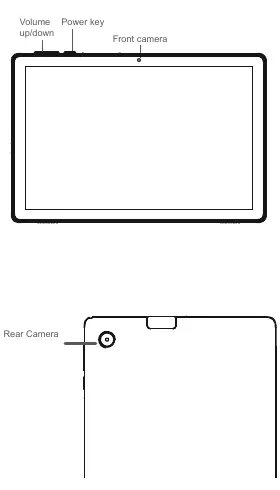
- Volume up/down: Located on the top edge.
- Power key: Located on the top edge.
- Front camera: Located on the top bezel.
- Rear camera: Located on the back of the device.
Getting Started
Before using your tablet for the first time, follow these steps:
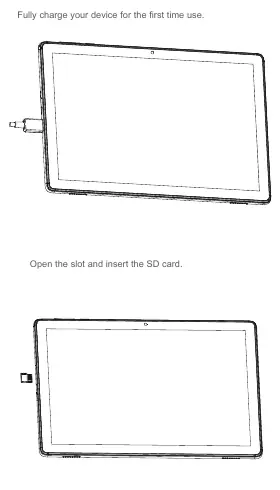
- Charging: Fully charge your device before the first use.
- SD Card: Open the slot and insert the SD card to expand storage.
Home Screen
The Home screen allows for quick access to applications, shortcuts, folders, and widgets.
- Status bar: Displays notifications on the left and connection status on the right. Swipe down to access the Notification panel or Quick Settings.
- Favourites tray: Located at the bottom, touch to open applications or long-press to move/change them.
- Navigation: Slide the Home screen horizontally to access additional views.
Quick Settings
Swipe down from the status bar twice to open the Quick settings panel. From here, you can enable or disable functions and change modes by touching the icons.
Contacts
Use the Contacts app to add, delete, or edit contacts. You can also import or export contacts from external storage or email accounts.
- Adding a contact: Open the Contacts app and touch the Plus button on the bottom right.
Gmail
The tablet comes with Gmail pre-installed for email management.
- Adding an account: Touch the Menu button, then go to Setting > Add account.
- Sending emails: Touch the Edit button, enter the recipient, subject, and content, then touch the Send button.
Wi-Fi Connection
To connect to the internet:
- Go to Settings > Network & internet > Wi-Fi.
- Touch the switch to turn on Wi-Fi.
- Select a network. If secured, enter the password and touch CONNECT.
- For hidden networks, select Add network, enter the SSID and credentials, then touch SAVE.
Support
For further assistance, use the SUPPORT CENTER application on your tablet or visit www.alcatelmobile.com for FAQs and chat support.
Official resources from the manual
Manufacturer information
Alcatel
Practical help
Common problems
Cannot connect to Wi-Fi
Ensure Wi-Fi is enabled in Settings > Network & internet > Wi-Fi. If the network is secured, verify the password.
Cannot find how to add a contact
Open the Contacts app and tap the Plus (+) button located at the bottom right of the screen.
Before use
- Fully charge the device before the first use.
- Insert an SD card if additional storage is required.
- Ensure you have your Wi-Fi network credentials ready.
Images and diagrams
- The device layout diagram identifies the volume rocker, power key, front camera, and rear camera locations.
- The charging diagram illustrates connecting the charger to the device.
- The SD card diagram shows the location of the card slot.
Model compatibility
- Requires a Wi-Fi connection for internet access.

Manual page author
Michael Turner
Technical manual editor
Reviews PDF manuals for structure, safety notes, and practical product details so readers can find the right information quickly.