Electronics / Cables & Adapters
USB to RS-232 Converter Assured Systems USB-232
Quick guide for the Assured Systems USB-232 converter. Includes installation steps, driver setup, pin assignments, and technical specifications for connecting RS-232 devices to a PC.
Table of contents
Quick guide from the manual
The USB-232 Converter is an intelligent module designed to connect a PC USB port to an RS-232 serial device. It is hot-pluggable and does not require PC reconfiguration or jumper settings. Ensure you install the drivers from the provided software CD or floppy disk before connecting the RS-232 terminal to the converter.
System Requirements
- PC with a minimum of a 75MHz Pentium processor or equivalent.
- Minimum of 16MB of RAM.
- One available USB port compliant with USB 1.1.
- Supported Operating Systems: Windows 98/SE, 2000, Me, XP, Linux (kernel 2.4.0+), and MAC OS 8.2 or higher.
Installation
- Power on your computer and verify the USB port is enabled.
- Insert the software CD or floppy disk.
- Connect the converter to the PC USB port.
- When the "Add New Hardware Wizard" appears, click Next and select "Search for the best driver".
- Specify the location of the driver on the CD or floppy disk and click Next.
- Once Windows finishes installing the driver, click Finish.
- Connect the RS-232 communication terminal to the USB-232 converter.
- Verify the installation in the Device Manager under COM PORTS; it should be listed as "USB to Serial Adapter".
Specifications
- Communication speed: 300 to 920K baud.
- Power consumption: 50mA at 5V (powered by the PC USB port).
- Temperature Range: 0°C to 50°C.
- Humidity Range: 10 to 90% R.H. (Non-condensing).
- Modes of Operation: RS-232.
Pin Assignments
The interface connector is a male DB-9. The pin assignments are as follows:
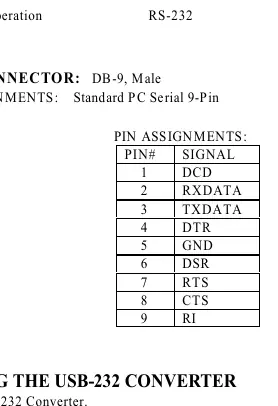
- Pin 1: DCD
- Pin 2: RXDATA
- Pin 3: TXDATA
- Pin 4: DTR
- Pin 5: GND
- Pin 6: DSR
- Pin 7: RTS
- Pin 8: CTS
- Pin 9: RI
Uninstallation
- Unplug the USB-232 Converter.
- Insert the converter software diskette or CD.
- Run the FTDIUNIN.EXE program from the disk and reboot the PC.
Support
For technical support or sales inquiries, contact Assured Systems via email at [email protected] or call the US office at +1 347 719 4508 or the EMEA office at +44 (0)1785 879 050.
Official resources from the manual
Practical help
Common problems
Device not detected or installation fails
Ensure the drivers are installed from the provided CD/diskette before connecting the RS-232 terminal to the converter.
Need to uninstall the device
Run the FTDIUNIN.EXE program located on the software diskette or CD, then reboot the PC.
Before use
- Verify PC has at least a 75MHz Pentium processor.
- Ensure at least 16MB of RAM is available.
- Confirm an available USB 1.1 compliant port.
- Have the software CD or floppy disk ready for driver installation.
Specs in practice
- Communication speed
- Supports data transfer rates between 300 and 920K baud.
- Power consumption
- Requires 50mA at 5V, supplied directly by the PC USB port.
- Temperature Range
- Operating environment must be between 0°C and 50°C.
Images and diagrams
- The device uses a standard male DB-9 connector.
- Pin 1 is DCD, Pin 2 is RXDATA, Pin 3 is TXDATA, Pin 4 is DTR, Pin 5 is GND, Pin 6 is DSR, Pin 7 is RTS, Pin 8 is CTS, Pin 9 is RI.
Model compatibility
- Compatible with Windows 98/SE, 2000, Me, XP.
- Compatible with Linux (kernel 2.4.0+).
- Compatible with MAC OS 8.2 and higher.

Manual page author
Michael Turner
Technical manual editor
Reviews PDF manuals for structure, safety notes, and practical product details so readers can find the right information quickly.