Industrial / Communication Modules
User Manual for Assured Systems 104-COM-8S Serial Communication Board
Quick guide for the Assured Systems 104-COM-8S and 104-COM-4S serial communication boards. Includes installation, jumper configuration, address selection, and Windows COM port setup.
Table of contents
Manual images
Click an image to enlargeQuick Guide from the Manual
The Assured Systems 104-COM-8S and 104-COM-4S are PC/104 format serial communication boards supporting RS-485 and RS-422 protocols. Warning: Always power off the computer before installing or removing the board or field cabling to prevent damage and voiding the warranty.
Functional Description
These boards provide eight or four independent ports. They utilize 16550 UARTs for compatibility with standard serial ports. The boards support half-duplex communication with 2-wire cable connections and feature automatic RTS transceiver control, making them suitable for Windows applications.
Installation
Hardware Installation:
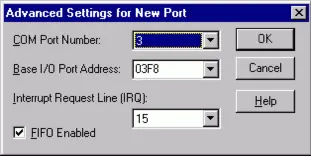
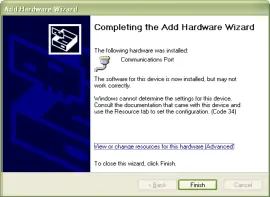
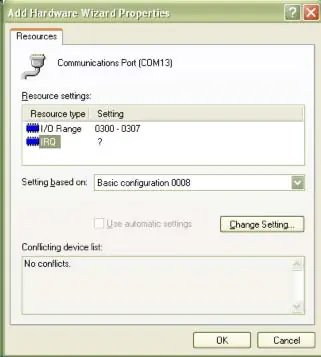
- Configure jumpers for base address and options according to your requirements.
- Remove power from the PC/104 stack.
- Assemble standoff hardware.
- Plug the board onto the PC/104 connector, ensuring proper pin alignment.
- Connect I/O cables and secure the stack.
- Verify connections before powering up.
Software Installation: Install the provided software from the CD. For Windows, follow the specific instructions for your OS version (NT4.0 or XP) to manually add the COM ports and configure resources (I/O range and IRQ) via the Control Panel.
Option Selection
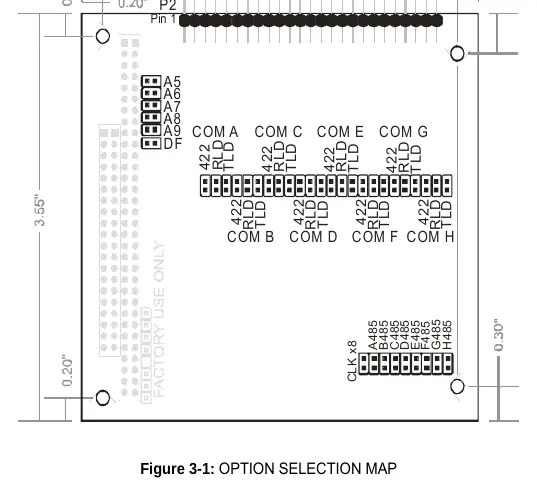
Jumpers on the board determine the configuration for each channel. A jumper at the location labeled TERM applies a 120Ω load for RS-485 termination. Ensure that only the ports at each end of the network have terminating resistors.
Address Selection
The board uses software-programmable address ranges for each UART, stored in an onboard EEPROM. Configure the EEPROM address using the onboard Address Selection jumper block. Use the provided FINDBASE.EXE program to identify available I/O addresses and avoid conflicts with other system resources.
Programming
The board uses a control block for software configuration. Addresses and IRQs are stored in an EEPROM. You can load these values by writing to the control block. The board supports baud rates from 300 to 921,600. Initialization involves setting the baud rate divisor, word length, stop bits, and parity.
Connector Pin Assignments
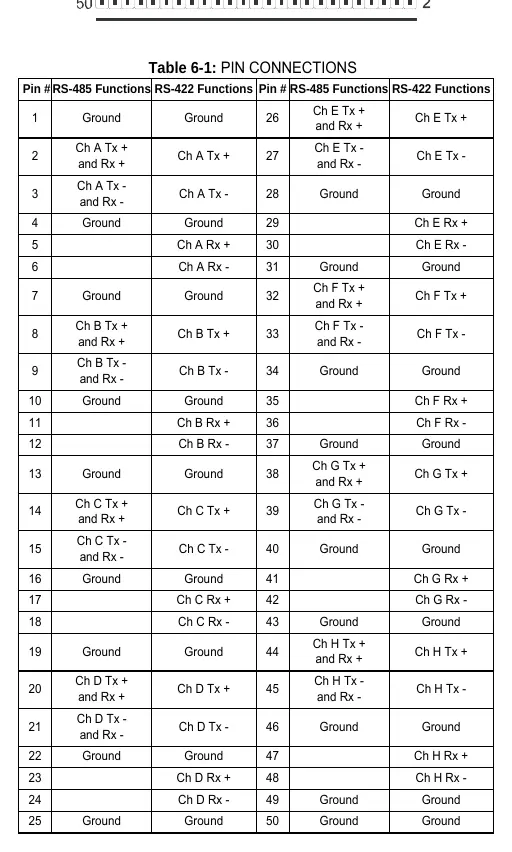
The board features a 50-pin Male IDC Header. Optional cabling is available to break this down into 8 DB9 male connectors. Refer to the pin connection table in the full manual for specific RS-485 and RS-422 signal mappings for each pin.
Specifications
- Operating Temperature: 0 to +60 °C
- Power Required: +5 VDC at 400 mA typical, 800 mA maximum
- Size: PC/104 format, 3.5” by 3.75”
- Multidrop: Supports up to 32 devices on a single RS-485 line
Official resources from the manual
Practical help
Common problems
Unpredictable computer behavior
Check for address overlaps with other installed functions. Use the FINDBASE.EXE program to find available addresses.
Communication failure
Verify termination jumpers (TERM) are installed only at the ends of the network. Ensure bias is provided.
Windows COM port not working
For Windows NT4, ensure IRQ sharing is enabled in the registry (PermitShare key set to 1).
Before use
- Power off the computer before installing the board.
- Configure jumpers for base address and options before installation.
- Install software from the provided CD.
- Verify address ranges do not conflict with other hardware.
- Ensure proper alignment of PC/104 pins before seating.
Specs in practice
- Operating Temperature
- 0 to +60 °C
- Power Required
- +5 VDC at 400 mA typical, 800 mA maximum
Images and diagrams
- Option Selection Map: Shows the location of jumpers for COM ports A-H and termination settings.
- Block Diagram: Illustrates the signal path from the PC/104 bus through the UART to the 50-pin header.
- Connector Pinout: Details the mapping of the 50-pin IDC header to RS-485/RS-422 signals.
Model compatibility
- Compatible with RS-485 and RS-422 specifications.
- Designed for PC/104 format systems.

Manual page author
Emily Carter
User documentation editor
Prepares concise manual descriptions and highlights the most useful setup, operation, and maintenance information for readers.