Electronics / AV Splitters
User Manual for av link 128.862UK 8K HDMI Splitter
Quick guide for the av link 128.862UK 8K HDMI Splitter. Learn how to connect your devices, configure EDID settings for optimal resolution, and troubleshoot common setup issues.
Table of contents
Manual images
Click an image to enlargeQuick guide from the manual
The av link 128.862UK is an 8K HDMI splitter designed to distribute a single HDMI source signal to up to four displays simultaneously. To ensure optimal performance, always use 8K certified HDMI cables and keep the total cable length within 10 meters (5m input and 5m output). The device features an 8-mode EDID switch to manage resolution and audio compatibility between the source and displays.
Product description
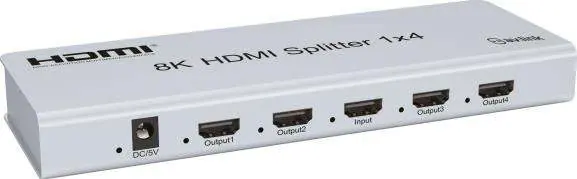
This splitter features a durable metal chassis with a satin silver finish. It includes four HDMI output ports and one HDMI input port. The front panel houses the power input and status LEDs, while the rear panel contains the RS232 port for firmware updates and an IR extension socket.
In the box
- 8K HDMI Splitter 1x4
- 5V DC Power Adaptor
- User Manual
- 4pcs self-adhesive rubber feet
Connection instructions
Follow these steps to set up your device:
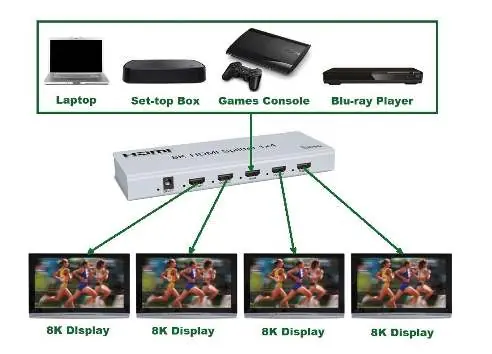
- Connect your HDMI source device (e.g., laptop, games console, Blu-ray player) to the input port of the splitter using an 8K certified HDMI lead.
- Connect your display devices to the output ports of the splitter using 8K certified HDMI leads.
- Set the EDID dip switches on the back of the unit according to your required resolution and audio output (see the EDID settings section).
- Connect the supplied 5V power adaptor to the splitter and plug it into a mains outlet.
- Switch on the power. The blue LEDs on the front of the unit will illuminate when the source and display devices are connected and powered on.
EDID settings
The EDID dip switches allow you to configure the splitter to match the capabilities of your connected displays. Note that switch 1 is for upgrade mode only. The settings are as follows:
- X 0 0 0: Copy output 1 EDID only
- X 0 0 1: Downward compatibility (1-2) outputs
- X 0 1 0: 4K/60Hz 2ch
- X 0 1 1: 1080p 3D 2ch
- X 1 0 0: 8K/60Hz 7.1ch
- X 1 0 1: 4K/30Hz 2ch
- X 1 1 0: 1080p 2D 2ch
- X 1 1 1: 1080p 2D 7.1ch
Note: 0 = switch up, 1 = switch down.
Technical specifications
- Video resolution: Up to 7680 x 4320 @ 60Hz
- Audio format: DTS-HD, Dolby True, DTS, Dolby-AC3, DSD
- Input connections: HDMI, RS232 Serial (firmware updates only)
- Output connections: 4x HDMI, 3.5mm IR Extension Socket
- Transmission distance: 10m max (8K @ 60Hz)
- Power supply: Input 100-240V AC, Output 5V/2A DC
- Dimensions: 211 x 78 x 27mm
- Weight: 504g
Safety warnings
- Do not immerse the device in water or expose it to damp conditions.
- Do not subject the device to excessive force.
- Only use the power supply provided by the manufacturer.
- Do not attempt to repair or take apart the device, as this will invalidate the warranty.
- Disconnect the power supply from the mains when not in use for long periods.
Practical help
Common problems
No image on display
Ensure you are using 8K certified HDMI cables and that the total cable length does not exceed 10m (5m input + 5m output).
Incorrect resolution or audio
Adjust the EDID dip switches on the back of the unit to match the capabilities of your display and audio system.
Device not powering on
Verify that the 5V power adaptor is securely connected to the splitter and a working mains outlet.
Before use
- Verify you have 8K certified HDMI cables.
- Ensure the total cable length is within 10m (5m input, 5m output).
- Check that the power supply is 5V/2A.
- Identify the source device and display devices.
Images and diagrams
- Application Diagram: Shows how to connect a source (laptop, console) to the splitter input and up to four displays to the outputs.
- Front View: Displays the power input and four HDMI output ports.
- Back View: Shows the RS232 port, IR extension socket, and EDID dip switches.
Model compatibility
- Requires 8K certified HDMI cables for 8K resolution.
- Maximum combined cable length is 10m.
- Supports DTS-HD, Dolby True, DTS, Dolby-AC3, and DSD audio.

Manual page author
David Miller
Documentation analyst
Organizes user manual content into clear summaries, with attention to model details, product context, and everyday usability.