Electronics / USB Hubs & Docking
User Manual for Baseus 16-in-1 USB-C Hub Adapter
Quick guide for the Baseus 16-in-1 USB-C Hub. Learn how to connect displays, manage resolutions, use ports, and configure multi-screen setups on Windows and Mac.
Table of contents
Manual images
Click an image to enlargeQuick guide from the manual
The Baseus 16-in-1 USB-C Hub is a multifunctional docking station designed to expand the connectivity of Type-C devices. It supports three-screen display, high-speed data transfer, and power delivery. Ensure your computer has a compatible Type-C port before use. For high-power devices like external hard drives, it is recommended to connect a PD charger to the hub to ensure stable operation.
Appearance and interface
The hub features 13 distinct ports and slots:
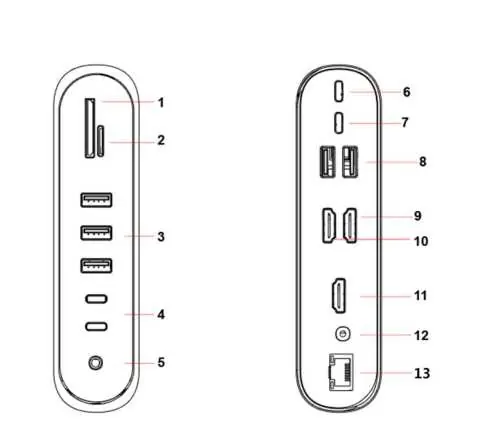
- 1/2: SD/Micro SD card slots (supports up to 2TB).
- 3: USB 3.0 ports for data devices.
- 4: USB 3.0 Type-C port.
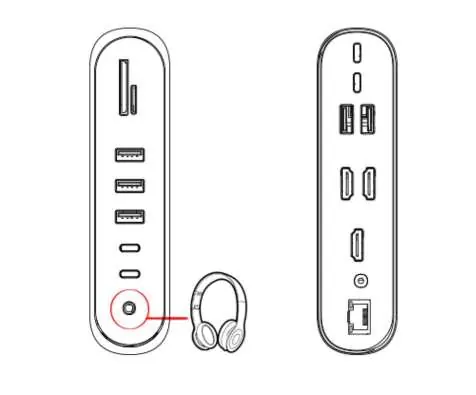
- 5: 3.5mm stereo headphone/microphone jack.
- 6: Type-C PD charging port (supports up to 100W).
- 7: Type-C port for computer connection.
- 8: USB 2.0 ports.
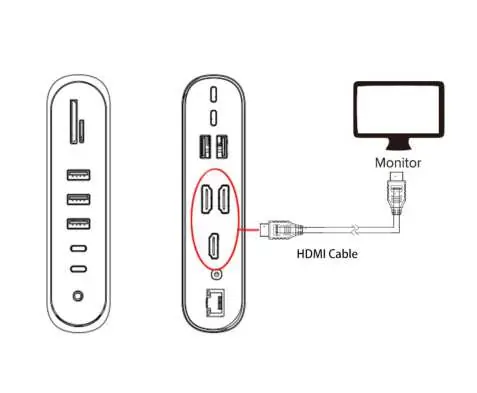
- 9/10/11: HDMI ports for external displays.
- 12: DC power supply port.
- 13: Gigabit Ethernet port (10/100/1000Mbps).
Connecting devices
Storage and Peripherals: Connect the hub to your computer using the provided Type-C cable. Insert USB flash drives, SD cards, or hard drives into the respective ports. The computer will automatically detect the drive letter.
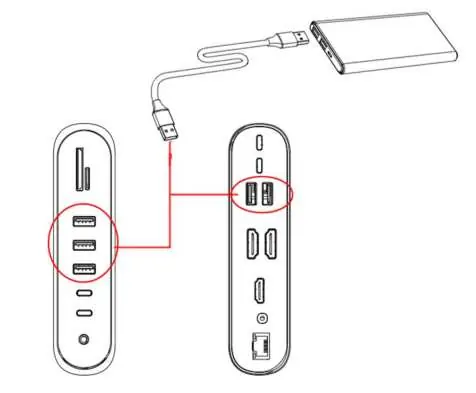
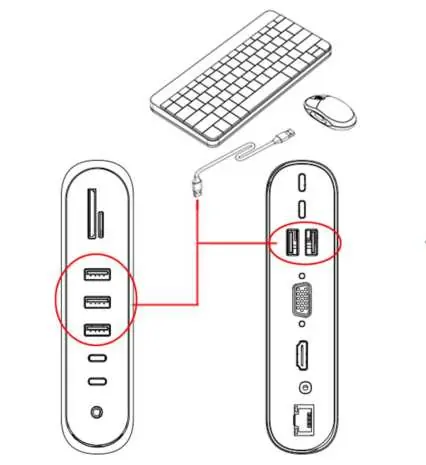
Mouse and Keyboard: Connect your peripherals to the USB 3.0 ports. Note that on some devices like Chromebooks, there may be a slight delay before the mouse is recognized.
Network and Audio: Plug an RJ45 cable into the Ethernet port for wired internet. For audio, connect your headset to the 3.5mm jack and configure the output device in your computer's Sound settings.
Display settings
Mac OS: Navigate to System Preferences > Display to configure mirror or extended display modes. You can manage multiple monitors by selecting the desired arrangement.
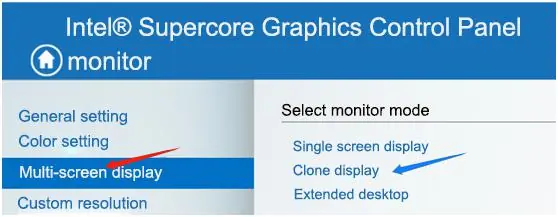
Windows: Use the graphics control panel (e.g., Intel Graphics Settings) to manage multi-screen displays. You can choose between single screen, clone display, or extended desktop modes. If three external displays are connected, the computer's built-in screen may turn black as the hub supports a maximum of three display data streams.
Resolution and modes
The hub supports different resolutions depending on the DP version (1.2 or 1.4) of your host device. In MST (Multi-Stream Transport) mode, you can achieve various 4K/30Hz or 1080P configurations across the three HDMI ports. Refer to the resolution tables in the manual to verify the specific output capabilities for your setup.
Product considerations
- Do not allow liquids or foreign objects to enter the ports.
- Avoid using the device in wet or dusty environments.
- When disconnecting the PD charger, storage devices may briefly disconnect and reconnect; avoid transferring data during this process.
- If the hub fails to power connected devices, ensure the PD charger is connected to the hub's DC or PD port.
Manufacturer information
Baseus
Practical help
Common problems
Mouse delay on Chromebook
This is normal behavior for some Type-C adapters on Chrome OS; wait a few seconds for the connection to stabilize.
Storage device disconnects when plugging/unplugging PD charger
This is expected behavior as the device reconnects; avoid transferring data during this action to prevent loss.
USB power consumption error
The connected devices exceed the power limit (1A); unplug the hub, reboot, and prioritize connecting a PD power supply.
Before use
- Ensure your computer has a compatible Type-C interface.
- Connect the hub to the computer using the provided Type-C cable.
- If using high-power devices (hard drives), connect a PD charger to the hub.
- Verify your computer's graphics card supports the desired multi-screen configuration.
Specs in practice
- Gigabit Ethernet
- Supports 10/100/1000Mbps adaptive network speeds.
Images and diagrams
- Ports 1-2: SD/Micro SD card slots.
- Ports 3-4: USB 3.0 and USB-C data ports.
- Port 5: 3.5mm audio jack.
- Ports 9-11: HDMI ports for external displays.
Model compatibility
- Supports Mac OS and Windows 10.
- Three-screen display capabilities depend on the computer's graphics card and DP version (1.2 or 1.4).

Manual page author
Emily Carter
User documentation editor
Prepares concise manual descriptions and highlights the most useful setup, operation, and maintenance information for readers.