Electronics / USB Hubs & Docking
User Manual for Baseus UnionJoy 16-Port Type-C HUB Adapter
Quick guide for the Baseus UnionJoy 16-Port Type-C HUB Adapter. Learn how to install the required DisplayLink drivers, connect multiple displays, and troubleshoot common connectivity issues.
Table of contents
Manual images
Click an image to enlargeQuick guide from the manual
To use the Baseus UnionJoy 16-Port Type-C HUB Adapter, you must install the DisplayLink driver. Download the latest software from the official website at http://www.displaylink.com/downloads. Ensure your laptop's Type-C port is a full-featured port (supporting charging, data transfer, and DP Alt Mode) for all functions to work correctly.
Product Overview
The package includes the main hub, a base, a Type-C cable, a 12V/3A DC adapter, and a warranty card. The device features 16 ports, including SD/TF card slots, multiple USB 3.0 ports, HDMI and DisplayPort (DP) outputs, an audio jack, and an RJ45 Ethernet port.
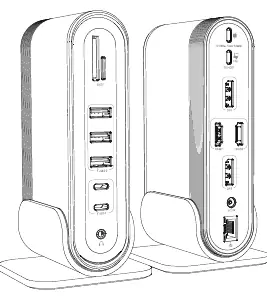
Interface Description
The hub is divided into front and rear panels:
- Front Panel: Includes SD/TF card slots, three USB 3.0 ports, two USB-C ports, and a 3.5mm audio jack.
- Rear Panel: Includes the power input for the hub, the host connection port, two DisplayPort (DP) outputs, two HDMI outputs, a 12V DC power input, and an RJ45 Ethernet port.
Installation and Setup
Driver Installation: Before using the hub, download and install the DisplayLink driver. On macOS, you may need to grant permission in System Preferences > Security & Privacy to allow the DisplayLink Manager app to record the screen. On Windows, follow the on-screen prompts after running the installer.
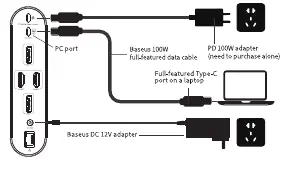
Network Connection: Connect the hub's host port to your laptop's Type-C port. Plug an Ethernet cable into the RJ45 port. On macOS, go to System Preferences > Network, click the '+' button to add a new service, and select the USB 10/100/1000 LAN interface.
Display Configuration
The hub supports quadruple display output. Depending on your operating system (macOS or Windows), you can configure various modes, including extended desktop and mirroring. For stable performance, it is recommended to use four monitors with identical specifications.
Product Precautions
- Use the provided Baseus full-featured data cable for optimal performance.
- The PD port on the hub supports up to 100W input; you must provide your own 100W power adapter.
- Do not disconnect the PD adapter or power source while transferring data to avoid data loss.
- The hub may generate heat during operation; this is normal due to the internal processing chip.
- Keep the device away from liquids, fire sources, and dusty or corrosive environments.
Troubleshooting
If you encounter issues, check the following:
- External hard drive not detected: Check the disk in your system's disk management tool. If using NTFS on macOS, reformat the drive to ExFAT.
- Internet not working: Verify the Ethernet cable connection and ensure the NIC driver is installed correctly in your system's Device Manager.
- Slow response: If mouse or keyboard response is slow, ensure the hub is connected to a power source via the PD port to provide sufficient voltage.
- Resolution issues: Ensure your laptop and monitors support the desired resolution and that you are using the correct DP/HDMI cables.
Official resources from the manual
Manufacturer information
Baseus
Practical help
Common problems
External hard drive not showing
Check the disk in your system's disk management tool. If using NTFS on macOS, reformat the drive to ExFAT.
Internet connection not working
Verify the Ethernet cable connection and check the Device Manager to ensure the NIC driver is installed correctly.
Slow mouse or keyboard response
Connect a power adapter to the hub's PD port to ensure sufficient voltage is supplied to all connected devices.
Resolution not as advertised
Ensure your laptop and monitors support the desired resolution and that you are using the correct DP/HDMI cables.
Before use
- Download and install the latest DisplayLink drivers from http://www.displaylink.com/downloads.
- Ensure your laptop's Type-C port supports full-featured data, charging, and DP Alt Mode.
- Use the provided Baseus full-featured data cable.
- Connect a 65W or higher power adapter to the PD port if charging the laptop is required.
- Ensure the 12V DC power adapter is connected to the hub for stable operation.
Images and diagrams
- Front Panel: Contains SD/TF slots, USB 3.0 ports, USB-C ports, and audio jack.
- Rear Panel: Contains power input, host connection, DP/HDMI ports, and RJ45 port.
Model compatibility
- Requires a full-featured Type-C port on the host device.
- Not compatible with non-full-featured Type-C ports (e.g., Huawei Mate Book X).
- macOS supports quadruple display; extending to a 5th screen will mirror content.

Manual page author
David Miller
Documentation analyst
Organizes user manual content into clear summaries, with attention to model details, product context, and everyday usability.