Electronics / USB Hubs & Docking
User Manual for Baseus Spacemate 11-in-1 Docking Station
Quick guide for the Baseus Spacemate 11-in-1 Docking Station. Learn about port layout, DisplayLink driver installation for macOS, troubleshooting display issues, and device requirements.
Table of contents
Manual images
Click an image to enlargeImportant Information
The Baseus Spacemate 11-in-1 Docking Station requires specific setup for optimal performance, particularly on macOS. For macOS users, the DisplayLink driver must be installed and running to enable HDMI 1 and HDMI 2 ports. Without this driver, only HDMI 3 will function. Ensure your computer's USB-C port is full-featured (supporting charging, data transfer, and DP Alt Mode).
Product Overview
The docking station features 11 ports and a top-mounted indicator/screen-lock button. The device includes a detachable base with a reusable gel pad for secure placement on your desk.
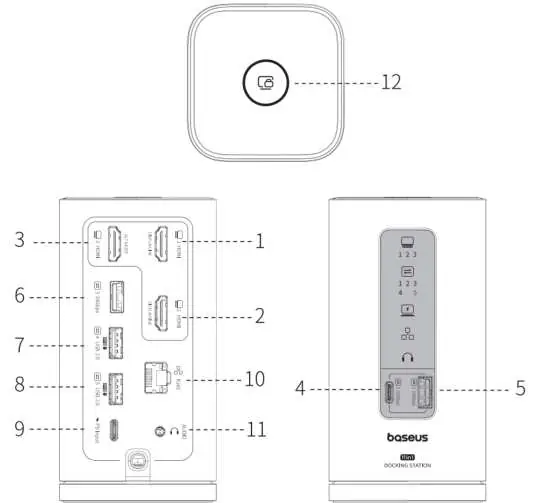
Port Descriptions
- Video 1, 2, 3 (HDMI): Supports up to 4K@60Hz. HDMI 1 and 2 rely on the DisplayLink chip (macOS requires driver). HDMI 3 uses DP Alt Mode.
- USB-C 3.2: 10Gbps data transfer; does not support charging.
- USB-A 3.2 (x2): 10Gbps data transfer.
- USB-A 2.0 (x2): 480Mbps data transfer; suitable for mouse, keyboard, flash drives.
- USB-C (PD): 100W max input for power delivery.
- RJ45: 1000Mbps Ethernet, downward compatible with 100Mbps and 10Mbps.
- 3.5mm Audio: Supports 24bit 96kHz. Recommended for 3-segment headphones (without microphone).
System Requirements & Driver Installation
Operating Systems: macOS 10.10 and higher, Windows.
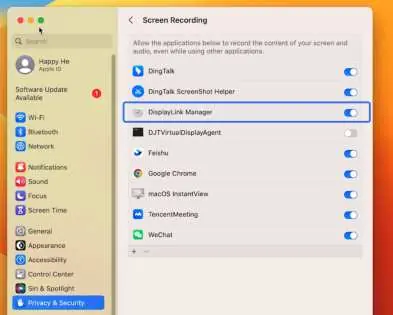

Installation for macOS:
- Go to Privacy & Security settings and allow apps from "App Store and identified developers".
- Download the macOS Installation Driver Package from the Synaptics DisplayLink website.
- Run the installer.
- Navigate to Privacy & Security settings and allow "DisplayLink Manager" screen recording.
- Open "DisplayLink Manager" and enable "Launch automatically after login".
Controls
The top button manages the screen and indicator light:
- Short press (Windows): Locks the screen.
- Double press (Mac): Locks the screen.
- Long press: Turns the front indicator light on or off.
If the indicator light flashes continuously, it indicates an abnormal output from the computer or a non-full-featured port.
Troubleshooting
- HDMI not working: Verify the DisplayLink driver is installed and running. Test with an alternative HDMI cable or monitor.
- Data transmission failure: If connecting multiple hard drives, ensure a 100W PD charger is connected to the docking station to provide sufficient power.
- Low resolution: Ensure the connected laptop, HDMI cable, and monitor support the desired resolution.
- Heat: It is normal for the casing to get warm during operation. The device is tested to operate safely within temperature limits.
Manufacturer information
Baseus
Practical help
Common problems
HDMI 1 and 2 ports not working on macOS
Install and run the DisplayLink driver. These ports rely on the DisplayLink chip.
Data transmission failure with external hard drives
Connect a 100W PD charger to the docking station to ensure sufficient power supply.
Extended display resolution is lower than expected
Verify that your laptop, HDMI cable, and monitor all support the desired resolution.
Indicator light is flashing continuously
This indicates an abnormal output from the computer or that the connected USB-C port is not full-featured. Try a different port.
Before use
- Verify your laptop's USB-C port is full-featured (supports charging, data, and DP Alt Mode).
- For macOS, download and install the DisplayLink driver.
- Ensure you have a 100W PD power adapter if connecting high-power devices.
- Use a high-quality HDMI cable for 4K output.
- Check that your macOS version is supported (10.10+).
Images and diagrams
- The exploded view diagram identifies all 12 ports and controls, including the top button and various USB/HDMI/Audio interfaces.
Model compatibility
- Compatible with devices featuring USB 4, Thunderbolt 4, or Thunderbolt 3 ports.
- macOS requires DisplayLink driver for full functionality.
- Windows MST mode support depends on DP1.2+ capability.

Manual page author
Emily Carter
User documentation editor
Prepares concise manual descriptions and highlights the most useful setup, operation, and maintenance information for readers.