Electronics / USB Hubs & Docking
Rocstor Thunderbolt 4 15-in-1 Docking Station
A comprehensive guide for the Rocstor Thunderbolt 4 15-in-1 Docking Station (Y10P036-S1). Learn how to connect your devices, understand port specifications, manage power settings, and troubleshoot common issues with this high-speed 40Gbps...
Table of contents
Manual images
Click an image to enlargeQuick Start and Safety
The Rocstor Thunderbolt 4 15-in-1 Docking Station is a high-performance I/O solution. Important: The device turns off by default. After connecting the power supply, you must press the power switch on the front panel to enable the unit. The LED indicator will turn orange when powered on and blue when connected to a host computer.
Safety Warning: It is normal for the adapter to become warm during use. To prevent overheating or injury, ensure adequate ventilation around the unit. Do not place the hub under blankets, pillows, or your body while connected. Never use the adapter near water or with wet hands.
Package Contents
- Main Unit x1
- User Manual x1
- 150W DC Power Adapter x1
- Thunderbolt 4 M/M Cable x1 (optional)
Panel Description
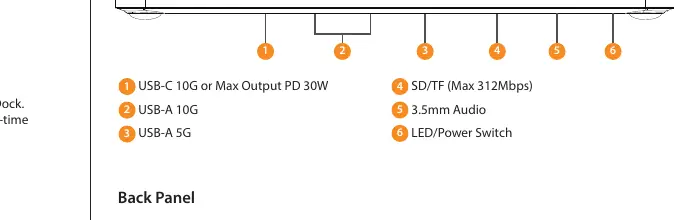
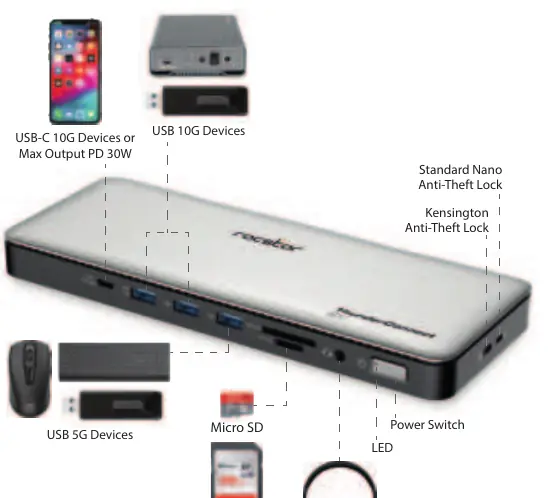
Front Panel: Features USB-C 10G (PD 30W), USB-A 10G, USB-A 5G, SD/TF card slots, 3.5mm Audio jack, and the LED/Power Switch.
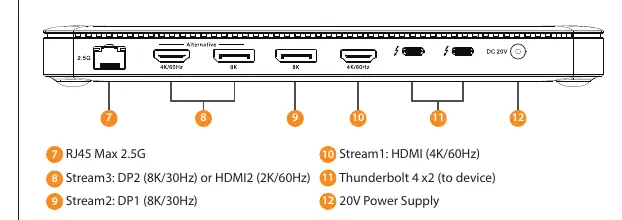
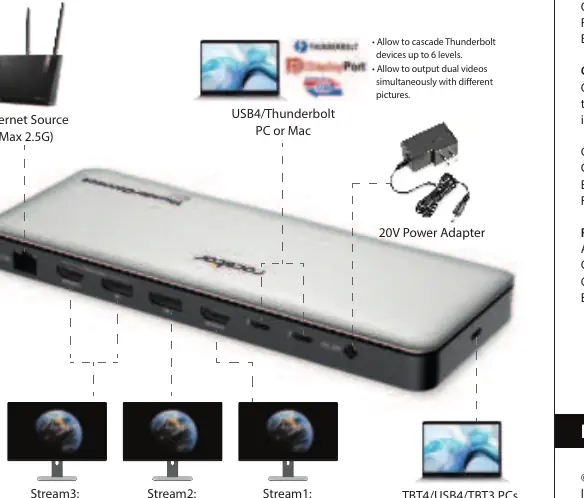
Back Panel: Features RJ45 2.5G Ethernet, Stream 3 (DP2/HDMI2), Stream 2 (DP1), Stream 1 (HDMI), two Thunderbolt 4 downstream ports, and the 20V Power Supply input.
Side Panels: Includes Kensington Anti-Theft Lock and Standard Nano Anti-Theft Lock.
Port Specifications
- Thunderbolt 4 (to host): Supports up to 40Gbps, compatible with TBT3, USB4, and DP Alt mode. Supports host charging up to 96W.
- Thunderbolt 4 Downstream: Supports cascading up to 6 levels, 15W downstream charging per port.
- Video Ports: Supports up to 8K/30Hz for one port, or dual 4K/60Hz. HDMI and DisplayPort support HDR, HDCP v1.4/2.2, and various color depths.
- USB-C PD & Data: Compliant with USB3.2 Gen 2 (10Gbps) and PD3.0 (30W output).
- USB-A Ports: Includes USB3.2 Gen 2 (10Gbps) and Gen 1 (5Gbps) ports with downstream charging capabilities.
- RJ45: Supports 10M/100M/1000M/2.5G bandwidth with Wake-On-LAN support.
- SD/TF: Supports SD4.0 with speeds up to 312MBps.
Connection and Setup
Connect the 150W power adapter to the DC Power Jack on the back panel. Connect your host computer to the Thunderbolt 4 port labeled 'to host'. Use the provided Thunderbolt 4 cable for optimal performance. The dock supports smart power distribution, which dynamically allocates power to the PC and connected devices based on real-time consumption.
Technical Specifications
- Operating Temperature: 0°C to 45°C (32°F to 113°F)
- Storage Temperature: 0°C to 70°C (32°F to 158°F)
- Dimensions: 8.8 x 3.3 x 0.8 inches (225 x 85 x 22 mm)
- Weight: 14.4 lbs (410g)
- Compatibility: Windows, Mac OS, Chrome OS
Practical help
Common problems
Device does not power on
Ensure the power adapter is connected to the DC jack and press the power switch on the front panel.
Hub feels very warm
This is normal. Ensure the unit is in a well-ventilated area and not covered by blankets or pillows.
No connection to host
Verify the host computer is connected to the specific Thunderbolt 4 port labeled 'to host' and the LED indicator is blue.
Before use
- Verify all items are present: Main unit, 150W power adapter, and Thunderbolt 4 cable.
- Ensure the host computer supports Thunderbolt 4, USB4, or DP Alt-mode.
- Place the unit in a well-ventilated area.
- Connect the power adapter before connecting the host computer.
Specs in practice
- Thunderbolt 4
- Supports up to 40Gbps data transfer and cascading up to 6 levels.
Images and diagrams
- Front Panel: Includes USB-C, USB-A, Audio, SD/TF slots, and the Power Switch.
- Back Panel: Includes RJ45, DisplayPort, HDMI, Thunderbolt 4 ports, and the DC Power input.
Model compatibility
- Compatible with TBT4/USB4-based PCs, TBT3/DP-Alt-mode PCs.
- Supports Windows, Mac OS, and Chrome OS.

Manual page author
David Miller
Documentation analyst
Organizes user manual content into clear summaries, with attention to model details, product context, and everyday usability.