Electronics / Voice Communication Systems
Troubleshooting Guide for Cisco Unity Connection Release 12.x
A comprehensive troubleshooting guide for Cisco Unity Connection Release 12.x, providing detailed procedures for resolving issues with system deployment, user access, call routing, messaging, unified messaging, networking, and more.
Table of contents
Manual images
Click an image to enlargeQuick Guide to Troubleshooting
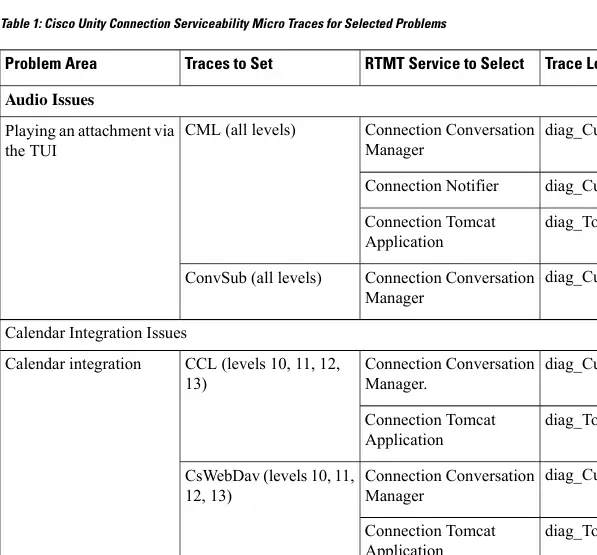
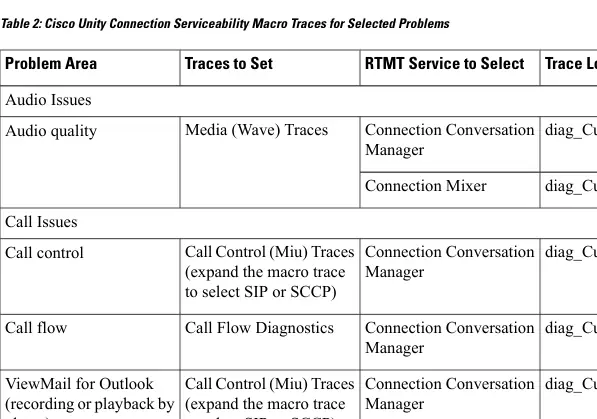
This guide provides systematic troubleshooting procedures for Cisco Unity Connection Release 12.x. Most issues can be diagnosed using diagnostic traces (Micro and Macro traces) enabled via Cisco Unity Connection Serviceability and collected using the Real-Time Monitoring Tool (RTMT) or the Command Line Interface (CLI).
Diagnostic Tools
Diagnostic Traces: Use Micro traces for specific component issues and Macro traces for general functionality areas. Enable these in Cisco Unity Connection Serviceability and collect logs via RTMT or CLI.
Real-Time Monitoring Tool (RTMT): A client-side application for monitoring system performance, device status, and collecting traces.
CLI Commands: Essential for advanced troubleshooting, including service restarts, log collection, and database queries.
Common Troubleshooting Areas
Installation and Deployment
If installation fails, verify platform and software requirements. Review install logs using CLI or RTMT. Check SELinux modes if issues persist during subscriber installation.
User and Administrator Access
If users cannot sign in, check if accounts are locked or disabled. Use the utils cuc reset password CLI command to unlock administrative accounts. Verify DTMF settings if the system does not respond to key presses.
Call Transfers and Forwarding
Ensure the forward timer in the phone system is synchronized with the Rings to Wait For setting in Unity Connection. Verify routing rules and search scope configurations.
Messaging Issues
If users hear full mailbox warnings, delete messages or remove deleted items. For undelivered messages, check the Undeliverable Messages distribution list and verify SMTP relay configurations.
Unified Messaging and Single Inbox
If Single Inbox is not working, confirm the Connection Mailbox Sync service is running. Verify firewall ports and Exchange/Office 365 authentication settings.
Networking and Directory Synchronization
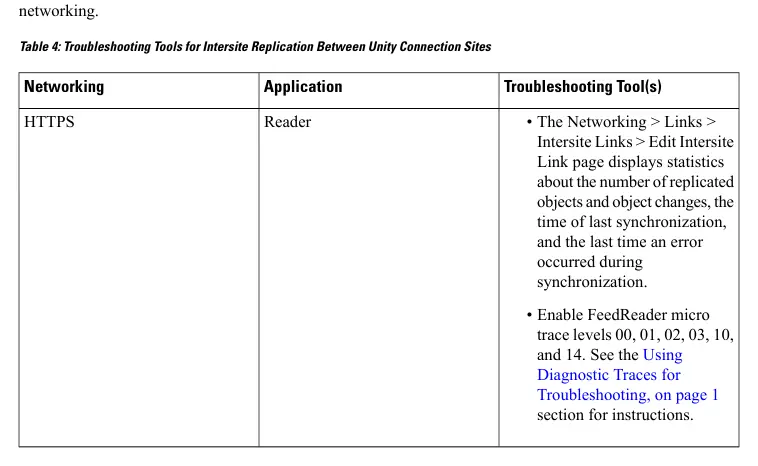
For intersite or intrasite networking issues, monitor replication status using Unique Sequence Numbers (USNs). Use the Voice Network Map tool to identify replication problems.
Message Waiting Indicators (MWI)
If MWIs do not turn on/off, verify port configuration and ensure the phone system is correctly assigned. Use the Check Telephony Configuration test to diagnose port registration issues.
Audio Quality
For choppy audio or garbled recordings, check network latency, packet loss, and hard disk space. Disable Automatic Gain Control (AGC) if volume levels are inconsistent.
Notification Devices
If notifications are slow, dedicate ports exclusively for notification calls. Verify notification device settings and schedules in the Cisco Personal Communications Assistant (PCA).
Cluster Configuration
If a server stops functioning, verify the status of voice messaging ports and ensure applicable services are running on the primary server.
Voice Recognition
If voice commands are not recognized, check the grammar compilation status and adjust the Speech Confidence Threshold. Ensure the correct codec (G.711 Mu-Law) is used.
SAML SSO
If SAML SSO access fails, verify NTP synchronization between Unity Connection and the Identity Provider (IdP). Ensure the correct metadata files are uploaded.
Fax
For fax delivery issues, verify SMTP server configuration and ensure the faxable file types list is correctly configured.
Reports
If reports show no data, confirm the Connection Reports Data Harvester service is running and adjust the report data collection cycle.
Manufacturer information
Cisco Systems, Inc.
Practical help
Common problems
Unity Connection not responding to key presses
Enable DTMF relay on VoIP dial-peer gateways.
Calls not transferred to correct greeting
Synchronize the forward timer in the phone system with the 'Rings to Wait For' setting in Unity Connection.
Full mailbox warnings
Delete messages or remove deleted items to reduce mailbox size below the quota.
Single Inbox synchronization delayed
Check the status of the 'Connection Mailbox Sync' service and verify firewall ports.
Unable to login to IMAP client
Check if the account is locked or if the maximum concurrent session limit has been reached.
Before use
- Verify system requirements for Release 12.x.
- Ensure administrative access to Cisco Unity Connection Administration.
- Familiarize with Real-Time Monitoring Tool (RTMT) for log collection.
- Check network connectivity and firewall settings.
- Verify license status.
Specs in practice
- Micro Traces
- Used for troubleshooting specific Unity Connection components.
- Macro Traces
- Used for troubleshooting general areas of Unity Connection functionality.
- USN (Unique Sequence Number)
- Used for tracking directory replication status between locations.
- Rings to Wait For
- The number of rings Unity Connection waits before routing a call to a user's personal greeting.
Model compatibility
- Supports Cisco Unified Communications Manager (SCCP/SIP).
- Requires specific versions for Single Inbox and other features.

Manual page author
Emily Carter
User documentation editor
Prepares concise manual descriptions and highlights the most useful setup, operation, and maintenance information for readers.