Computers / Computer Cases
User Manual for Corsair Light Strip Pro
Quick guide for the Corsair Light Strip Pro. Learn how to install, cut to size, reset, and configure your smart lighting with the Elgato Control Center app.
Quick answers from the manual
Quick answer
- The Corsair Light Strip Pro is a smart LED strip controlled via the Elgato Control Center app. It can be cut to size at designated copper points and requires a clean surface for mounting. p. 1
Key actions
- Perform a factory reset by holding the RESET button for 10 seconds until the light flashes 3 times. p. 1
- Cut the strip only at the designated copper points. p. 1
First start
- Download the Control Center app, connect the strip to power, and follow the in-app instructions to pair. p. 1
Show 4 more answers Show less
Problems and fixes
Device pairing issues
Reset the device to factory settings using the RESET button.
p. 1Maintenance and reset
- Hold the RESET button for 10 seconds until the light flashes 3 times. p. 1
Technical specifications
| Parameter | Value | Meaning | Pages |
|---|---|---|---|
| 2.4 GHz Frequency | 2412 - 2462 MHz | Wi-Fi operating frequency | p. 1 |
| 5 GHz (Band 1) Frequency | 5180 - 5320 MHz | Wi-Fi operating frequency | p. 1 |
Where to find it in the PDF
- Reset and Technical Specs p. 1
- Installation and Safety p. 2
Table of contents
Quick guide from the manual
The Corsair Light Strip Pro is a smart lighting solution controlled via the Elgato Control Center app. To begin, download the app for Mac, Windows, iOS, or Android. Connect the light strip to a power source and follow the in-app instructions to pair the device with your Wi-Fi network.
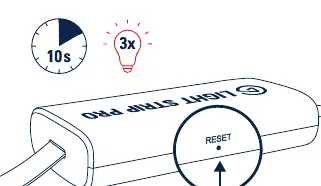
Factory Reset: If you encounter connection issues, you can reset the device to factory settings. Press and hold the RESET button with a small tool for at least 10 seconds until the light flashes 3 times. The device will reboot and re-enter pairing mode.
Installation
The Light Strip Pro can be customized to fit your space:
- Cutting: You can cut the light strip to size using scissors. Only cut the strip at the designated copper points. The maximum length is 2000 mm.
- Surface Preparation: Before mounting, ensure the surface is clean, dry, and free of dust or grease. Use a lint-free cloth.
- Mounting: Peel off the protective film from the adhesive backing and press the strip firmly onto the desired surface.
Safety and Maintenance
Follow these guidelines to ensure safe operation:
- Indoor Use Only: This product is designed for indoor use. Do not expose it to direct sunlight or extreme conditions.
- Magnets: The controller contains magnets. Keep it away from pacemakers or other sensitive medical devices.
- Cleaning: Clean the strip with a soft, lint-free cloth. Do not use solvents, benzene, or harsh detergents.
- Children: Keep out of reach of children.
Technical Specifications
The device operates on the following frequency bands:
- 2.4 GHz: 2412 - 2462 MHz
- 5 GHz (Band 1): 5180 - 5320 MHz
- 5 GHz (Band 4): 5745 - 5825 MHz
Manufacturer information
Corsair Memory, Inc.
Practical help
Common problems
Device not connecting to Wi-Fi
Perform a factory reset by holding the RESET button for 10 seconds until the light flashes 3 times, then restart the pairing process in the Control Center app.
Adhesive not sticking
Ensure the mounting surface is thoroughly cleaned with a lint-free cloth and is free of dust, grease, or moisture before application.
Before use
- Download the Elgato Control Center app on your device.
- Ensure the mounting surface is clean and dry.
- Check that the power source is compatible.
- Verify the Wi-Fi network is active.
Show more Show less
Specs in practice
- Frequency Bands
- The device supports 2.4 GHz and 5 GHz (Band 1 and Band 4) Wi-Fi networks.
Images and diagrams
- The reset button is located on the controller unit.
- Cutting points are marked with copper icons on the strip.
Model compatibility
- Indoor use only.
- Contains magnets; keep away from pacemakers.
- Compatible with Mac, Windows, iOS, and Android via Control Center app.

Manual page author
Emily Carter
User documentation editor