Computers / Cooling Systems
User Manual for Corsair iCUE LINK RX RGB PWM Fans
Quick start guide for the Corsair iCUE LINK RX RGB PWM Fans. This manual covers installation, wiring, system hub setup, and iCUE software configuration for optimal cooling performance.
Table of contents
Manual images
Click an image to enlargeImportant Information
Before beginning installation, ensure your computer is completely powered off. Keep all active ports on the fans and the System Hub free of foreign objects or debris. Use only the provided accessories and follow the installation steps to ensure proper operation.
Package Contents
The package includes the following components:
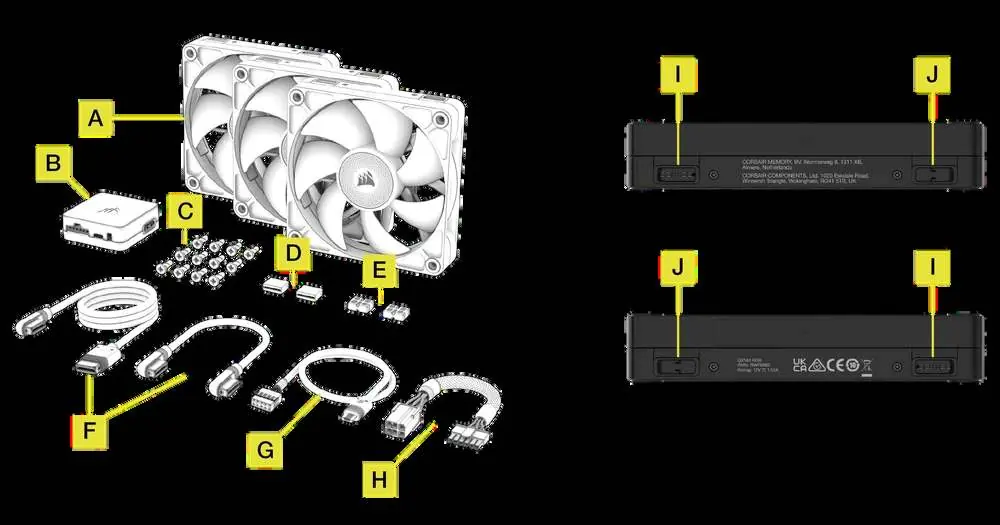
- iCUE LINK RX RGB fan
- iCUE LINK System Hub
- QuikTurn mounting screws
- Active bridge connector
- Passive connector
- iCUE LINK cable
- Micro-USB cable
- Power cable
Getting to Know Your RX RGB
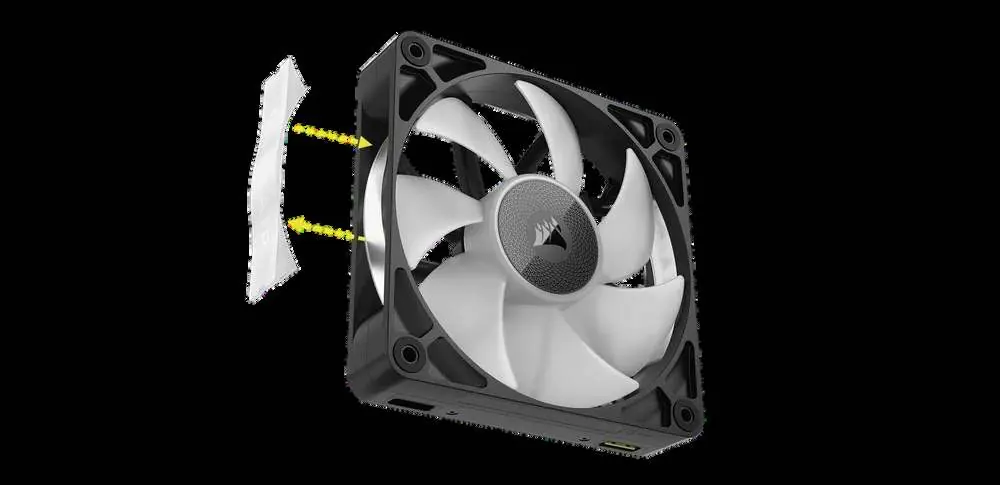
The RX RGB fans feature a detachable decorative plate, allowing you to customize the look of your fan. The fans utilize active and passive ports to daisy-chain multiple units together, which are then connected to the iCUE LINK System Hub.
System Hub Overview
The System Hub is the central controller for your fans. It features an active port for fan connection, a power input, a USB input for motherboard communication, and a Tach output for monitoring.
Fan Installation
Follow these steps to install your fans:
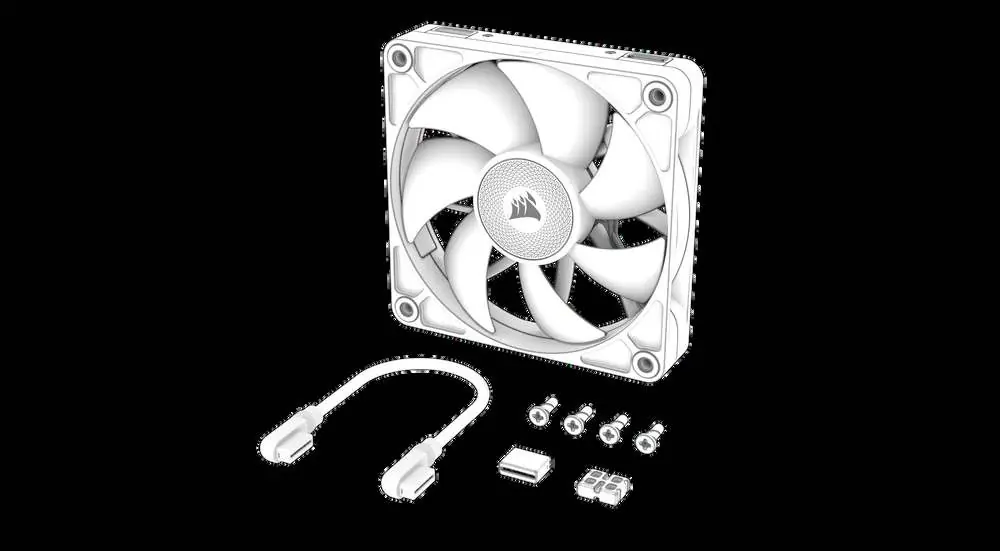
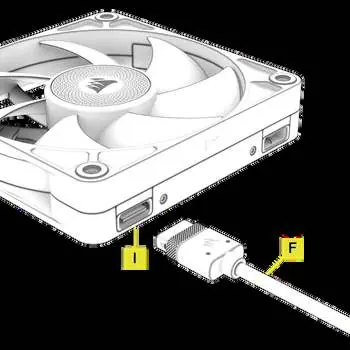
- Connect Fans: Align and insert the connectors into the open active and passive ports to create a fan group.
- Mounting: Mount the fans into your PC case using the supplied QuikTurn mounting screws. Note that these screws thread faster than traditional ones; hand-tighten them with a screwdriver to avoid over-threading.
- Connect to Hub: Insert the iCUE LINK cable into an open active port on your fan group.
- System Hub Connection: Connect the power cable, Micro-USB cable, and iCUE LINK cable into the System Hub. Connect the power cable to your PSU and the Micro-USB cable to your motherboard.
- Mounting the Hub: The System Hub can be mounted magnetically on a steel chassis or adhered to a surface using the provided mounting tape.
Software Setup
To control lighting and fan performance, you must use the CORSAIR iCUE software:
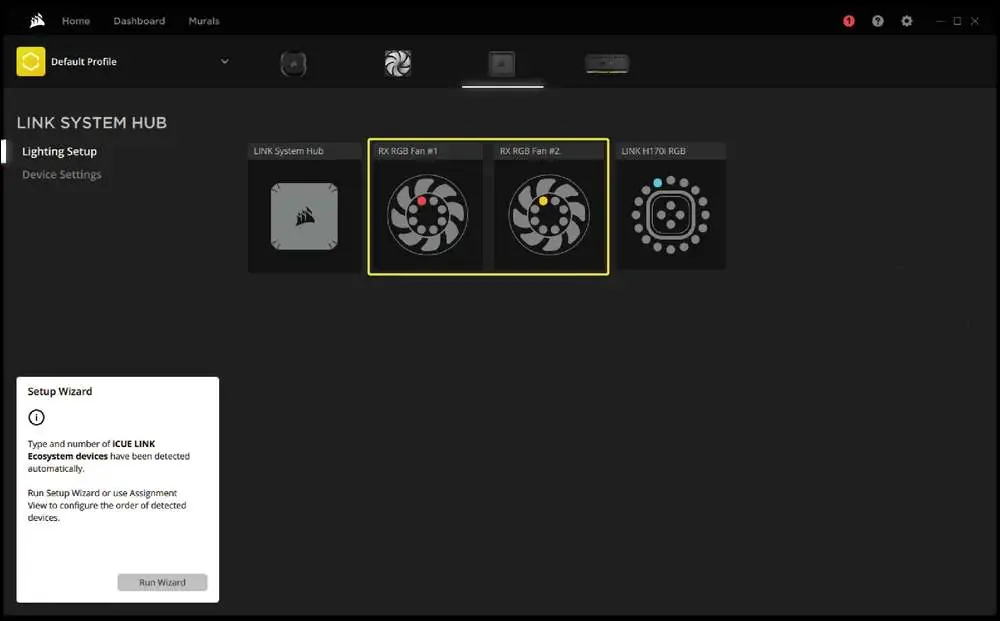
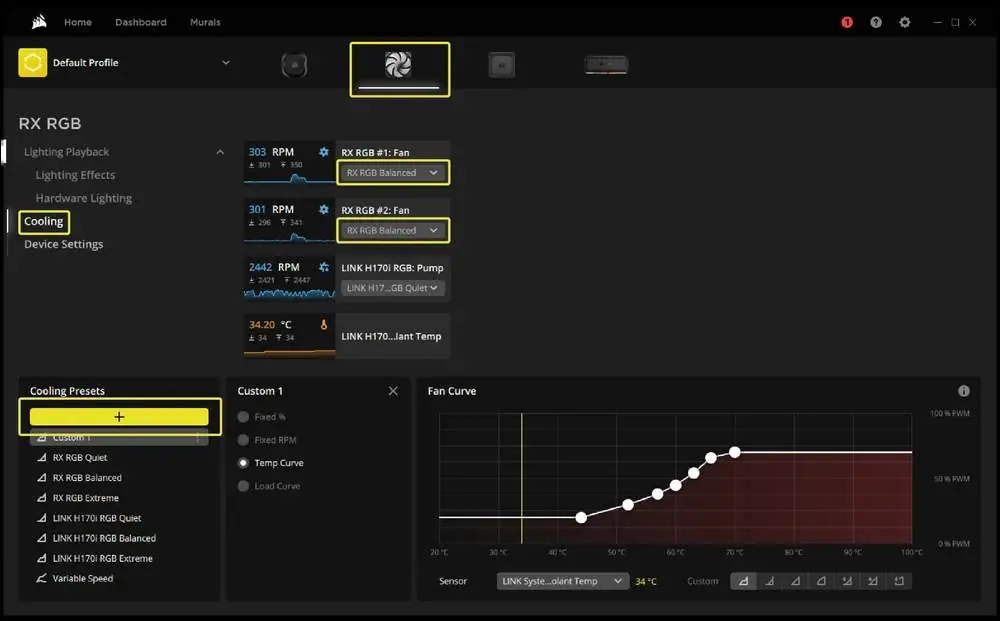
- Install/Update: Download and install the latest version of iCUE. Check for firmware updates via the settings menu (cog wheel icon).
- Fan Setup: Mouse over the LINK System Hub tile in iCUE and select Lighting Setup to re-order your fans to match their physical placement.
- Lighting: Select your fan from the navigation bar, go to Lighting Effects, and use the '+' icon to add lighting layers.
- Performance: Go to the Cooling tab to select fan curve presets (Quiet, Balanced, Extreme) or create a custom fan curve.
Technical Specifications
Power ratings for the system:
- System Hub Output: 12Vdc 7A (per port)
- RX120 RGB Input: 12Vdc 0.66A
- RX140 RGB Input: 12Vdc 0.7A (no load)
Warranty
The iCUE LINK RX RGB Series fans are covered by a 5-year warranty.
Manufacturer information
Corsair Memory, Inc.
Practical help
Common problems
Fan not detected in iCUE
Ensure the iCUE LINK cable is securely connected to the System Hub and the fan group. Check for firmware updates in the iCUE settings.
Risk of over-threading screws
QuikTurn screws thread faster than standard screws. Use a screwdriver to hand-tighten them carefully to avoid damaging the fan frame.
Before use
- Turn off the computer completely before starting installation.
- Ensure all active ports are free of foreign objects or debris.
- Verify you have the System Hub (required for operation).
- Have a screwdriver ready for mounting the fans.
- Ensure you have access to the motherboard USB header and PSU power cables.
Specs in practice
- System Hub Output
- 12Vdc 7A per port - the maximum power capacity available for connected devices.
Images and diagrams
- Active/Passive Ports: Used to daisy-chain fans together in a group.
- System Hub Ports: Connects fans, power, and USB data to the motherboard.
Model compatibility
- Requires CORSAIR iCUE software for full lighting and performance control.
- System Hub is required for operation.

Manual page author
David Miller
Documentation analyst
Organizes user manual content into clear summaries, with attention to model details, product context, and everyday usability.