Power / Batteries & Chargers
User Manual for Dayton Audio DTA-2.1BT2 Bluetooth Amplifier
Quick guide for the Dayton Audio DTA-2.1BT2 100W 2.1 Class D Bluetooth Amplifier. Learn how to connect speakers, set up Bluetooth, and adjust subwoofer frequency.
Table of contents
Quick guide from the manual
The Dayton Audio DTA-2.1BT2 is a compact 2.1 Class D amplifier designed for home or office use. It features Bluetooth connectivity, standard stereo RCA and 3.5mm inputs, and dedicated subwoofer frequency adjustment. To operate the unit, use the ON/OFF button for power (long press) and input selection (short press). The amplifier supports 4-8 Ohm passive speakers and a passive subwoofer.
Amplifier Connections
The amplifier features a front and rear panel for control and connectivity:
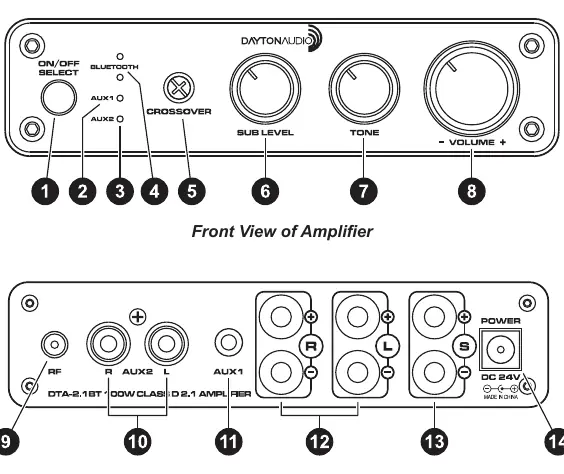
- Front Panel: Includes the Power/Source Select button, source indicators (Bluetooth, AUX1, AUX2), Subwoofer crossover dial, Subwoofer volume dial, Tone control, and Master volume dial.
- Rear Panel: Features the Bluetooth antenna connection, AUX2 L/R RCA inputs, AUX1 3.5mm input, R/L speaker outputs, Subwoofer output, and the 24V DC power input.
Connecting Speakers and Setup
The DTA-2.1BT2 uses binding post style connectors for speakers.
- Connect your 4-8 Ohm passive speakers and subwoofer to the rear panel binding posts, ensuring the polarity is correct. The binding posts accommodate dual banana plugs or bare speaker wire.
- Plug the power supply into the amplifier and then into a wall outlet.
- Connect your source device to the amplifier using the 3.5mm AUX1 or RCA AUX2 inputs.
- Power on the amplifier with a long press of the ON/OFF button.
- Short press the select button to choose the desired input; the red LED indicator will illuminate under the selected input type.
Bluetooth Connection
To play music wirelessly from your phone, tablet, or other device:
- Turn on the amplifier with a long press of the ON/OFF button.
- Select the Bluetooth input by short pressing the select button.
- Search for DTA-2.1BT2 on your mobile device.
- You will hear a series of tones and see the BT indicator light flashing red/blue, indicating the amplifier is in pairing mode.
- Select DTA-2.1BT2 in your mobile device's Bluetooth menu.
- The BT indicator light will change to a slow pulsing red and emit a short beep when successfully paired.
Note: For the best sound quality, adjust the output level of your mobile device to approximately 75% and then adjust the master volume on the amplifier to the ideal listening level.
Specifications
The DTA-2.1BT2 offers the following technical capabilities:
- Power Output: 50 Watts x 2 (Main speakers)
- Power Output Subwoofer: 100 Watts
- Sub Crossover: 50Hz to 120Hz
- Impedance: 4-8 Ohms
- Power Input: 24 VDC
- Bluetooth Distance: Up to 30 meters
- Bluetooth Compatibility: A2DP, AVRCP
Manufacturer information
Dayton Audio
Practical help
Common problems
Bluetooth pairing or connection issues
Repeat the connection process for the amplifier and mobile device.
Poor sound quality
Adjust the output level of the mobile device to approximately 75% and then adjust the master volume on the amplifier.
Before use
- Ensure passive speakers and subwoofer are 4-8 Ohms.
- Verify correct polarity when connecting speaker wires to binding posts.
- Connect the power supply to the amplifier and wall outlet.
- Connect audio source device via 3.5mm or RCA cable.
- Ensure the amplifier is powered on via a long press of the ON/OFF button.
Specs in practice
- Power Output
- 50 Watts per channel for main speakers plus 100 Watts for the subwoofer.
- Sub Crossover
- Adjustable frequency range from 50Hz to 120Hz to blend the subwoofer with main speakers.
- Bluetooth Distance
- Maximum wireless range is up to 30 meters.
Images and diagrams
- Front Panel: Contains controls for power, source selection, subwoofer crossover, subwoofer volume, tone, and master volume.
- Rear Panel: Contains inputs for Bluetooth antenna, AUX1 (3.5mm), AUX2 (RCA), speaker outputs, subwoofer output, and power input.
Model compatibility
- Supports 4-8 Ohm passive speakers and passive subwoofer.
- Bluetooth compatibility includes A2DP and AVRCP profiles.

Manual page author
Michael Turner
Technical manual editor
Reviews PDF manuals for structure, safety notes, and practical product details so readers can find the right information quickly.