Computers / Laptops
Re-imaging Guide for Dell Precision 5690
A comprehensive re-imaging and driver installation guide for the Dell Precision 5690. Learn the correct sequence for reinstalling Windows, updating the BIOS, and installing essential drivers to ensure optimal system performance.
Table of contents
Quick guide from the manual
This guide is intended for system administrators performing a re-image of the Dell Precision 5690. It outlines the critical sequence for installing drivers and applications to ensure system stability. Always download drivers directly from the official Dell Drivers & Downloads website to avoid performance issues or security risks.
Installation overview
Re-imaging is the process of removing all software and reinstalling it, typically required when the OS is corrupted or damaged. This guide applies only to computers shipped with Windows 10 or Windows 11. Before starting, ensure you have backed up all critical data.
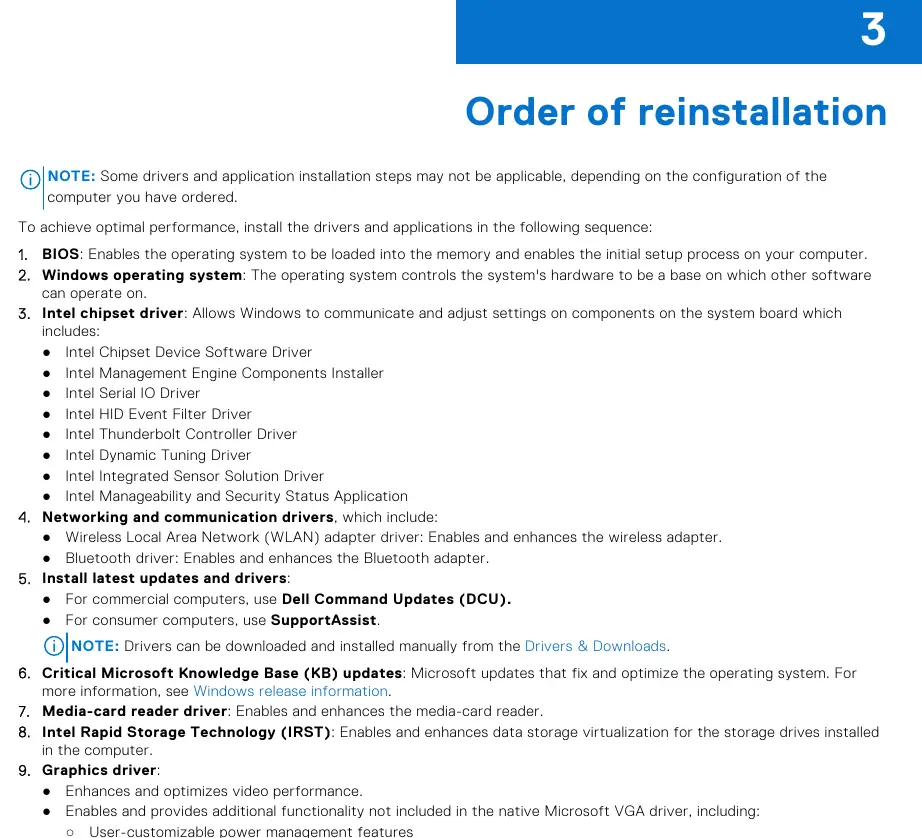
Order of reinstallation
To achieve optimal performance, install drivers and applications in the following sequence:
- BIOS: Enables the operating system to load.
- Windows operating system: The base for all other software.
- Intel chipset driver: Allows Windows to communicate with system board components.
- Networking and communication drivers: WLAN and Bluetooth adapters.
- Latest updates: Use Dell Command Updates (DCU) for commercial computers or SupportAssist for consumer computers.
- Critical Microsoft KB updates: Fixes and optimizations for the OS.
- Media-card reader driver.
- Intel Rapid Storage Technology (IRST): Enables data storage virtualization.
- Graphics driver: Enhances video performance.
- Audio driver.
- Security drivers: Fingerprint sensor and Dell ControlVault3.
- Camera driver: Intel 2D Imaging/MCU/Visual Sensing Controller.
- Dell applications: Dell Update and Dell Optimizer.
Updating or resetting the BIOS
To update the BIOS, visit the Dell support website, search for your computer using the Service Tag or Model, select the BIOS category, and download the latest version. If the computer fails to boot after an update, you may need to clear the CMOS settings. To enable TPM security, enter the BIOS setup (press F2 at startup), navigate to Security, and configure the TPM state.
Docking stations
If using a Dell Docking Station (WD19 or WD22TB4), you must update the computer's BIOS and the docking station drivers to the latest versions available on the Dell support site before connecting the device. Failure to do so may result in the docking station not being recognized.
Getting help
For further assistance, visit www.dell.com/support. You can identify your computer using the Service Tag or Express Service Code. For technical support or customer service issues, visit www.dell.com/contactdell.
Official resources from the manual
Manufacturer information
Dell Inc.
Practical help
Common problems
System performance issues, blue screens, or unexpected shutdowns
Ensure all drivers are downloaded from the official Dell Drivers & Downloads website, not third-party sources.
Docking station not recognized or functioning optimally
Update the computer's BIOS and the docking station drivers to the latest versions before connecting the device.
Computer unable to boot after BIOS update
Perform a BIOS reset by clearing the CMOS settings.
Before use
- Verify the computer is shipped with Windows 10 or Windows 11.
- Ensure you have administrator privileges.
- Back up all data before attempting to reinstall the operating system.
- Have your Service Tag or Express Service Code ready for support.
- Ensure the RAID controller is enabled if using IRST.
Specs in practice
- Dell Optimizer
- Software that uses AI and machine learning to improve system performance and productivity.
Model compatibility
- This guide is applicable only to computers shipped with Windows 10 or Windows 11.
- IRST installation requires a RAID I/O controller hub (ICH) or a third-party RAID controller card.
- Intel VMD support is required for IRST on 11th Generation platforms and later.

Manual page author
Michael Turner
Technical manual editor
Reviews PDF manuals for structure, safety notes, and practical product details so readers can find the right information quickly.