Computers / Desktop Computers
User Manual for Dell XPS 8950 Desktop
Quick setup guide and technical specifications for the Dell XPS 8950 desktop computer. Includes port layouts, hardware configuration details, and connection instructions.
Table of contents
Manual images
Click an image to enlargeQuick guide from the manual
This guide provides essential setup instructions and technical specifications for the Dell XPS 8950 desktop computer. Follow these steps to get started:
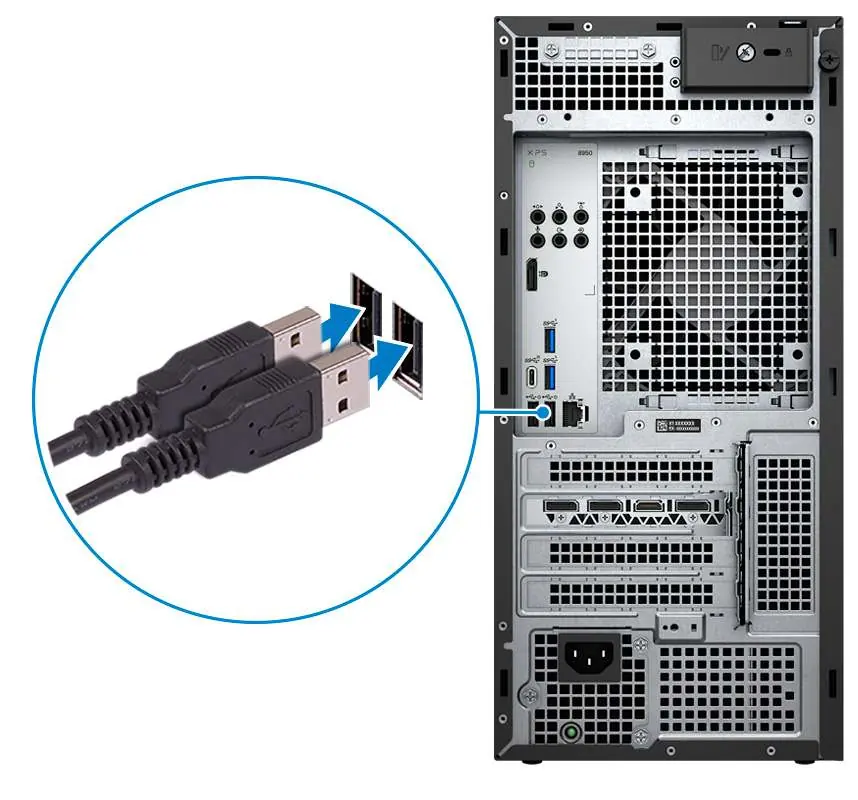
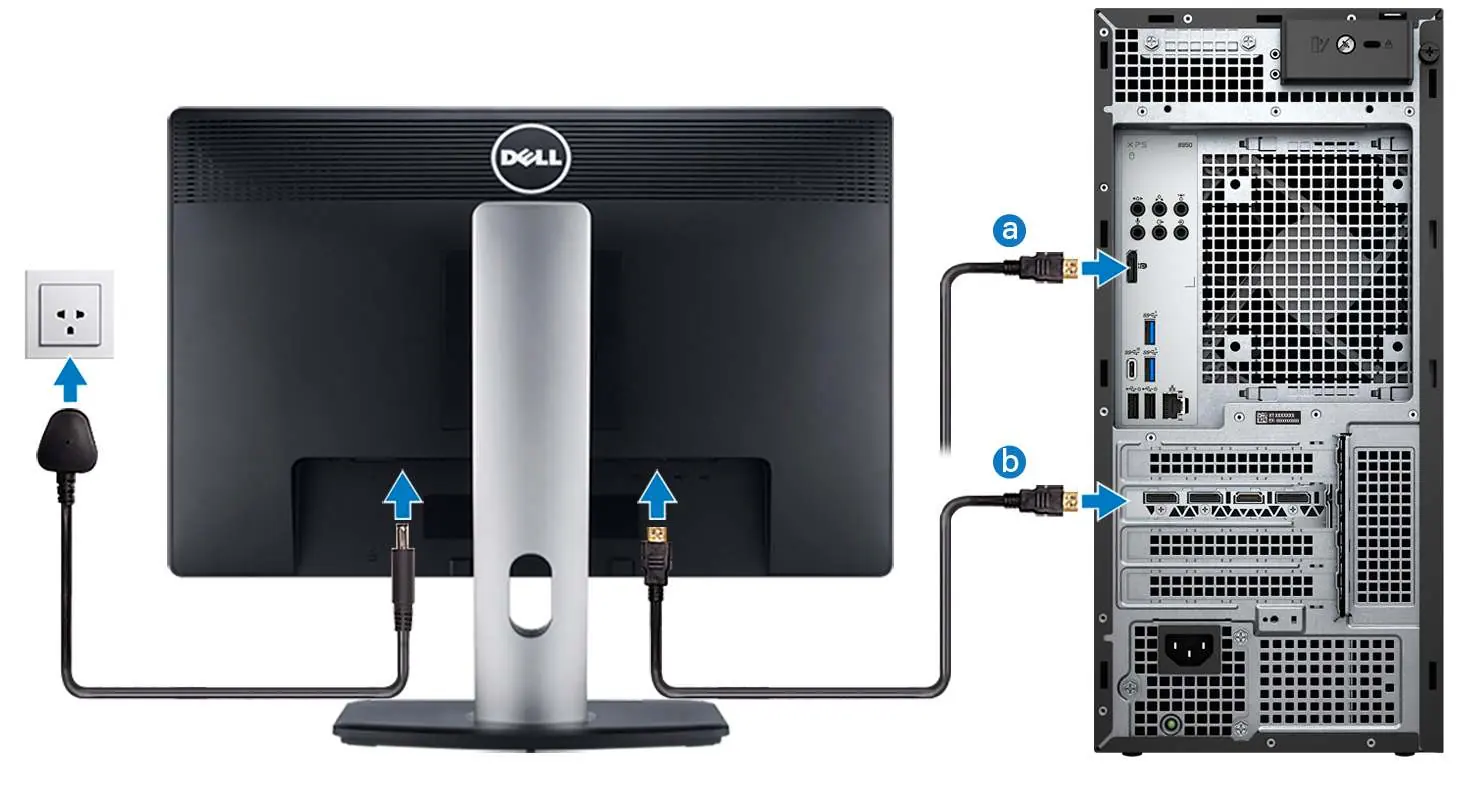
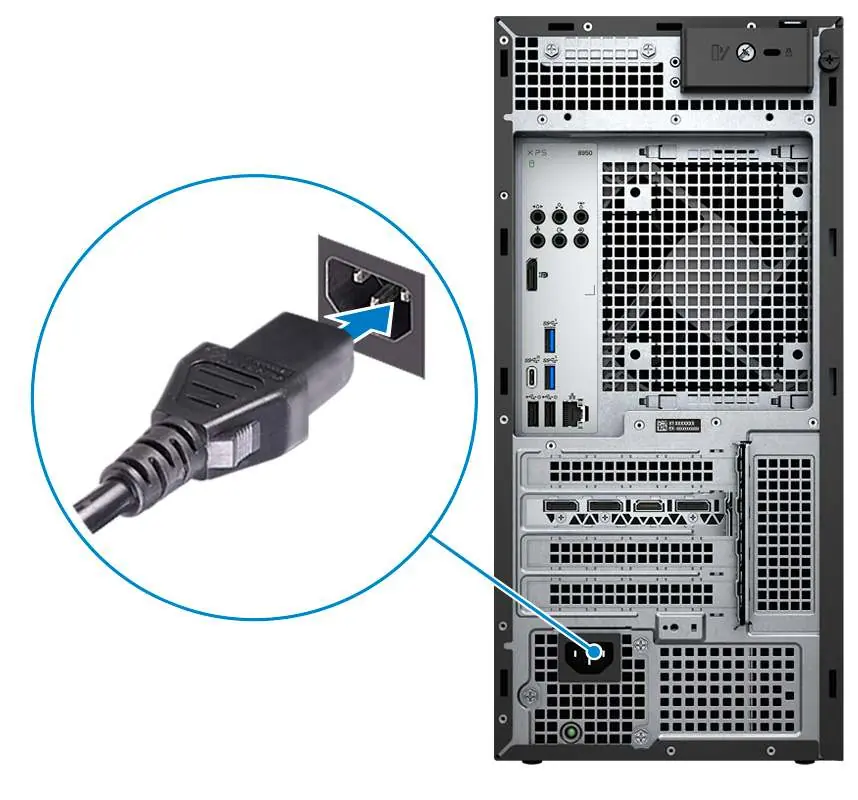
- Connect Peripherals: Connect your keyboard and mouse to the USB ports on the computer.
- Network Connection: Connect to your network using an Ethernet cable or set up a wireless network during the operating system configuration.
- Display Setup: Connect your display cable. Note that connection points differ depending on whether your computer has a discrete graphics card installed.
- Power Connection: Connect the power cable to the computer and then to a wall outlet. If using a 1000 W Power-Supply Unit (PSU), connect to a 16 A Power Distribution Unit (PDU).
- Power On: Press the power button on the front of the computer.
Device Overview
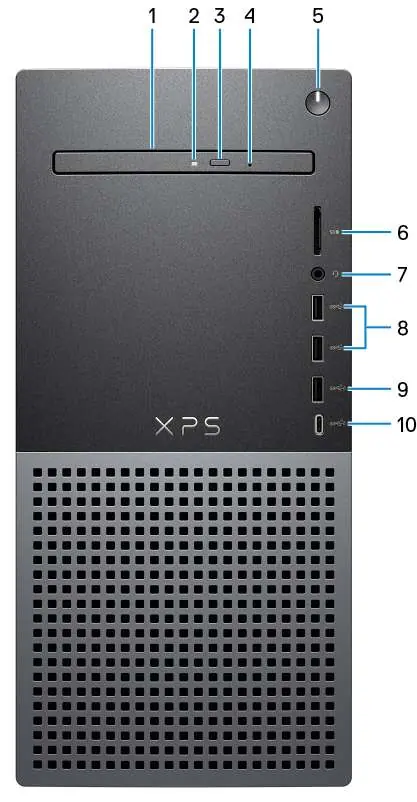
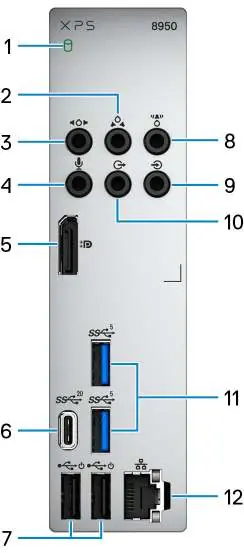
The XPS 8950 features a front panel with a slim optical drive, SD-card slot, universal audio jack, and multiple USB 3.2 ports. The back panel provides extensive connectivity, including PCIe expansion slots, audio-output ports for surround sound, DisplayPort, and additional USB ports.
Hardware Specifications
The system supports 12th Generation Intel Core processors (i3, i5, i7, i9) and uses DDR5 memory with four UDIMM slots, supporting up to 128 GB. Storage options include 3.5-inch hard drives and M.2 2230/2280 solid-state drives. Graphics options range from integrated Intel UHD Graphics to various discrete NVIDIA GeForce and AMD Radeon cards.
Ports and Connectivity
The computer is equipped with a variety of ports for external devices:
- USB: Includes USB 3.2 Gen 1, USB 3.2 Gen 2, and USB 3.2 Gen 2x2 Type-C ports. Some ports support PowerShare for charging devices even when the computer is off.
- Audio: Features a universal audio jack and a 7.1 audio 6-connector stack for surround sound setups.
- Video: Dual-Mode DisplayPort 1.4 is available for external displays.
- Network: RJ-45 Ethernet port supporting up to 2500 Mbps.
Power and Environment
The system offers three power supply options: 460 W Bronze, 750 W Platinum, or 1000 W Platinum. Operating temperature ranges from 5°C to 45°C. Ensure the device is operated within the specified environmental ranges to maintain performance.
Support and Resources
Dell provides several applications to help manage your computer, including My Dell for centralized support, SupportAssist for proactive issue identification, Dell Update for critical fixes, and Dell Digital Delivery for software management.
Manufacturer information
Dell Inc.
Practical help
Common problems
Optical drive tray fails to open
Use the optical-drive emergency eject pinhole located on the front panel.
PowerShare feature not working
Disable 'Deep Sleep' in the BIOS settings to enable PowerShare.
Display not showing image
Ensure the display cable is connected to the correct port (integrated graphics vs. discrete graphics card).
Before use
- Connect keyboard and mouse to USB ports.
- Connect to network via Ethernet or Wi-Fi.
- Connect display cable to the appropriate port based on graphics configuration.
- Connect power cable to wall outlet.
- Press the power button to turn on the system.
Specs in practice
- Power Supply
- Available in 460 W, 750 W, or 1000 W configurations.
Images and diagrams
- Front panel: Optical drive, SD card slot, audio jack, and USB ports.
- Back panel: PCIe slots, power port, and various audio/video connectors.
Model compatibility
- Supports Windows 11 Home and Pro (64-bit).
- Display connection points vary based on discrete graphics card installation.

Manual page author
Emily Carter
User documentation editor
Prepares concise manual descriptions and highlights the most useful setup, operation, and maintenance information for readers.