Power / EV Chargers
User Guide for Easee Charge Pro EV Charger
Comprehensive user guide for the Easee Charge Pro EV charger. Learn how to operate, understand LED status indicators, use the MID display, and perform basic maintenance.
Quick answers from the manual
Quick answer
- To charge, ensure the charger is configured and software is updated. Connect the cable to the charger and car. If access control is enabled, use an RFID tag or the Easee App to authenticate. p. 2
Key actions
- Charging p. 2
- Cleaning p. 10
First start
- Installation by authorized electrician p. 2
Show 3 more answers Show less
Maintenance and reset
- General maintenance p. 10
Technical specifications
| Parameter | Value | Meaning | Pages |
|---|---|---|---|
| Operating temperature | -30 °C to +40 °C | Ambient operating range | p. 2 |
| Metering temperature | -40 °C to +55 °C | Metering operating range | p. 2 |
Where to find it in the PDF
- Charging instructions p. 2
- Features p. 4
- Charger interface p. 5, 6
- MID display p. 7, 8, 9
Table of contents
Manual images
Click an image to enlargeQuick Guide
The Easee Charge Pro requires installation by an authorized electrician. Before using the charger, ensure the software is up to date and the charger is properly configured. Operation requires a mobile device with internet or Bluetooth connection.
How to charge:
- Check the charging cable and connector for damage or impurities.
- Connect the cable to the charger and your electric car.
- If access control is enabled, use a registered RFID tag or the Easee App to authenticate.
- The charging process starts and adapts automatically to the car.
Features
The charger includes several key components:
- Touch button: Used to turn on the MID meter display light and activate Bluetooth (press for 5s).
- Light strip: Communicates the charger status.
- RFID area: Enables access control and user identification.
- Type 2 socket: Universal socket for charging any electric vehicle.
- MID meter display: Shows cumulative energy in kWh.
- Infrared (IR) LED: Indicates energy transfer.
Charger Interface
The light strip indicates the charger status:
- White (constant): Car connected.
- White (pulsating): Charging in progress.
- Blue (constant): Smart charging enabled.
- Blue (pulsating): Smart charging in progress.
- Red (flashing): Critical error (contact support).
- Red (constant): General error (unplug and replug).
- Yellow (flashing): Waiting to be configured.
MID Display Interface
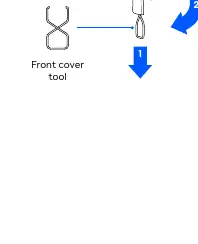
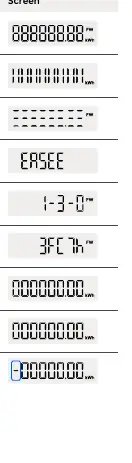
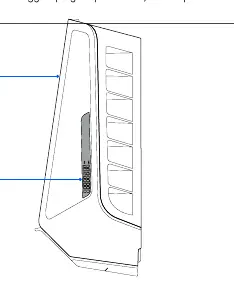
The MID display provides energy data. You can access the display by opening the front cover using the front cover tool. The display shows boot sequences, accumulated import/export energy, and session energy.
Maintenance
The product does not require regular cleaning. If cleaning is necessary for cosmetic reasons:
- Use a damp cloth and an all-purpose household cleaner.
- Do not use strong chemicals containing oil or alcohol.
- Do not clean the screen with cleaner; use a dry or damp microfiber cloth only.
- Do not use running water or high-pressure water jets.
- Visually inspect the Type 2 socket for wear and tear regularly.
Practical Details
The device is covered by a 5-year limited warranty. For support, returns, or complaints, contact your Easee supplier or visit support.easee.com.
Official resources from the manual
Manufacturer information
Easee
Practical help
Common problems
Car does not start charging
Check if charging is activated in the car, ensure connectors are properly plugged in, and check the Charger interface section for errors.
Red flashing light with warning sounds
Critical error. Turn off power, remove charging cable, and contact customer support. The charger is blocked and cannot be reset.
Red constant light
General error. Unplug the charging cable and replug it. If the light persists, check the Easee App or knowledge base.
Yellow flashing light
The charger is waiting to be configured. Consult an authorized electrician.
Before use
- Installation by an authorized electrician
- Charger is properly configured
- Software is up to date
- Check charging cable and connector for damage or impurities
- Unlock charger via RFID or App if access control is set
Show more Show less
Specs in practice
- Operating temperature
- -30 °C to +40 °C
- Metering temperature
- -40 °C to +55 °C
- Type designation
- Easee AC Charger Platform CB-A3-3
Images and diagrams
- Front view showing touch button, light strip, RFID area, and Type 2 socket
- Side view showing MID meter display and IR LED
- Front cover tool usage for accessing the MID display
Model compatibility
- Type 2 socket is universal
- Do not use adaptors on the charger or charging cable
- Charging cable must have appropriate sockets on each end

Manual page author
Emily Carter
User documentation editor