Power / EV Chargers
Easee Charge Up 1.4-22kW Installation Guide
A comprehensive installation guide for the Easee Charge Up EV charger. This manual covers product components, technical specifications, planning, step-by-step installation, wiring, configuration, and LED status indicators.
Table of contents
Manual images
Click an image to enlargeQuick Guide
This document provides installation instructions for the Easee Charge Up EV charger. Installation must be performed by an authorised electrician. Ensure the power is turned off before beginning. You will need the Easee Installer App for configuration. The charger requires a mobile device with internet connection for setup.
Product Overview
The system consists of three main parts:
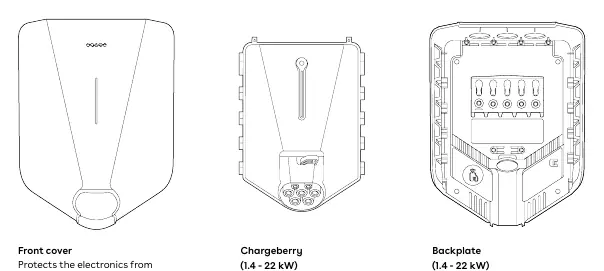
- Front cover: Protects the electronics.
- Chargeberry: Contains the charging electronics (1.4 - 22 kW).
- Backplate: Used for mounting and connecting to the infrastructure.
The installation kit includes strain relief, blind grommets, sealing plugs, wall screws (T25), and a front cover tool.
Technical Specifications
- Charging power: 1.4–22 kW (6 A 1 phase – 32 A 3 phase).
- Connection point: Type 2 socket (IEC 62196-2).
- Voltage: 3x 230/400V AC (±10%).
- Operating temperature: -30 °C to +40 °C.
- Weight: 1.5 kg.
- Connectivity: LTE Cat M1, WiFi 2.4 GHz, Bluetooth BLE 4.2, RFID/NFC.
Planning the Installation
Consider future charging needs. If multiple units are connected to the same circuit, the current is dynamically distributed. Use the Easee Equalizer for dynamic load balancing to avoid overloading the main fuse. A Site Key is required during installation to assign the charger to the correct location in the Easee Cloud.
Installation Steps
1. Opening
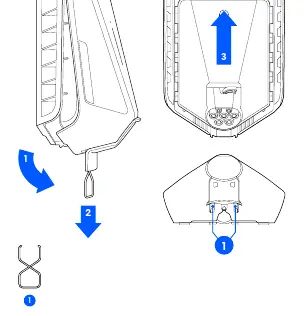
Bend the lower part of the rubber cover and insert the supplied tool into the two openings at the bottom of the front cover. Pull the tool to release the cover, then push the Type 2 socket upwards to disconnect the Chargeberry.
2. Mounting
Fix the backplate to a solid wall using the 4 provided screws. Ensure the installation height is 130–140 cm (80–95 cm recommended for accessibility). The wall must cover the entire back of the product.
3. Preparing
Shorten the sealing plug to fit the cable. Insert the cable through one of the 4 entries and secure it with the strain relief. Ensure at least 5 mm of cable extends beyond the strain relief. Close unused entries with blind sealing plugs.
4. Wiring
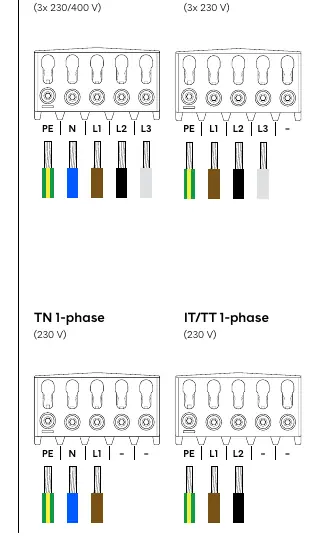
Strip 12 mm of insulation from each wire. Use ferrules on stranded wires. Tighten screw terminals to 5 Nm. Ensure the PE wire cross-section is equal to or larger than the phase wire. Follow the specific wiring diagrams for TN/IT/TT 1-phase or 3-phase configurations.
5. Configuring
Download the Easee Installer App and create an account. Scan the QR code. Select 'Create new site' or 'Update existing site' to configure the backplate.
6. Attaching
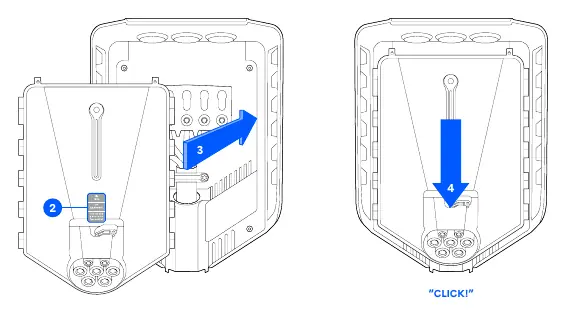
Turn on the power. Remove the PIN code sticker and store it safely. Position the Chargeberry into the backplate slots and press down until you hear a 'CLICK'.
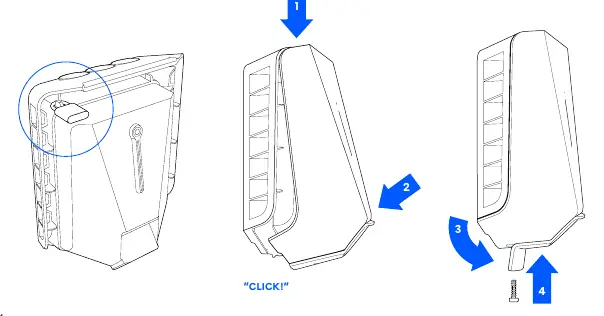
7. Closing
Hang the front cover at the top, press the bottom until it clicks, and secure it with the locking screw at the bottom. Close the rubber cover.
Charging Robot Interface
The light strip indicates the charger status:
- White (constant): Car connected.
- White (pulsating): Charging in progress.
- Blue (constant): Smart charging enabled.
- Red (flashing): Critical error (turn off power, contact support).
- Red (constant): General error (unplug and replug cable).
Manufacturer information
Easee
Practical help
Common problems
Red flashing light with warning sounds
Critical error. Turn off power and remove the charging cable. The charger is blocked and must be replaced. Contact customer support.
Red constant light
General error. Unplug the charging cable and replug it to the Charging Robot.
Red constant light with warning sounds
Wires are connected incorrectly. Consult an authorised electrician.
Charger not seating in slots
Ensure wires are not crossing over the screw terminals or the Chargeberry slots.
Before use
- Ensure power is turned off before beginning installation.
- Verify the installation wall can support the charger.
- Ensure the PE wire cross-section is equal to or larger than the phase wire.
- Download the Easee Installer App and create an account.
- Remove the PIN code sticker and store it in a safe place (e.g., fuse cabinet).
Specs in practice
- Charging power
- 1.4-22 kW, automatically adjusted based on available capacity.
- Connection point
- Type 2 socket (IEC 62196-2).
- Terminal torque
- 5 Nm for screw terminals.
- Ingress protection
- IP54 (charger), IP2X (backplate without cover).
Images and diagrams
- Opening: Insert tool into bottom openings to release cover.
- Wiring: Connect wires to terminals (PE, N, L1, L2, L3) based on grid type (TN/IT/TT).
- Attaching: Press Chargeberry into backplate until it clicks.
Model compatibility
- Requires mobile device with internet connection for setup.
- Compatible with 1 or 3 phase installations.
- Supports dynamic load balancing with Easee Equalizer.

Manual page author
Emily Carter
User documentation editor
Prepares concise manual descriptions and highlights the most useful setup, operation, and maintenance information for readers.