Power / EV Chargers
User Guide for Easee Home and Easee Charge
Comprehensive user guide for Easee Home and Easee Charge EV chargers. Includes charging instructions, LED status indicators, app setup, and maintenance tips.
Quick answers from the manual
Quick answer
- To charge your vehicle, ensure the charger is configured and unlocked (if access control is set). Inspect the cable for damage, then connect the cable to the Charging Robot and your car. The charging process will start automatically. p. 2
Key actions
- Unlock the charger p. 2
- Connect charging cable p. 2
First start
- Ensure installation by an authorized electrician and verify configuration. p. 2
Show 3 more answers Show less
Problems and fixes
Red flashing light with warning sounds
Critical error. Turn off power, remove cable, turn power back on. If it persists, contact support.
p. 5
Red constant light
Unplug and replug the charging cable.
p. 5Maintenance and reset
- Cleaning: Use a damp cloth and all-purpose household cleaner. Do not use running water or high-pressure jets. p. 7
Where to find it in the PDF
- How to charge p. 2
- Apps and interfaces p. 3
- Features p. 4
- Charging Robot interface (LEDs) p. 5, 6
- Maintenance p. 7
Table of contents
Quick Start Guide
Before using your Easee Charging Robot, ensure the following requirements are met:
- The product and electrical connection must be installed by an authorized electrician.
- The charger must be properly configured.
- The software must be up to date.
- If access control is enabled, unlock the charger using a registered RFID tag, the Easee App, or the local interface.
To charge your vehicle:
- Inspect the charging cable and connector for damage or foreign objects.
- Connect the charging cable to the Charging Robot and your electric vehicle.
- The charging process will start and adapt automatically to the car and available energy.
Apps and Interfaces
Easee App: Provides full control and status of your charger via the Easee Cloud. Download it by scanning the QR code in the manual or visiting easee.com/app.
Local Interface: Intended for local operations when no internet is available. Access details at easee.com/support/localinterface.
Easee Portal: A tool for site owners, installers, and administrators to manage multiple products and sites. Visit easee.support for more information.
Product Features
The Charging Robot includes the following key components:
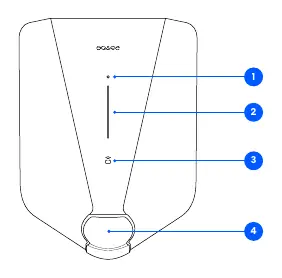
- Touch button: Used to activate the local interface.
- Light strip: Communicates the status of the charger at all times.
- RFID area: Integrated reader for access control and user identification using an Easee Key.
- Type 2 socket: Universal socket for charging any electric vehicle. It allows for permanently locking the charging cable.
LED Status Indicators
The light strip on the Charging Robot indicates the current status:
- White (constant): Standby (bottom 2 LEDs for master, 1 for secondary) or Car connected.
- White (pulsating): Charging in progress.
- Blue (constant): Smart charging enabled.
- Blue (pulsating): Smart charging in progress.
- White (flashing): Waiting for RFID authentication.
- Green (flashing): Software update in progress (do not disconnect).
- Red (flashing): Critical error. Disconnect cable and contact support.
- Red (constant): General error. Unplug and replug the cable.
- Yellow (flashing): Waiting to be configured.
Maintenance
The product does not require regular cleaning to operate. If cleaning is necessary for cosmetic reasons:
- Use a damp cloth and an all-purpose household cleaner.
- Avoid strong chemicals containing oil or alcohol.
- Do not use running water or high-pressure water jets.
- Visually inspect the Type 2 socket for wear and tear regularly.
Warranty and Support
Easee hardware is covered by a 3-year limited warranty. If the charger requires repair, contact your Easee supplier. For further support, visit easee.support.
Official resources from the manual
Manufacturer information
Easee
Practical help
Common problems
Car does not start charging
Check if charging is activated in the car, ensure connectors are plugged in properly, and check the Charging Robot interface for error codes.
Red light flashing with warning sounds
Critical error. Turn off power, remove charging cable, then turn power back on. If the issue persists, the charger is blocked and must be replaced.
Red light constant
General error. Unplug the charging cable and replug it to the Charging Robot.
Yellow light flashing
The charger is waiting to be configured. Consult an authorized electrician.
Before use
- Ensure installation was performed by an authorized electrician.
- Verify the charger is properly configured.
- Ensure software is up to date.
- Unlock the charger via RFID tag, Easee App, or local interface if access control is active.
- Inspect charging cable and connector for damage or impurities.
Show more Show less
Specs in practice
- Type 2 socket
- Universal socket allowing connection of any electric vehicle using an appropriate cable.
- Touch button
- Interface button used to activate local operations.
Images and diagrams
- The light strip communicates the status of the Charging Robot at all times.
- The RFID area is located on the front of the unit, used for authentication.
Model compatibility
- Compatible with any electric vehicle using a Type 2 charging cable.

Manual page author
David Miller
Documentation analyst