Electronics / Video Capture
User Manual for Elgato Cam Link 4K
Quick start guide and setup instructions for the Elgato Cam Link 4K. Learn how to connect your DSLR camera, configure settings for video conferencing, and optimize image quality for the best performance.
Table of contents
Manual images
Click an image to enlargeQuick Start Guide
Follow these steps to set up your Elgato Cam Link 4K for video conferencing or streaming:
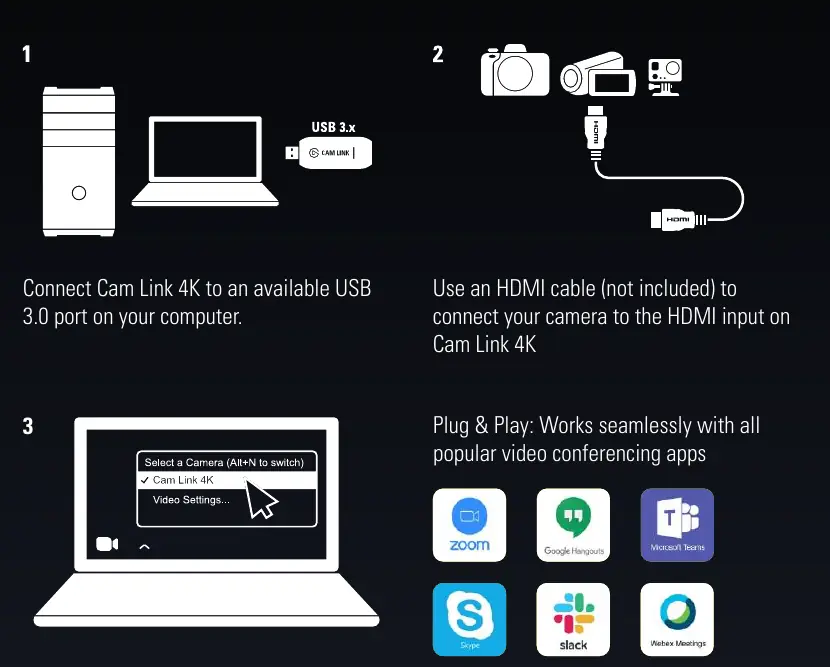
- Connect to Computer: Plug the Cam Link 4K into an available USB 3.0 port on your computer.
- Connect Camera: Use an HDMI cable (not included) to connect your camera's HDMI output to the HDMI input on the Cam Link 4K.
- Select Camera: Open your preferred video conferencing software and select 'Cam Link 4K' as the camera source in the video settings.
Camera Optimization Tips
To ensure the best experience and image quality, configure your camera with the following settings:
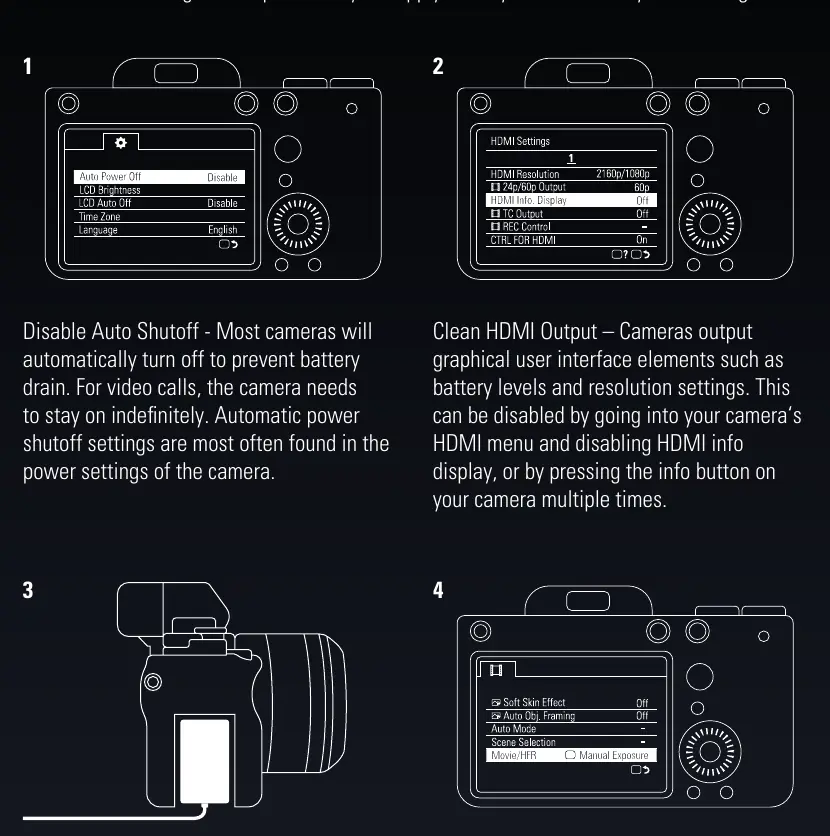
- Disable Auto Shutoff: Most cameras automatically turn off to save battery. Disable this feature in your camera's power settings to allow the camera to stay on indefinitely.
- Clean HDMI Output: Cameras often output graphical user interface elements (battery levels, resolution settings) over HDMI. Disable 'HDMI info display' in your camera's HDMI menu, or press the 'Info' button on your camera multiple times to hide these overlays.
- Use an AC Adapter: Since most cameras cannot operate and charge simultaneously, use an AC adapter or a 'dummy battery' to provide continuous power.
- Set to Movie Mode: Ensure your camera is set to Movie Mode, typically indicated by a film camera icon on the camera's mode dial.
Why Use Cam Link?
Using a DSLR camera with Cam Link 4K offers significant advantages over traditional webcams, including:
- Superior Image Sensor: Larger pixels capture more light and detail.
- Low Light Performance: Better ISO range and sensor size provide clearer images in dim lighting.
- Interchangeable Lenses: Achieve shallow depth of field (bokeh effect) and optical zoom.
- Manual Control: Full control over exposure, focus, and ISO settings.
- Dynamic Range: Better color reproduction and detail in both bright and dark areas.
Manufacturer information
Elgato
Practical help
Common problems
Camera turns off automatically during use
Disable the 'Auto Power Off' or 'Auto Shutoff' setting in your camera's power menu.
UI elements (battery, settings) appear on the video feed
Disable 'HDMI info display' in your camera's HDMI menu or press the 'Info' button on the camera until the screen is clean.
Camera battery dies during long calls
Use an AC adapter or a 'dummy battery' to power the camera indefinitely.
Before use
- Ensure you have an available USB 3.0 port on your computer.
- Have an HDMI cable ready (not included).
- Check that your camera supports clean HDMI output.
- Ensure your camera is set to Movie Mode.
- Verify you have an AC adapter or dummy battery for continuous power.
Specs in practice
- Clean HDMI Output
- A camera setting that removes on-screen display (OSD) information from the HDMI video feed.
- Dummy Battery
- An AC power adapter that fits into the battery compartment to allow the camera to run without a physical battery.
Images and diagrams
- The setup diagram illustrates connecting the Cam Link 4K to a computer USB port and linking the camera via HDMI.
- The camera tips diagrams show where to locate power and HDMI settings in the camera menu.
Model compatibility
- Compatible with Windows 10 and Mac.
- Works with all popular video conferencing apps (Zoom, Teams, Skype, Slack, etc.).

Manual page author
Emily Carter
User documentation editor
Prepares concise manual descriptions and highlights the most useful setup, operation, and maintenance information for readers.