Power / Wireless Chargers
User Manual for Valore 2-in-1 Video Capture Card VUH-43
Quick guide for the Valore 2-in-1 Video Capture Card (VUH-43). Includes setup instructions for OBS, sound configuration, system requirements, and troubleshooting steps.
Quick answers from the manual
Quick answer
- The Valore VUH-43 is a 2-in-1 video capture card that converts HDMI signals to USB-A/C for recording or streaming via software like OBS. It supports 4K input and 1080p output. p. 1
Key actions
- Configure OBS for video capture p. 4
- Configure sound settings p. 4, 5
- Optimize recording settings p. 5, 6
First start
- Connect the HDMI source to the capture card and the USB connector to the computer's USB 3.0 port. p. 1, 4
Problems and fixes
No Video
Check HDMI input and reseat interface.
p. 7
HDCP Protection
Turn off HDCP on the signal source.
p. 7Technical specifications
| Parameter | Value | Meaning | Pages |
|---|---|---|---|
| HDMI Input | 4K@30Hz | Maximum input resolution | p. 1 |
| USB Output | 1080P@60Hz | Maximum output resolution | p. 1 |
Where to find it in the PDF
- Features and Specifications p. 1
- Operating Instructions p. 4, 5, 6
- Problem Analysis p. 7
Table of contents
Manual images
Click an image to enlargeQuick guide from the manual
The Valore 2-in-1 Video Capture Card (VUH-43) allows you to capture and record HDMI video signals on your computer. To begin, connect the HDMI source to the capture card and plug the USB-A/USB-C connector into a USB 3.0 port on your computer. For optimal performance, ensure you are using the original cable and a USB 3.0 interface.
System Requirements
The device is compatible with the following systems:
- Windows: XP, 7, 8, 10, 11 (UVC protocol required)
- macOS: Version 10.12 and above
- Android: Version 5.0 or above (Android 9+ recommended; requires USB 2.0 mode with extension cable)
- Linux: Ubuntu 16.04 LTS 64-bit
Operating Instructions
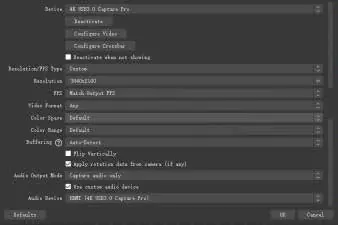
Preview Settings (OBS)
- Open OBS and select the second "source" box in the lower left corner.
- Click the "+" button and choose "Video capture device".
- Click "OK".
- Double-click "Video Capture Device" or right-click and select "Properties".
- Adjust settings as displayed in the manual figure and click "OK".
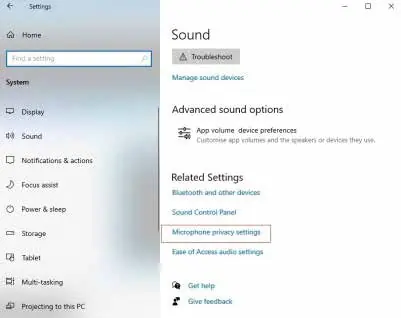
Sound Settings
To ensure audio is captured correctly on Windows:
- Right-click the "Speaker" icon in the lower right corner of the computer.
- Select "Open Sound Settings" and choose "Sound Control Panel".
- Click the "Record" tab and select "HDMI Properties".
- Check the option "Listen to this device" and click "OK".
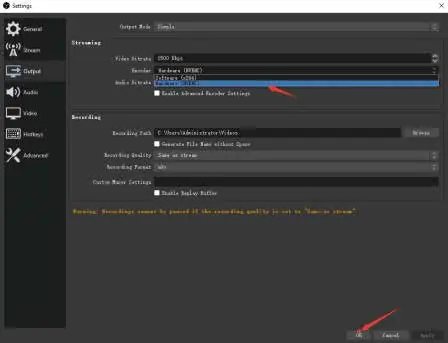
Recording Settings
- In OBS, click "Settings" in the lower right corner.
- Select "Output" to configure the saving path, format, and quality.
- Under "Audio", select "Microphone auxiliary audio device" and choose "-" (hyphen) to disable it.
- It is recommended to use hardware encoding (NVENC or AMD) to optimize computer resources.
Troubleshooting
If you encounter issues, refer to these common solutions:
- No Video: Check if the HDMI input is normal and reseat the HDMI interface.
- No Support: Adjust the input resolution of the signal source; the acquisition resolution cannot be higher than the input resolution.
- HDCP Protection: Turn off HDCP on the signal source (e.g., PS4 settings).
- Low Resolution (1280x720): Ensure you are using a USB 3.0 interface and the original cable.
- Encoding Overload: Use hardware encoding (NVENC/AMD) or reduce resolution/rate.
Safety and Maintenance
- Do not store or use the product in high-temperature environments or near fire.
- Keep the product dry; do not submerge in liquid.
- Do not disassemble or attempt to repair the product.
- Stop using the product immediately if it produces abnormal smells, heats up, or shows physical damage.
Practical help
Common problems
No Video / No signal input
Check if the HDMI input is normal and reseat the HDMI interface.
No Support / Resolution issues
Adjust the input resolution of the signal source; ensure acquisition resolution is not higher than input resolution.
HDCP Protection error
Turn off HDCP on the signal source (e.g., in PS4 settings).
Resolution stuck at 1280x720
Ensure the device is connected to a USB 3.0 port and that you are using the original cable.
Encoding overload / Stuttering
Use hardware encoding (NVENC or AMD) in OBS settings and reduce resolution/rate if necessary.
Before use
- Verify computer OS compatibility (Windows, macOS, Android, Linux)
- Ensure the computer has a USB 3.0 port
- Use the original USB cable provided
- Install OBS or PotPlayer software
- Check HDMI source signal
Specs in practice
- Supported Formats
- YUY2 and MJPEG
Images and diagrams
- The product diagram illustrates the HDMI input port and the USB-A/USB-C output connector.
Model compatibility
- Requires USB 3.0 for full 1080p performance.
- Android requires USB 2.0 mode with an extension cable.
- Windows 7/8/10/11, macOS, and Linux are supported.

Manual page author
Emily Carter
User documentation editor
Prepares concise manual descriptions and highlights the most useful setup, operation, and maintenance information for readers.