Electronics / Video Capture
Elgato Video Capture User Guide
Comprehensive user guide for the Elgato Video Capture device. Learn how to install software, connect your VCR or camcorder, record, trim, and export your analog video to digital formats.
Quick answers from the manual
Quick answer
- The Elgato Video Capture device allows you to digitize analog video from sources like VCRs, camcorders, and set-top boxes to your computer for editing and sharing. p. 1
Key actions
- Download and install the latest software from the Elgato website. p. 2
- Connect the hardware and follow the on-screen assistant to record, trim, and save your video. p. 3, 6, 7, 8
First start
- Launch the application, name your movie, and specify the approximate duration. p. 3
Problems and fixes
Issues running the application on Windows
Download the additional driver from the Download & Support page.
p. 2Technical specifications
| Parameter | Value | Meaning | Pages |
|---|---|---|---|
| Video Resolution | 640x480 | Output resolution of the captured video. | p. 1 |
| Video Format | H.264 | Compression format used for captured video. | p. 1 |
Where to find it in the PDF
- System Requirements p. 1
- Download and Installation p. 2
- Usage and Recording p. 3, 4, 5, 6
- Trimming and Exporting p. 7, 8
Table of contents
Manual images
Click an image to enlargeQuick guide from the manual
The Elgato Video Capture device is designed to digitize analog video from sources like VCRs, camcorders, and set-top boxes. The process involves installing the software, connecting the hardware, testing the video and audio signals, recording, and finally trimming and exporting the file.
System Requirements
Ensure your computer meets the following specifications before installation:
- Mac: Intel Core processor, 1 GB RAM, built-in USB 2.0 port, Mac OS X 10.5.8 or later, QuickTime 7.6 or later, and iTunes 8.1 or later.
- PC: Windows 7 or higher, 2.4 GHz Intel/AMD CPU, 1 GB RAM, screen resolution of 1024x768 or greater, QuickTime 7.6.6 or later, and iTunes 10.4 or later.
Download and Installation
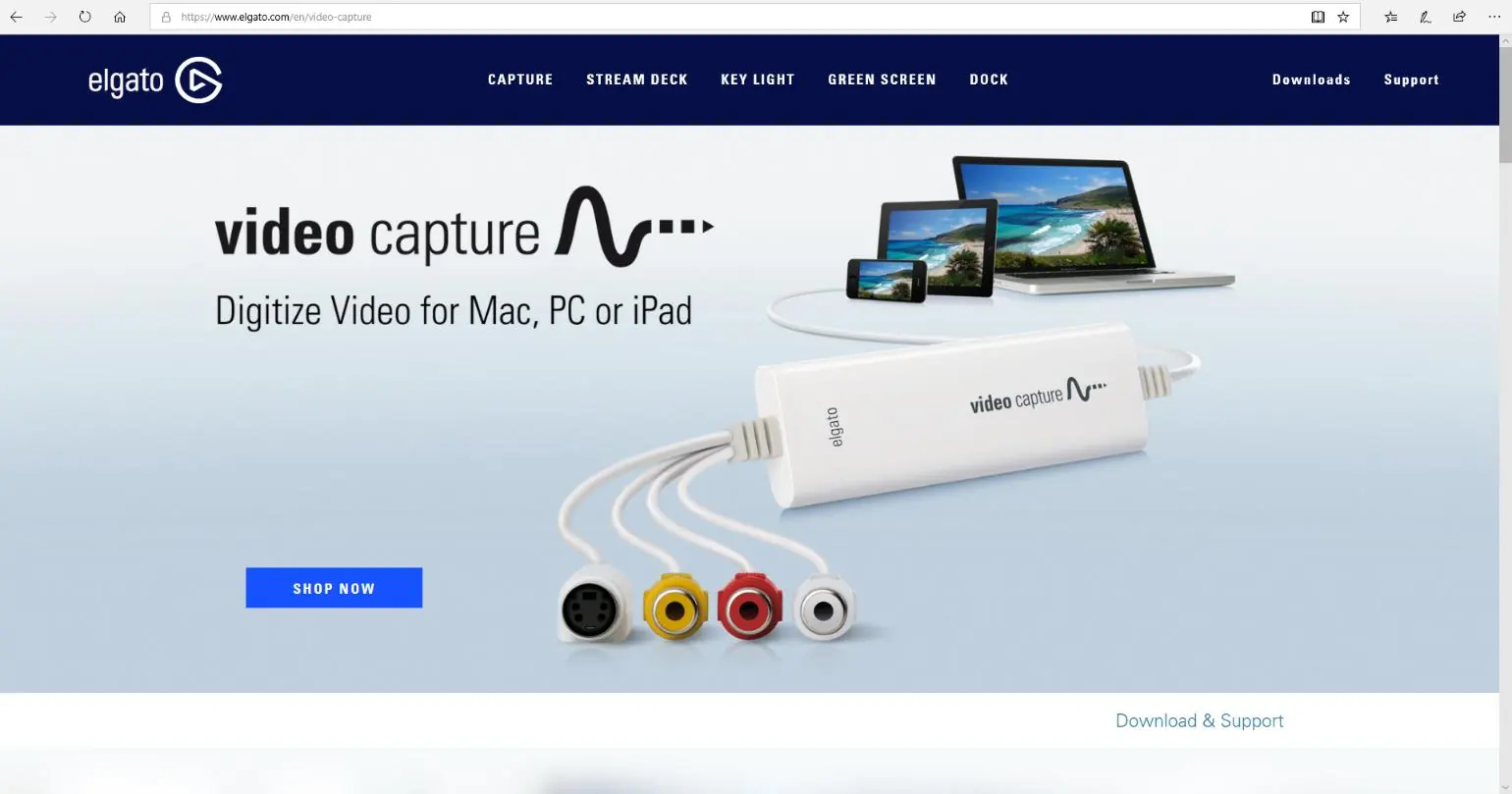
Navigate to the official Elgato website at https://www.elgato.com/en/video-capture. Locate the Download & Support section. Download the software version appropriate for your operating system (Windows or Mac). If you encounter issues on Windows, you may need to download an additional driver from the same page.
Usage
Connect the Elgato Video Capture hardware to your computer and launch the application. The on-screen assistant will guide you through the following steps:
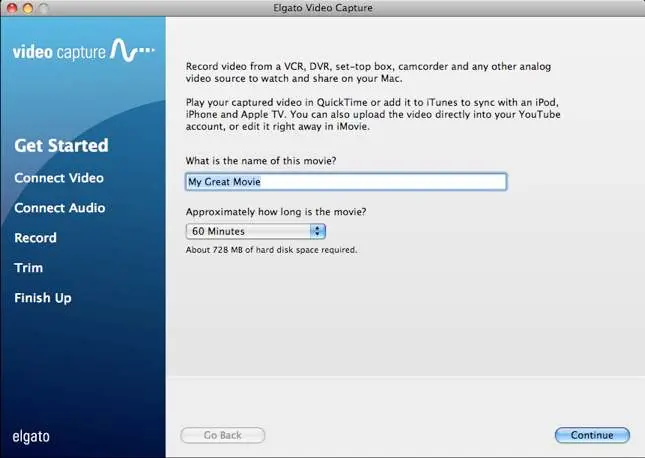
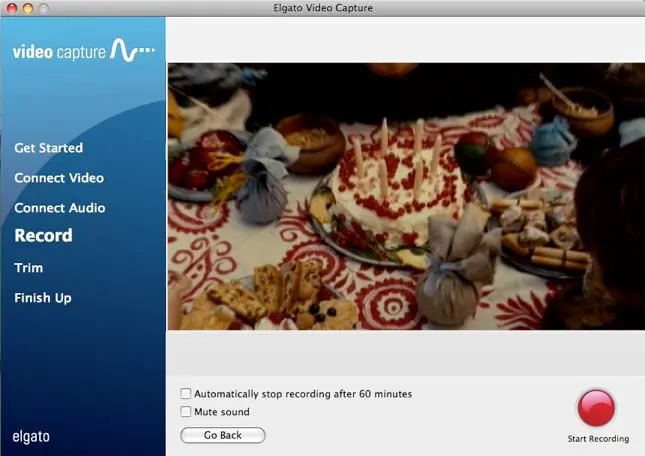
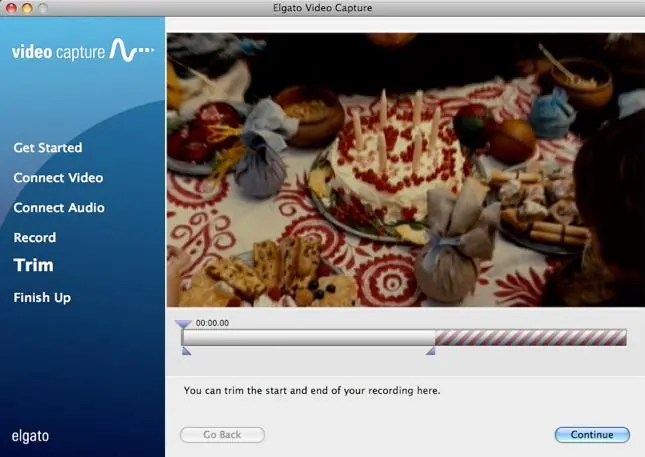
- Get Started: Name your movie and specify its approximate duration.
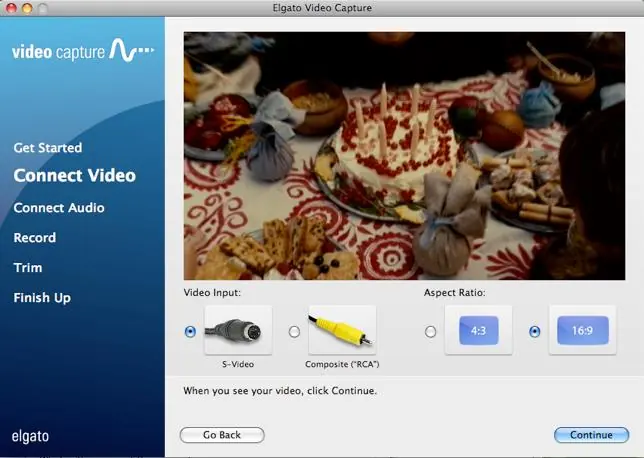
- Connect Video: Select your video input (S-Video or Composite RCA) and aspect ratio (4:3 or 16:9).
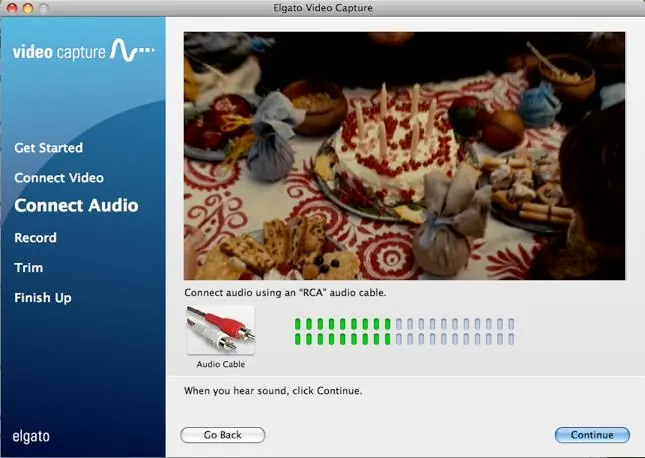
- Connect Audio: Test the audio levels. Ensure the meter stays in the green range; red indicates distortion.
- Record: Press Play on your VCR and click Start Recording in the app. You can set it to stop automatically.
- Trim: Use the editor to remove unwanted footage from the beginning or end of the clip.
- Finish Up: Save your movie and choose to play it, add it to iTunes, edit it, or upload it to YouTube.
Troubleshooting
If you experience difficulties with downloading, installing, or using the device, visit the Elgato support page at https://www.elgato.com/en/video-capture/support. For specific inquiries, contact the Reference desk at the Burlington Public Library at (781) 270-1691 or email [email protected].
Official resources from the manual
Manufacturer information
Elgato
Practical help
Common problems
Audio distortion during recording
Adjust the volume so the audio meter in the application does not turn red; a mid-level green is ideal.
Application issues on Windows
You may need to download an additional driver from the Download & Support page on the Elgato website.
Before use
- Verify your computer meets the minimum system requirements (RAM, CPU, OS version).
- Ensure you have the required software installed (QuickTime and iTunes).
- Connect the Elgato Video Capture hardware to a USB 2.0 port.
- Have your analog video source (VCR, camcorder) ready and connected via RCA or S-Video cables.
Specs in practice
- Video Format
- H.264
- Audio Format
- AAC
Images and diagrams
- The application interface provides a step-by-step assistant on the left sidebar (Get Started, Connect Video, Connect Audio, Record, Trim, Finish Up).
- The video input selection screen allows you to toggle between S-Video and Composite (RCA) inputs.
- The audio testing screen features a level meter to monitor for distortion.
Model compatibility
- Compatible with iPod touch, iPod classic, iPod with video, iPod nano (3rd-6th gen), iPhone 4, iPhone 3GS, iPhone 3G, iPhone, iPad 2, iPad, and Apple TV.
- Captured video is compatible with iMovie '09 or later, Windows Live Movie Maker, and Video Editor.

Manual page author
Michael Turner
Technical manual editor
Reviews PDF manuals for structure, safety notes, and practical product details so readers can find the right information quickly.