Industrial / Electrical
Elgato Stream Deck Mini User Guide
Learn how to set up and customize your Elgato Stream Deck Mini for efficient live content creation and workflow management.
Table of contents
Manual images
Jump to the sectionGetting Started with Stream Deck Mini
The Elgato Stream Deck Mini is a powerful controller designed to streamline your live content creation and professional workflows. To begin using your device, you must first download and install the official Stream Deck application from the Elgato website. Once the software is installed, connect the Stream Deck Mini directly to a USB port on your PC or Mac. It is important to connect the device directly to your computer rather than using a USB hub to ensure stable performance and power delivery.

Customizing Your Keys
Once connected, launch the Stream Deck application to start configuring your device. The interface allows you to drag and drop various actions from the right-hand panel onto the keys displayed on the left. This intuitive drag-and-drop system makes it easy to assign functions, shortcuts, and macros to each of the physical keys on your controller.
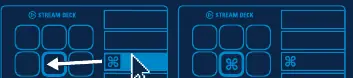
To personalize your experience, you can add custom icons to your keys. For the best visual results, it is recommended to use 72 x 72 pixel images in either .jpg or .png format. You can also organize your workspace by creating folders. Simply drag the Create Folder action onto a key, and then drag your desired actions into that folder. To exit a folder and return to your main configuration, tap the back key assigned within that folder.
Advanced Management
Managing your key assignments is straightforward. You can right-click on any key within the software to copy, delete, or move it to a different location or folder. This flexibility allows you to adapt your Stream Deck Mini to different tasks or streaming setups quickly. Additionally, you can integrate your social media accounts directly through the Preferences menu. By connecting your accounts, you can interact more effectively with your audience and manage your social presence directly from your controller. Once your setup is complete, you are ready to start tapping and unleashing your creative potential.
Manufacturer information
Elgato
Practical help
Common problems
Device not recognized or unstable performance
Ensure the device is connected directly to a USB port on your computer and avoid using a USB hub.
Before use
- Download and install the latest Stream Deck app
- Ensure your PC or Mac is powered on
- Connect the device directly to a USB port
- Prepare custom icons in 72x72 pixel format (.jpg or .png)
Images and diagrams
- The software interface features a drag-and-drop system where actions are moved from a right-side panel to the device keys on the left.
- Folders can be created to group actions, with a back key used to navigate out of folders.
- Right-clicking on keys in the software opens a context menu for copying, deleting, or moving actions.
- Preferences allow for social media account integration to connect with fans.
Model compatibility
- Compatible with PC and Mac.
- Requires direct USB connection.

Manual page author
Michael Turner
Technical manual editor
Reviews PDF manuals for structure, safety notes, and practical product details so readers can find the right information quickly.