Music / Instruments
Elgato Stream Deck XL User Guide
Comprehensive setup and configuration guide for the Elgato Stream Deck XL, covering software installation, hardware connection, key customization, and folder management.
Table of contents
Manual images
Jump to the sectionProduct Overview
The Elgato Stream Deck XL is an advanced stream control interface designed to streamline your workflow. It features a grid of customizable LCD keys that provide tactile feedback and visual confirmation for your actions. Whether you are a content creator, streamer, or professional, this device allows you to trigger actions, launch apps, and control your environment with a single touch.
Getting Started
To begin using your Stream Deck XL, follow these essential steps:
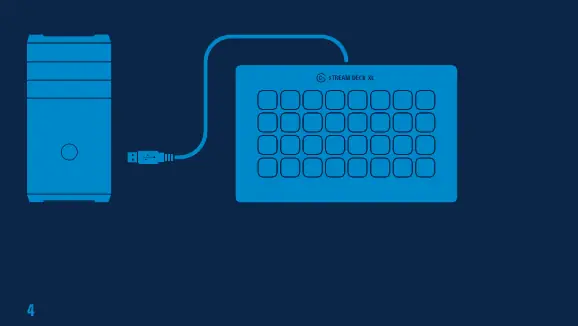
- Download and install the latest Stream Deck application from the official Elgato website.
- Connect the provided USB-C to USB-A cable to the device and plug it directly into a USB-A port on your computer. Avoid using USB hubs to ensure stable power and data connectivity.
- Place the device on the included stand for optimal viewing and accessibility.
Configuration and Customization
Once the software is running, you can fully customize your Stream Deck XL:
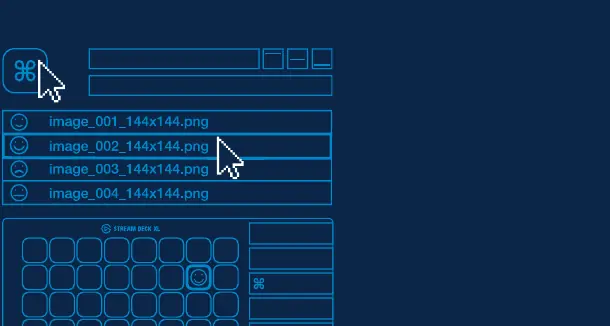
- Key Customization: Drag and drop actions from the right-hand panel onto your desired keys on the left. You can personalize keys with custom icons using 144 x 144 pixel images in .jpg, .png, or .gif formats.
- Folder Management: Organize your workflow by dragging the Create Folder action onto a key. You can then drag and drop additional actions into that folder to keep your main configuration clean.
- Key Management: Right-click on any key to access options to copy, delete, or reset the key configuration.
- Social Integration: Access the Preferences menu to link your social media accounts, allowing you to interact with your audience directly through the Stream Deck interface.
Maintenance and Support
The Stream Deck XL is designed for durability. Keep the surface clean by wiping it gently with a soft, dry cloth. Ensure the USB connection remains secure. If you encounter issues, verify that the device is connected directly to your computer and that the latest software version is installed. The device is compatible with both PC and Mac systems, providing a versatile solution for all your creative needs.
Manufacturer information
Elgato
Practical help
Common problems
Device not recognized
Ensure the device is connected directly to a USB-A port on your computer, not a USB hub.
Actions not triggering
Verify that the Stream Deck application is running and that the actions are correctly assigned to the keys.
Before use
- Download and install the Stream Deck app
- Connect the USB-C to USB-A cable
- Plug directly into a PC or Mac USB-A port
- Mount the device on the included stand
Images and diagrams
- The setup diagram illustrates the direct connection from the Stream Deck XL to the computer.
- The software interface diagram shows the drag-and-drop functionality for assigning actions to keys.
Model compatibility
- Compatible with PC and Mac.
- Requires direct USB-A connection; USB hubs are not recommended.

Manual page author
Michael Turner
Technical manual editor
Reviews PDF manuals for structure, safety notes, and practical product details so readers can find the right information quickly.