Electronics / Projectors
Epson PowerLite 2245U Projector Quick Setup Guide
Quick setup guide for the Epson PowerLite 2245U projector. Learn how to connect devices, adjust image settings, configure wireless projection, and troubleshoot common display issues.
Quick answers from the manual
Quick answer
- To set up the projector, connect your video source to the appropriate port, plug in the power, and press the power button. Use the remote control to adjust image settings and configure wireless projection via the Network menu. p. 1, 2
Key actions
- Connect video source p. 1
- Adjust image p. 2
- Configure wireless p. 3
First start
- Turn on the computer/source, plug in the projector, and open the A/V Mute slide. p. 1
Show 3 more answers Show less
Problems and fixes
Blank screen or No signal
Check status light, open A/V Mute slide, press Source Search, or verify input settings.
p. 4Maintenance and reset
- To shut down the projector, press the power button twice. p. 2
Where to find it in the PDF
- Quick Setup and Connections p. 1
- Remote Control and Image Adjustment p. 2
- Wireless Network Setup p. 3
- Troubleshooting and Support p. 4
Table of contents
Manual images
Click an image to enlargeQuick guide from the manual
This document provides essential instructions for setting up and configuring your Epson PowerLite 2245U projector. It covers physical connections, initial startup, image adjustments, and wireless network configuration.
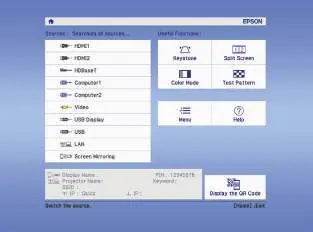
Connecting the projector
You can connect various devices to the projector using the ports on the back panel:
- Computer: Use VGA, HDMI, or USB cables. For USB display, install the Epson USB Display software on your computer.
- Video devices: Connect via RCA video, component video, or HDMI. Use the Source Search button to switch between inputs.
- Mobile media devices: Connect MHL-compatible devices to the HDMI1/MHL port.
- HDBaseT transmitter: Connect to the HDBaseT port (specific models only).
- USB devices: Connect cameras or flash drives to the USB-A port for PC Free features.
Turning on the equipment
- Turn on your computer or video source.
- Plug in the projector. The On/Standby light will turn blue.
- Open the A/V Mute slide all the way.
- Press the power button on the projector or remote control.
Note: To shut down the projector, press the power button twice.
Adjusting the image
- Source selection: Press the Source Search button if no image appears.
- Height adjustment: Press the foot release button to lift the front of the projector.
- Zoom and Focus: Turn the zoom ring to resize the image and the focus ring to sharpen it.
- Keystone correction: The projector automatically adjusts uneven images, but you can use the Screen Fit feature or keystone buttons for manual correction.
Projecting wirelessly
To project wirelessly, you must install the wireless LAN module (included or optional depending on the model).
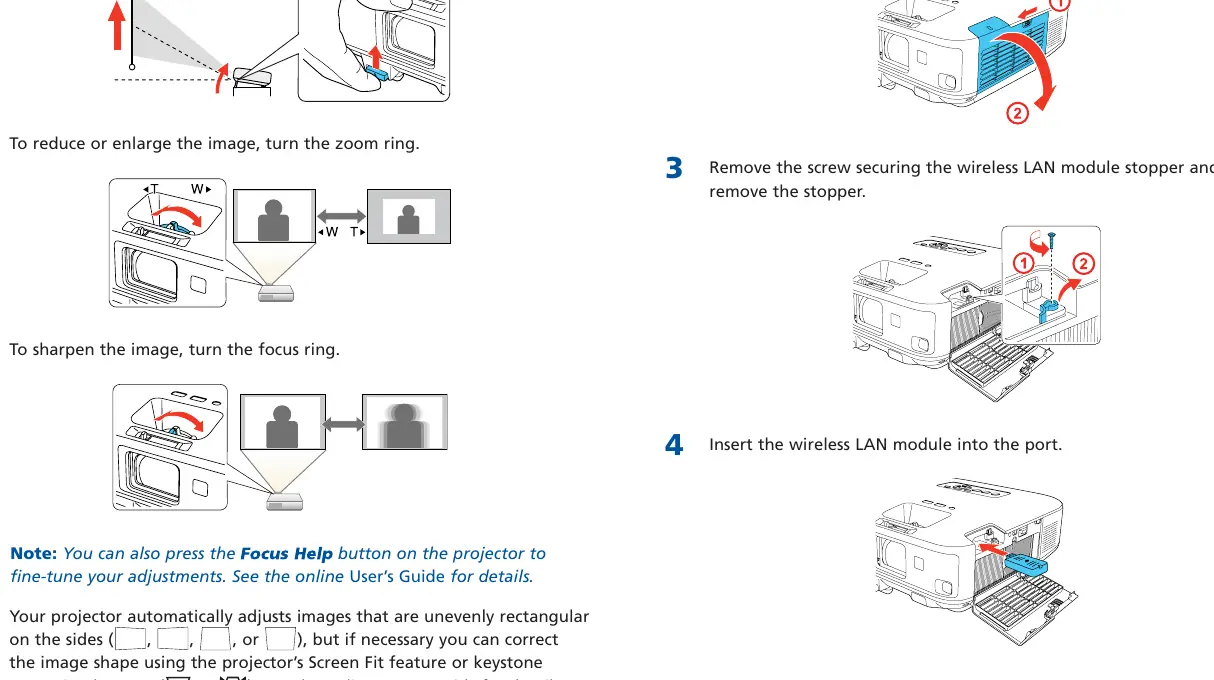
- Turn off the projector and unplug the power cord.
- Open the air filter cover and remove the screw securing the wireless LAN module stopper.
- Insert the wireless LAN module into the port, replace the stopper, and secure it with the screw.
- Close the air filter cover and turn the projector on.
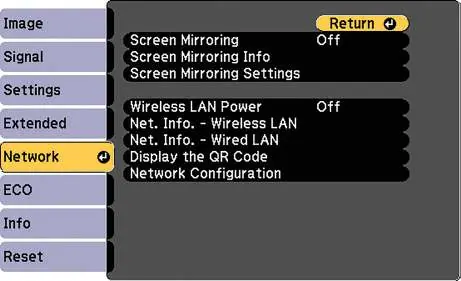
- Navigate to the Network menu, select Wireless LAN, and choose your connection mode (Quick or Advanced).
- Follow on-screen prompts to enter network credentials if using Advanced mode.
Troubleshooting
If you encounter a blank screen or "No signal" message:
- Ensure the Status light is blue and not flashing.
- Verify the A/V Mute slide is open.
- Press the Source Search button to select the correct input.
- Check your computer's display settings (e.g., Duplicate mode on Windows or Mirror Displays on Mac).
Manufacturer information
Epson
Practical help
Common problems
Blank screen or No signal message
Check that the Status light is blue and not flashing, ensure the A/V Mute slide is open, press the Source Search button, or verify your computer's external display settings.
Cannot connect wirelessly
Ensure the wireless LAN module is correctly installed, the projector is in the correct network mode (Quick/Advanced), and your device is on the same network.
Before use
- Read the safety instructions in the online User's Guide.
- Ensure the projector and HDBaseT transmitter are turned off when connecting network cables.
- Install two AA batteries in the remote control.
- Verify if your specific model requires an optional wireless LAN module (e.g., PowerLite 2250U).
Show more Show less
Images and diagrams
- The remote control diagram illustrates buttons for power, source selection, menu navigation, and home screen access.
- The connection diagrams show the location of HDMI, USB, VGA, and HDBaseT ports on the projector.
Model compatibility
- Supports MHL standard on the HDMI1/MHL port.
- Compatible with Epson iProjection app for iOS and Android devices.
- Requires optional wireless LAN module (part number V12H731P02) for some models.

Manual page author
David Miller
Documentation analyst