Electronics / Monitors
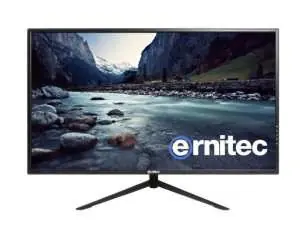
User Manual for Ernitec 0070-24132-POE 4K POE Monitor
Comprehensive user guide for the Ernitec 0070-24132-POE 4K POE Monitor. This manual covers installation, connection options, OSD menu navigation, troubleshooting, and maintenance to ensure optimal performance.
Table of contents
Quick guide from the manual
The Ernitec 0070-24132-POE is a 4K monitor designed for professional use, featuring Power over Ethernet (POE) support. Before operating, ensure the monitor is placed in a well-ventilated area, away from heat sources, moisture, and direct water exposure. Always disconnect the power if the monitor will not be used for an extended period. For any repairs, contact Safety Vision Technical Support.
Introduction and controls
The monitor features a simplified control panel located on the device. The buttons function as follows:
- 1 (AUTO): Selects the input source and confirms menu selections.
- 2 (-): Lowers audio volume or adjusts menu selections.
- 3 (+): Increases audio volume or confirms menu selections.
- 4 (MENU): Opens the OSD menu or exits the current menu.
- 5 (POWER): Turns the monitor on and off.
Connection options
The rear panel provides several connectivity options for various setups:
- DC 12-24V: Power supply input.
- HDMI: HDMI video input.
- USB: Used for software updates.
- AUDIO: Audio input.
- DP: DisplayPort video input.
- RJ 45: POE Power input (supports 60W standard).
OSD menu setup
The On-Screen Display (OSD) menu allows for detailed configuration of the monitor. Access the menu using the MENU button. Key settings include:
- Audio Settings: Adjust volume, mute, and audio source.
- Color Setting: Adjust color temperature, RGB levels, tone, and saturation.
- Input Source: Select between DP, HDMI 1, HDMI 2, and HDMI 3.
- Brightness/Contrast: Adjust brightness, contrast, DCR, and Low Blue light settings.
- Multi-Window Settings: Configure PIP (Picture-in-Picture) size, position, and sub-window inputs.
- OSD Settings: Adjust menu transparency, position, timer, and rotation.
Troubleshooting
If you encounter issues, check the following before contacting support:
- No sound: Ensure the monitor's power connection is secure, check volume settings, and verify the audio connection.
- Signal out of range: Adjust the resolution, horizontal frequency, or vertical frequency. Check if the signal cable is loose.
- Vertical bars or noise: Perform an auto-configuration or adjust clock, phase, or H/V position.
- Power turns off suddenly: Ensure the sleep timer is not set and the power connection is secure.
- Picture appears slowly: This is normal as the monitor warms up.
Maintenance
To maintain the monitor, ensure the power is removed before performing any cleaning. Wipe the screen and cabinet with a soft, dry, lint-free cloth. Do not use abrasive cleaners, wet cloths, or harsh chemicals. If you anticipate not using the monitor for an extended period, disconnect the power cable.
Manufacturer information
Ernitec
Practical help
Common problems
The signal is out of range
Adjust the resolution, horizontal frequency, or vertical frequency. Check if the signal cable is connected or loose.
Vertical bar or stripe on background, or horizontal noise
Work the auto-configure function or manually adjust clock, phase, or H/V position.
No sound picture
Check that the monitor's power connection is secure, press the POWER button, and adjust picture quality settings.
Power is suddenly turned off
Ensure the sleep timer is not set and the power connection is secure.
Before use
- Ensure the monitor is placed in a well-ventilated area.
- Keep the monitor away from heat sources and moisture.
- Ensure all cables are properly stowed and not pinched.
- Disconnect power if the monitor will not be used for long periods.
- Remove power before performing any maintenance.
Specs in practice
- POE Input (RJ45)
- Supports 60W standard power delivery over Ethernet.
Images and diagrams
- Front panel buttons: 1 (Auto/Select), 2 (Volume Down), 3 (Volume Up), 4 (Menu), 5 (Power).
- Rear ports: 1 (DC 12-24V), 2 (HDMI), 3 (USB), 4 (Audio), 5 (DP), 6 (RJ45 POE).
Model compatibility
- Supports 60W POE standard.
- Monitor may flicker momentarily when turned on while cold; this is normal.
- Tiny red, green, or blue dots may appear on the screen; this does not affect performance.

Manual page author
Michael Turner
Technical manual editor
Reviews PDF manuals for structure, safety notes, and practical product details so readers can find the right information quickly.