Electronics / Monitors
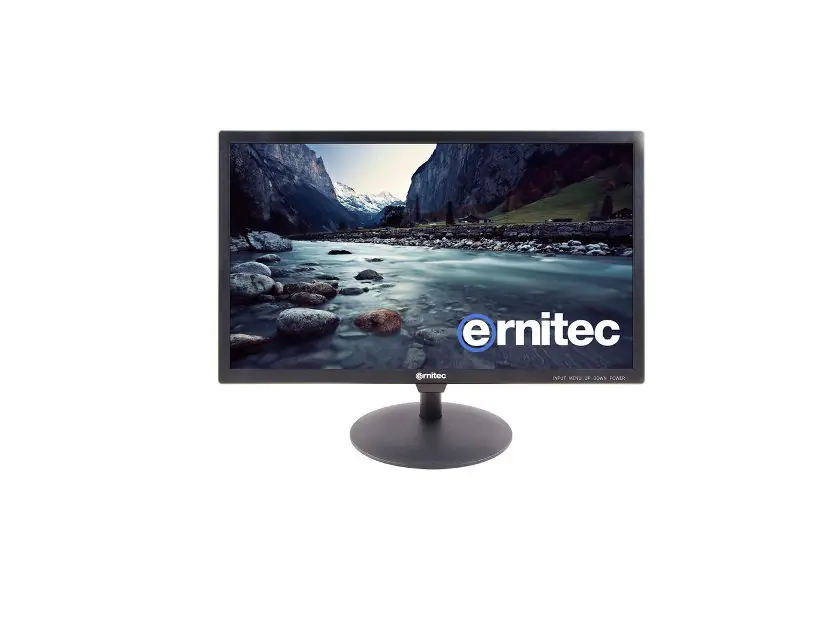
Ernitec 0070-24143-L HDMI/VGA/BNC Monitor
Quick guide for the Ernitec 0070-24143-L monitor. Learn how to connect devices, navigate the OSD menu, adjust picture settings, and troubleshoot common issues.
Table of contents
Quick guide from the manual
This monitor is designed for versatile connectivity, supporting HDMI, VGA, and BNC inputs. To begin, ensure the monitor is connected to a power source and the appropriate signal cable. Use the front panel buttons or the included remote control to navigate the On-Screen Display (OSD) menu to adjust picture, sound, and system settings. If you encounter issues, check the signal source and cable connections first.
Safety instructions
- Do not expose the apparatus to rain or moisture to reduce the risk of fire or electric shock.
- Do not block ventilation openings; install according to manufacturer instructions.
- Unplug the apparatus during lightning storms or when unused for long periods.
- Protect the power cord from being walked on or pinched.
- Refer all servicing to qualified service personnel.
Installation and connections
Power Connection: Connect the power cord to the monitor and a wall outlet. The power indicator on the front panel will light up green when powered on.
Signal Connections:
- HDMI/VGA: Connect your PC or video source to the respective HDMI or VGA input. The monitor supports plug-and-play capability for PC connections.
- BNC Input/Output: Connect the BNC output of your processor to the BNC input on the monitor. You can daisy-chain monitors using the BNC output.
- Audio: Use the Audio In and Audio Out ports for sound connectivity.
Remote Control: To install the battery, open the compartment on the back of the remote and insert one CR2032 3V battery, ensuring correct polarity.
OSD menu and settings
Use the MENU button to access the main interface. Use the arrow buttons to navigate submenus and adjust settings:
- Picture: Adjust Contrast, Brightness, Color, Tint, Sharpness, Color Temp, Aspect Ratio, and Picture Mode.
- Sound: Adjust Bass, Treble, Balance, Sound Mode, and Auto Volume.
- Option/Function: Configure OSD Language, OSD Duration, Transparency, and perform Auto Adjust or Software Updates.
Troubleshooting
If you experience issues, perform these checks:
- No sound: Check volume levels, ensure the device is not muted, and verify audio cable connections.
- Remote not working: Check for obstructions between the remote and the sensor, ensure the battery is installed correctly, or replace the battery.
- Signal out of range: Adjust the resolution, horizontal frequency, or vertical frequency on your source device.
- Picture appears slowly: This is normal during the startup process; wait five minutes.
- No picture: Ensure the power plug is connected and the power button is pressed.
Maintenance
Cleaning the screen: Use a soft cloth dampened with a mixture of lukewarm water and a little fabric softener or dishwashing detergent. Wring the cloth until it is almost dry before wiping the screen. Allow the screen to air-dry completely before turning the monitor back on.
Cleaning the cabinet: Wipe the cabinet with a soft, dry, lint-free cloth.
Manufacturer information
Ernitec
Practical help
Common problems
No sound
Check volume levels, ensure the device is not muted, and verify audio cable connections.
Remote control not working
Check for obstructions, ensure the CR2032 battery is installed correctly, or replace the battery.
Signal out of range
Adjust the resolution, horizontal frequency, or vertical frequency on your source device.
Picture appears slowly after switching on
This is normal during the startup process; wait five minutes.
Before use
- Connect the AC power cable.
- Ensure the power switch is on.
- Connect the signal cable (HDMI, VGA, or BNC).
- Install a CR2032 battery in the remote control.
- Ensure proper ventilation around the monitor.
Specs in practice
- HDMI/VGA/BNC
- Input ports for connecting various video sources like PCs or processors.
- Aspect Ratio
- Setting to adjust the display format (e.g., 4:3, Panorama, Zoom).
Images and diagrams
- The rear panel features ports for HDMI, VGA, BNC1/BNC2 inputs, BNC output, and Audio In/Out.
- The front panel includes buttons for Input, Menu, Up, Down, and Power.
Model compatibility
- Supports plug-and-play for PC connections via VGA.
- BNC output allows for daisy-chaining to other monitors.

Manual page author
Emily Carter
User documentation editor
Prepares concise manual descriptions and highlights the most useful setup, operation, and maintenance information for readers.