Smart Home / Smart Switches
Instruction Manual for Expert4house 1CH/2CH WIFI Switch Module-DC
Comprehensive installation and setup guide for the Expert4house 1CH/2CH WIFI Switch Module-DC. Includes wiring diagrams for AC and DC configurations, Smart Life app setup, and troubleshooting steps.
Quick answers from the manual
Quick answer
- The 1CH/2CH WIFI Switch Module-DC is a smart switch for home automation. It supports AC (100-240V) and DC (5V, 12-48V) power. Setup requires the Smart Life app and a 2.4GHz Wi-Fi connection. p. 1, 2
Key actions
- Resetting the device p. 1, 2
- Wiring the device p. 1
First start
- Download Smart Life app, power on the device, reset it (5x on/off), and add it in the app. p. 2
Problems and fixes
Cannot configure switch
Check power, 2.4GHz Wi-Fi, internet, password, and wiring.
p. 1Maintenance and reset
- Power on/off 5 times or hold reset key for 10 seconds. p. 1, 2
Technical specifications
| Parameter | Value | Meaning | Pages |
|---|---|---|---|
| Voltage | AC100-240V 50/60Hz; DC5V, 12-48V | Supported input power ranges. | p. 1 |
| Max Load | 1CH: 150W/5A; 2CH: 2x150W/2x5A | Maximum power/current capacity. | p. 1 |
Where to find it in the PDF
- Technical Specifications and Wiring Diagrams p. 1
- App User Manual and Pairing p. 2
Table of contents
Manual images
Click an image to enlargeImportant Information
This document provides installation and configuration instructions for the 1CH/2CH WIFI Switch Module-DC. This device is designed for smart home automation, allowing control via the Smart Life app, voice assistants (Amazon Alexa, Google Assistant), or a traditional manual switch. Ensure you have a 2.4GHz Wi-Fi network available for setup.
Safety Warnings
- Installation must be performed by a qualified electrician in accordance with local regulations.
- Keep the device out of reach of children.
- Do not install near water, damp, or hot environments.
- Keep away from strong signal sources like microwave ovens to prevent signal interference.
- Concrete walls or metallic materials may reduce the effective operation range.
- Do not attempt to disassemble, repair, or modify the device.
Technical Specifications
- Voltage: AC 100-240V 50/60Hz or DC 5V, 12-48V
- Max Load (1CH): LED 150W / 5A
- Max Load (2CH): 2x150W / 2x5A
- Protocol: WIFI IEEE 802.11b/g/n
- Operation Frequency: 2.412GHz-2.484GHz
- Operation Range: <100m
- Operating Temperature: -10°C to +40°C
- IP Rating: IP20
Wiring Instructions
Warning: Turn off the power supply before starting any electrical work.
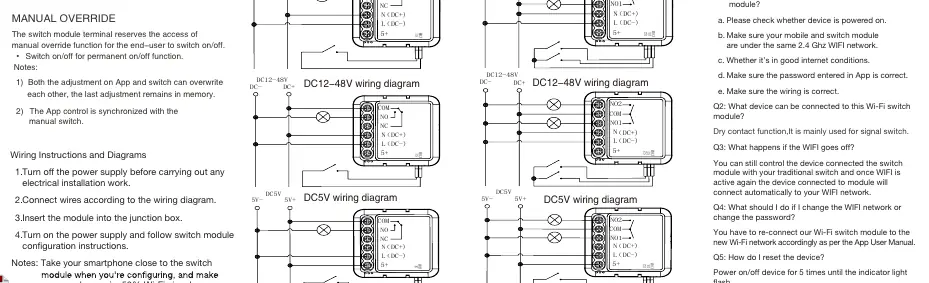
- Connect wires according to the specific wiring diagram for your power source (AC 100-240V, DC 12-48V, or DC 5V).
- Ensure the manual switch is connected to the S1 (or S1/S2) terminals.
- Insert the module into the junction box.
- Turn on the power supply.
The device supports manual override. Adjustments made on the app and the physical switch can overwrite each other, and the last adjustment remains in memory.
App Configuration
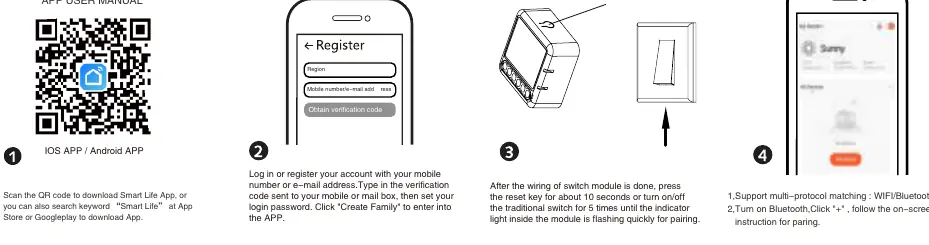
- Download the Smart Life app from the App Store or Google Play.
- Ensure your smartphone is connected to a 2.4GHz Wi-Fi network and is close to the switch module (min 50% signal).
- Power on the device.
- Reset the device: Press the reset key for about 10 seconds OR turn the traditional switch on/off 5 times until the indicator light flashes quickly.
- Open the app, click the "+" icon, and follow the on-screen instructions to pair the device.
Troubleshooting
- Cannot configure the switch: Check if the device is powered on, ensure you are on a 2.4GHz Wi-Fi network, verify internet connection, check password, and ensure wiring is correct.
- Wi-Fi goes off: You can still control the device via the traditional switch. It will automatically reconnect to the Wi-Fi network once it is active again.
- Changing Wi-Fi network: You must re-connect the switch module to the new network following the app configuration steps.
Practical help
Common problems
Cannot configure the switch module
Check power supply, ensure 2.4GHz Wi-Fi connection, verify internet stability, check app password, and confirm correct wiring.
Wi-Fi connection lost
The device remains controllable via the traditional switch. It will reconnect automatically once the Wi-Fi network is restored.
Need to reset the device
Power the device on/off 5 times or hold the reset key for 10 seconds until the indicator light flashes.
Before use
- Qualified electrician required for installation.
- Turn off main power supply before wiring.
- Ensure 2.4GHz Wi-Fi network is available.
- Smartphone must be close to the module (min 50% signal) during setup.
- Verify if your power source is AC (100-240V) or DC (5V/12-48V) and use the corresponding wiring diagram.
Images and diagrams
- Wiring diagrams are provided for AC (100-240V) and DC (12-48V and 5V) power sources.
- S1/S2 terminals are designated for connecting the traditional manual switch.
Model compatibility
- Requires 2.4GHz Wi-Fi network.
- Compatible with Amazon Alexa and Google Assistant.
- Uses Smart Life app.

Manual page author
David Miller
Documentation analyst
Organizes user manual content into clear summaries, with attention to model details, product context, and everyday usability.