Lighting / Controllers & Dimmers
Zigbee Switch Module-L Instruction Manual
Comprehensive user guide for the Zigbee Switch Module-L (1CH, 2CH, 3CH, 4CH). Includes detailed wiring diagrams, installation steps, app configuration via Tuya Smart, and technical specifications.
Quick answers from the manual
Quick answer
- The Zigbee Switch Module-L is a smart switch that requires a Zigbee Gateway and the Tuya Smart App. Installation involves wiring the module (without a neutral wire) and pairing it via the app by resetting the device (5 toggles or 10s button press). p. 1, 2
Key actions
- Install the module p. 1
- Pair the device p. 2
First start
- Download Tuya Smart App, ensure Zigbee Gateway is online, and add the device via the app. p. 2
Problems and fixes
Device not configuring
Check power, gateway availability, internet, password, and wiring.
p. 1Maintenance and reset
- Toggle traditional switch 5 times or press reset key for 10 seconds. p. 1, 2
Technical specifications
| Parameter | Value | Meaning | Pages |
|---|---|---|---|
| Voltage | AC200-240V 50/60Hz | Operating voltage range | p. 1 |
| Max Load | 10-100W | Power capacity per channel | p. 1 |
Where to find it in the PDF
- Wiring Diagrams p. 1, 2
- App Setup p. 2
Table of contents
Manual images
Click an image to enlargeQuick Guide
The Zigbee Switch Module-L is a smart switch module that does not require a neutral wire. It is designed to be installed in a junction box and controlled via the Tuya Smart App. Key operations include physical wiring, pairing with a Zigbee Gateway, and app configuration.
Safety Warnings
- Installation must be performed by a qualified electrician in accordance with local regulations.
- Do not connect the neutral line; doing so will permanently damage the device.
- Keep the device away from water, damp, or hot environments.
- Install away from strong signal sources like microwave ovens to avoid signal interruption.
- Concrete walls or metallic materials may reduce the effective operation range.
- Do not attempt to disassemble, repair, or modify the device.
Installation and Wiring
Important: Turn off the power supply before starting any electrical work.
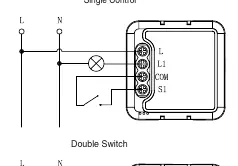
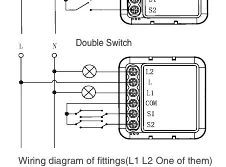
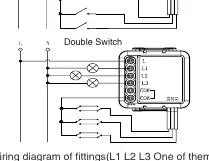
- Connect wires according to the specific wiring diagram for your model (1CH, 2CH, 3CH, or 4CH).
- Insert the module into the junction box.
- Turn on the power supply.
- Follow the configuration instructions to pair the device.
App Configuration
To control the device via smartphone:
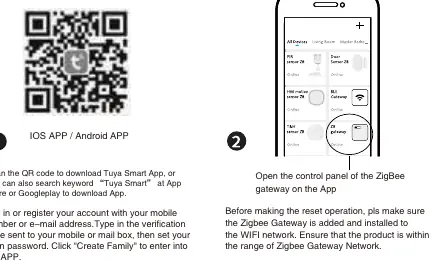
- Download the Tuya Smart App from the App Store or Google Play.
- Ensure your Zigbee Gateway is installed and connected to your WiFi network.
- Open the control panel of the Zigbee Gateway in the app.
- Put the switch module into pairing mode (see Resetting the Device).
- Click the "+" (Add sub-device) button in the app and follow the on-screen instructions.
Resetting the Device
If you need to re-pair or reset the device, use one of the following methods:
- Method 1: Toggle the traditional switch on/off 5 times until the indicator light flashes.
- Method 2: Press the reset key on the module for about 10 seconds until the indicator light flashes.
Technical Specifications
- Voltage: AC200-240V 50/60Hz
- Max Load: 10-100W per channel
- Protocol: IEEE802.15.4 (Zigbee)
- Operation Range:<100m
- Operating Temperature: -10°C to +40°C
- IP Rating: IP20
Practical help
Common problems
Cannot configure the switch module
Check if the device is powered on, the Zigbee Gateway is available, the internet connection is stable, the app password is correct, and the wiring is accurate.
WiFi goes off
The device can still be controlled via the traditional switch. It will automatically reconnect to the WiFi network once it is active again.
Changing WiFi network or password
You must re-connect the Zigbee switch module to the new WiFi network via the App.
Before use
- Ensure power is turned off before installation.
- Verify the Zigbee Gateway is installed and connected to WiFi.
- Ensure the device is within range of the Zigbee Gateway.
- Check that the load is within 10-100W per channel.
- Do not connect the neutral line.
Images and diagrams
- Wiring diagrams are provided for 1CH, 2CH, 3CH, and 4CH configurations.
- L represents the Live wire.
- S represents the switch input.
- COM represents the Common terminal.
Model compatibility
- Requires a Zigbee Gateway.
- Compatible with Tuya Smart App.
- No neutral wire required.
- Requires iOS 7.0+ or Android 4.0+.

Manual page author
Emily Carter
User documentation editor
Prepares concise manual descriptions and highlights the most useful setup, operation, and maintenance information for readers.